

 Back to templates
 Google Sheets Templates
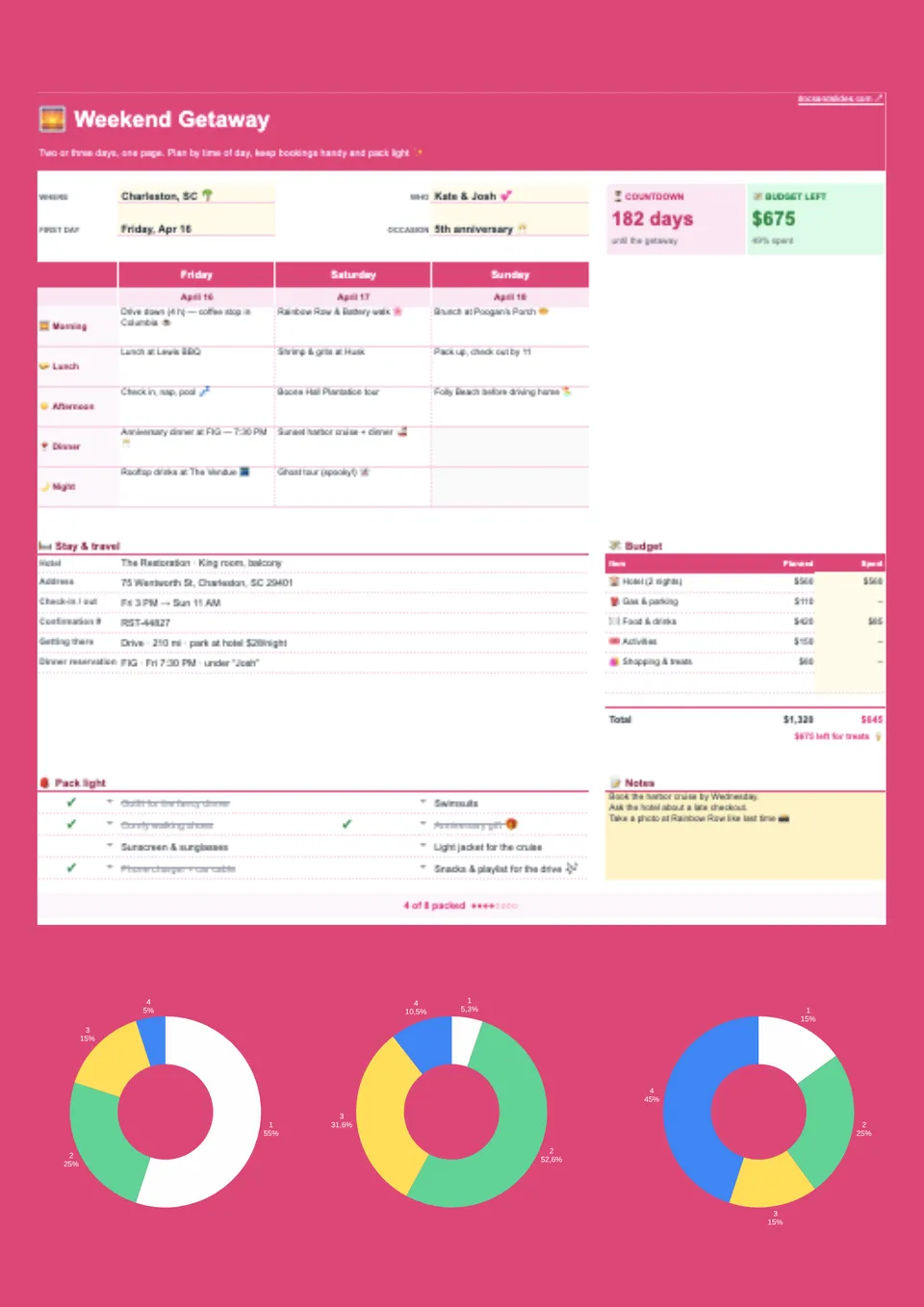
A short getaway works best when travel arrangements and priority activities leave room to enjoy the destination. Weekend Trip Itinerary Template provides a starting structure for arrival, accommodation, outings, meal plans, and the journey home. Couples, friends, solo travelers, and hosts organizing a brief visit can tailor it to the time available. Viewing the weekend as a whole makes it easier to prioritize a few meaningful experiences instead of overloading each day. Use the editable design at no cost, personalize your plans, and download the finished schedule before you leave.


Traveling with children and need to fit bookings, meals, rest breaks, and family activities into one manageable schedule? Family Vacation Itinerary Template offers a foundation for daily plans, accommodation, transportation, reservation details, and family-specific reminders. Parents, caregivers, and multigenerational groups can adapt the entries to different ages, interests, and energy levels. Keeping fixed commitments visible alongside flexible time helps everyone understand the plan without treating the holiday like a packed timetable. Download the free ready-to-personalize sheet, add the details your family needs, and print a reference copy for the journey.

Good preparation brings destination ideas and practical arrangements together before the bookings are finalized. Trip Planner Template gives travelers a starting point for dates, places to visit, transportation options, accommodation choices, and preparation tasks. First-time travelers, frequent holidaymakers, and independent planners can organize possibilities before turning them into a confirmed schedule. Customizable rows make it straightforward to separate decisions already made from details that still need attention. Pick up the prepared spreadsheet for free, edit it around your priorities, and download a working copy to develop as your plans take shape.
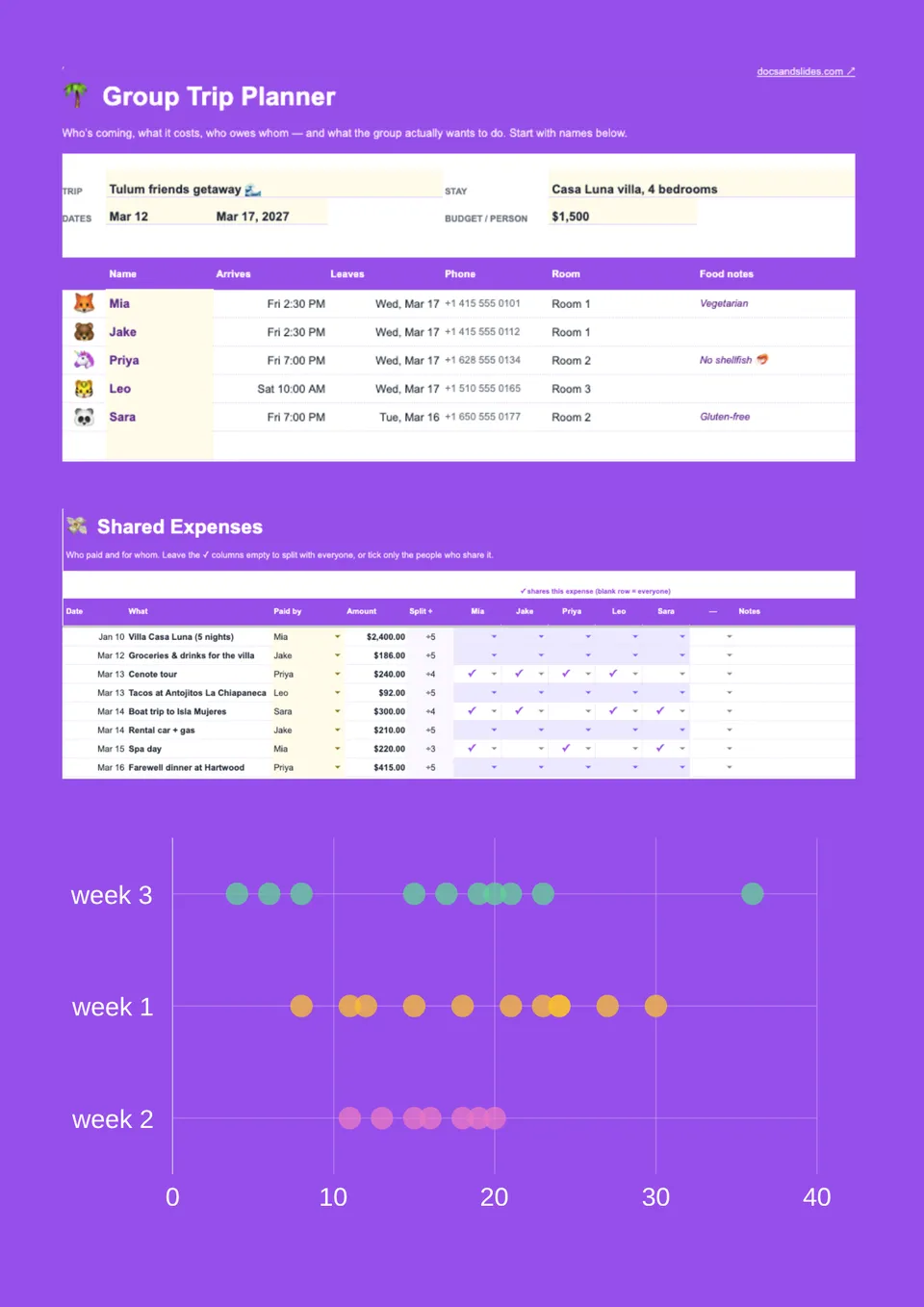
Coordinating several travelers and tired of repeating arrival details, meeting points, and booking updates in separate messages? Group Trip Planner Template offers a base for participant information, shared activities, reservations, responsibilities, and practical notes. Friend groups, clubs, retreat organizers, and travel coordinators can tailor the columns to the arrangements everyone needs to know. A common planning sheet gives participants a clearer reference while helping the organizer identify details that remain undecided. Obtain the free editable resource, add your group’s plans, and share the updated schedule before everyone sets off.
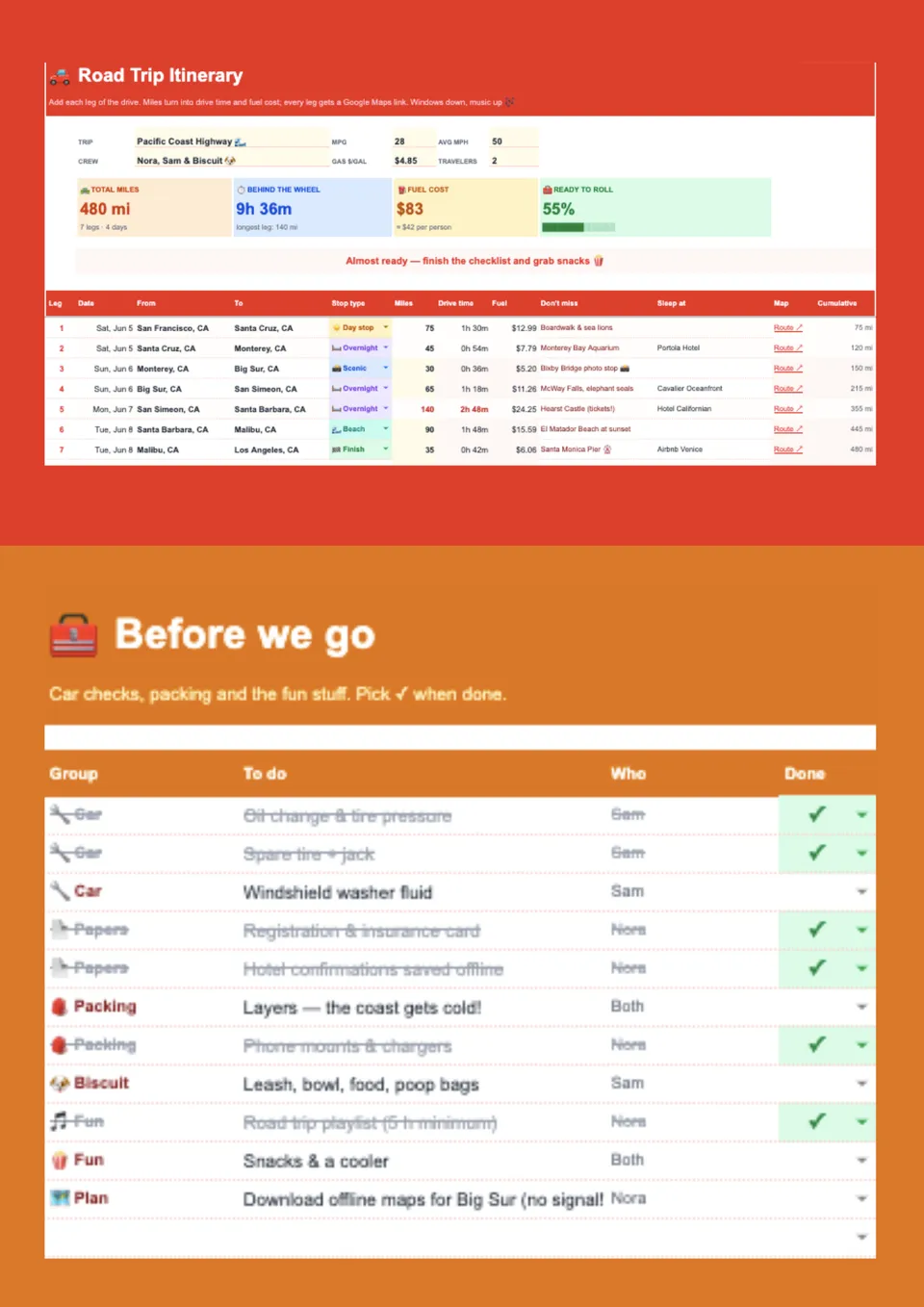
A driving holiday becomes easier to coordinate when overnight stops and planned visits sit alongside the route. Road Trip Itinerary Template provides a foundation for destinations, departure times, driving estimates, breaks, accommodation, and route notes. Families, couples, friends, and touring groups can adapt the spreadsheet for a weekend drive or a longer journey. Recording each leg separately helps you review the pace and leave space for meals, rest, and unplanned stops. Open the ready-made layout at no charge, personalize your route, and keep a downloaded copy alongside your navigation tools.
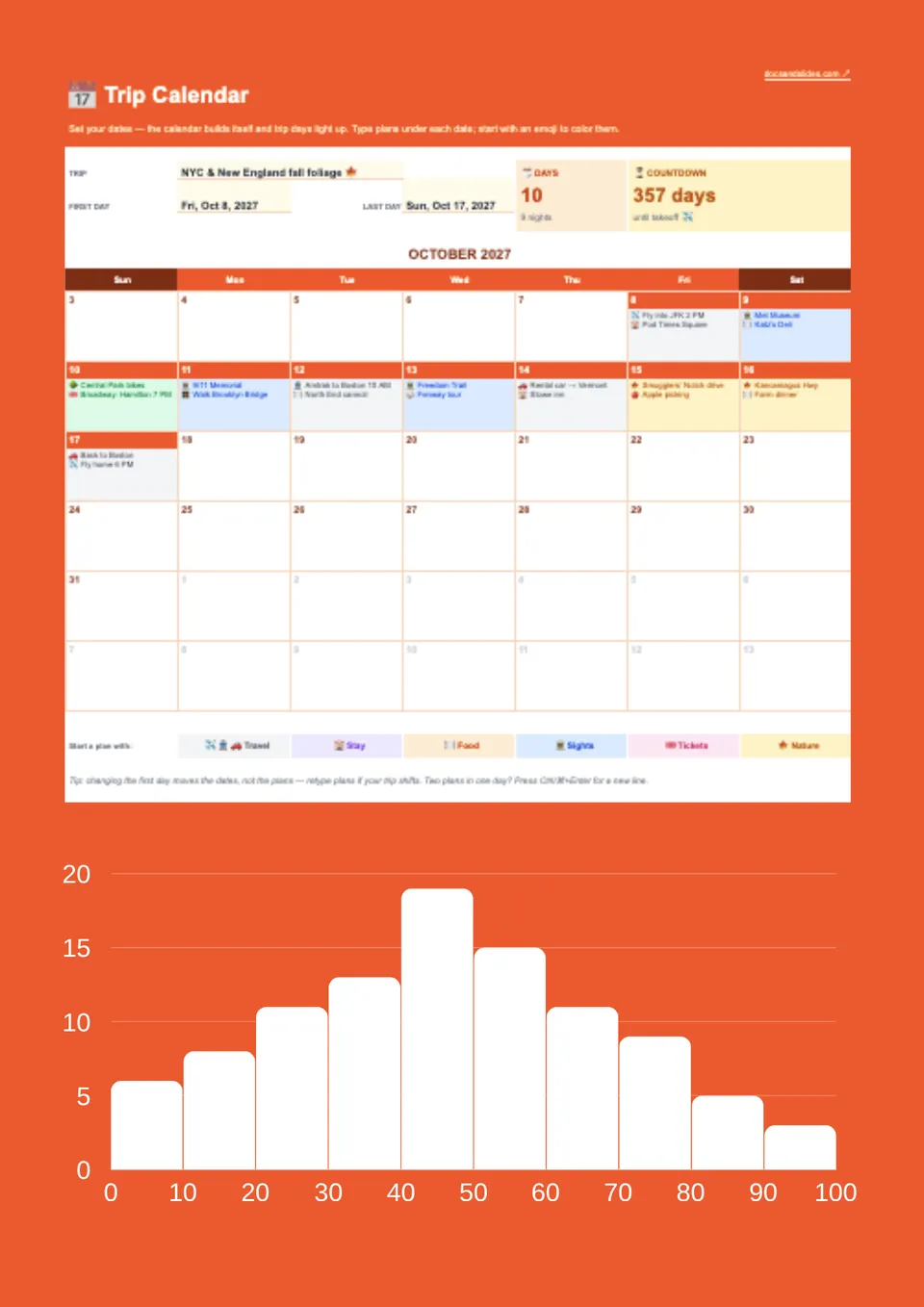
Need to see which dates are booked for travel, accommodation, and activities without reading through a long list? Itinerary Calendar Template offers a calendar-based starting point for placing trip commitments against their dates. Travelers, event attendees, assistants, and holiday organizers can personalize the entries for their departure, overnight stays, excursions, and return. A date-led overview helps distinguish busy days from open ones when deciding where to add another activity. Choose the free prepared design, edit your schedule, and download or print the calendar for a convenient trip overview.
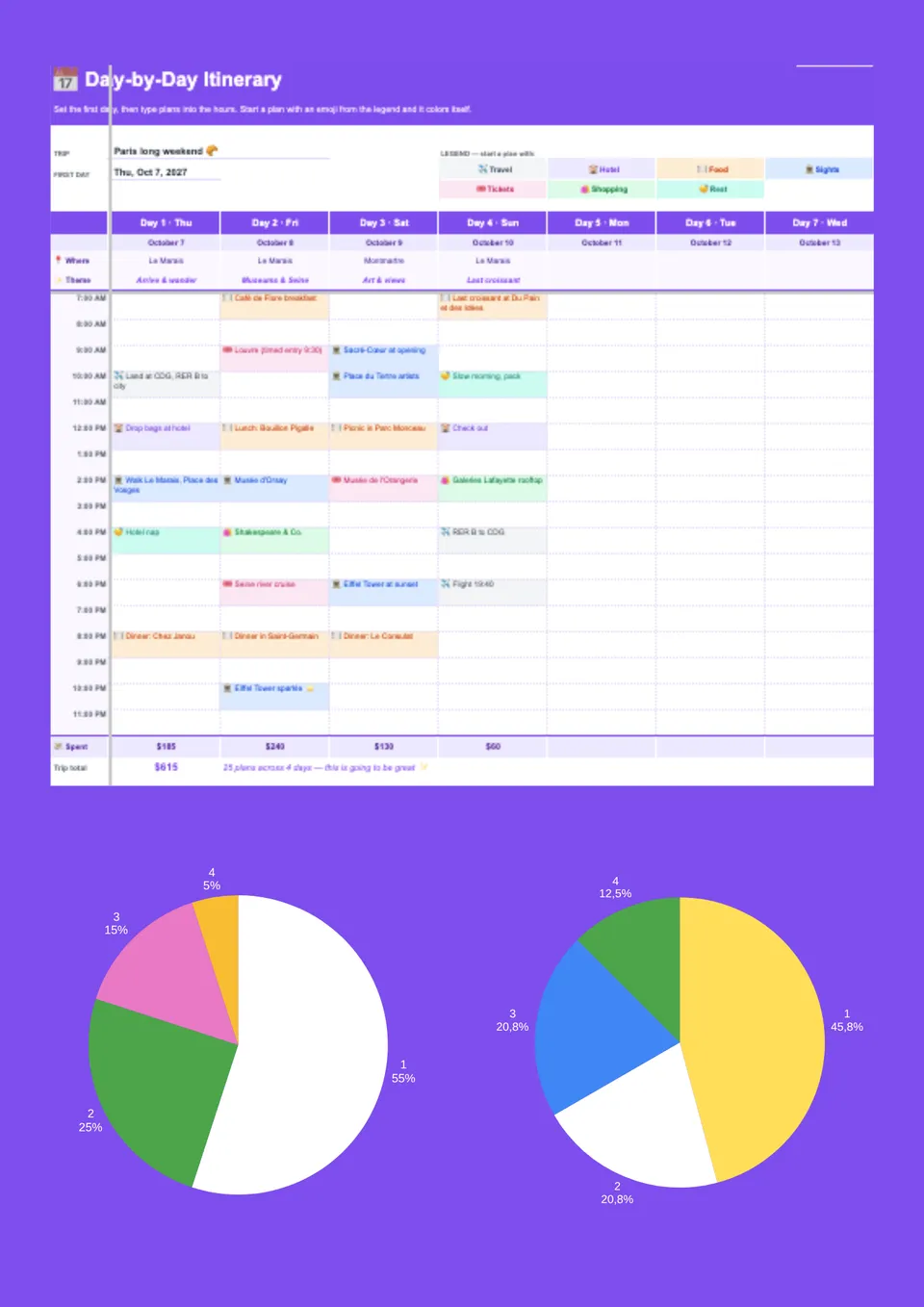
A focused daily plan puts the next meeting point, booked activity, and transfer within easy reach. Daily Itinerary Template gives you a starting structure for times, locations, activities, travel arrangements, and supporting notes. City-break visitors, tour organizers, business travelers, and anyone with several commitments in one day can customize the entries to their schedule. Viewing the sequence together makes it easier to leave room between activities rather than overlook the time needed to move between them. Save the complimentary sheet, adjust its labels and time periods, and download your completed plan for the day ahead.
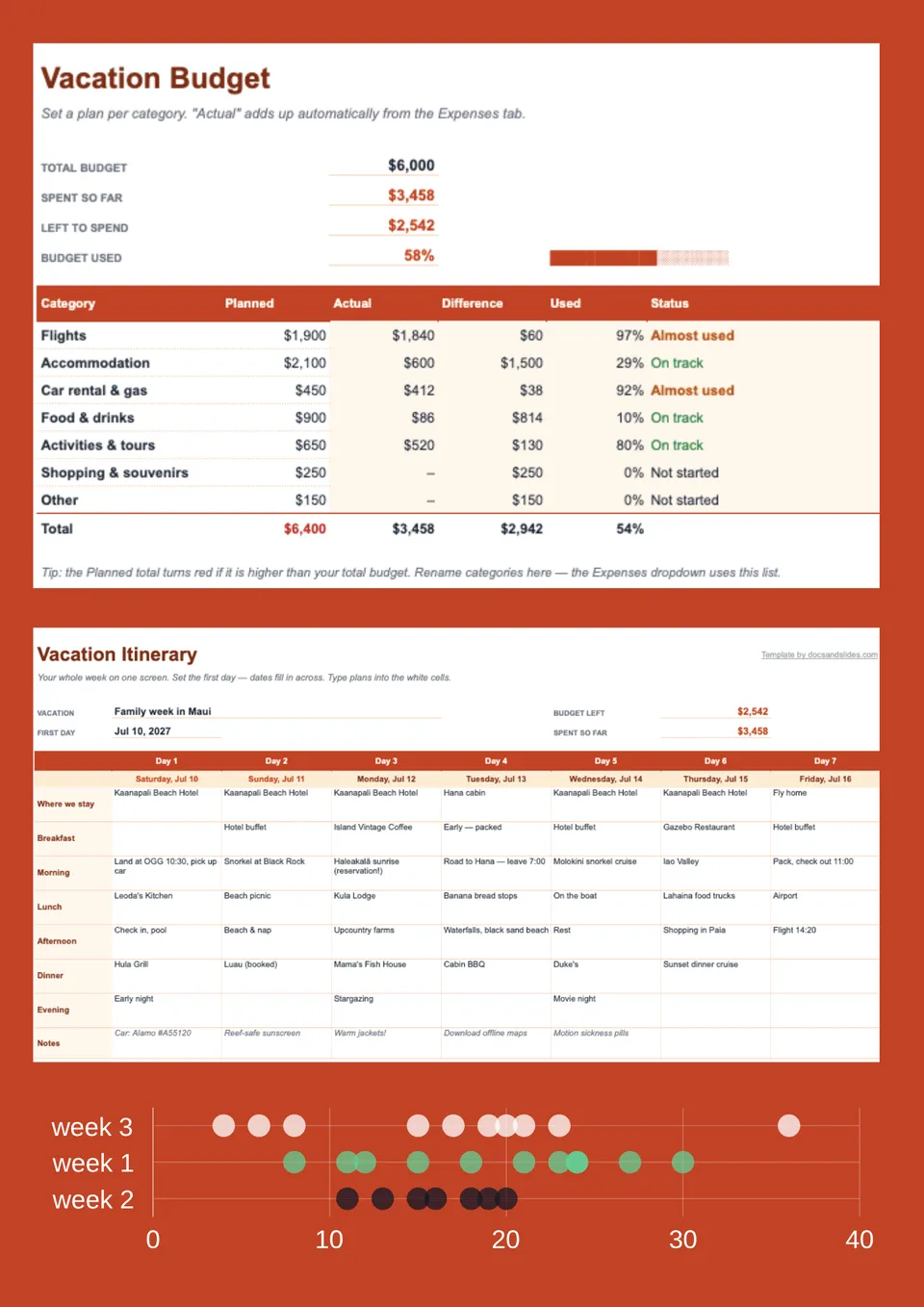
Planning a holiday and want your bookings organized without filling every spare hour with activities? Vacation Itinerary Template offers a base for accommodation details, travel arrangements, planned outings, and free time. Couples, friends, and holiday planners can tailor the schedule to a relaxed beach stay, sightseeing break, or longer escape. Separating confirmed reservations from optional ideas helps you see what is fixed and where you can remain flexible. Access the free editable layout, enter your plans, and save a copy to consult throughout your holiday.

Tired of searching through booking emails whenever you need a departure time, hotel address, or reservation detail? Travel Itinerary Template offers a spreadsheet starting point for organizing dates, transportation, accommodation, activities, and booking references. Solo travelers, couples, business travelers, and travel coordinators can arrange the entries around each stage of their journey. Keeping essential information together makes plans easier to review before departure and consult along the way. Download the free prepared sheet, personalize the travel details, and keep an updated copy ready for your trip.

A well-organized journey connects each destination, overnight stay, and travel day in a sequence you can follow. Trip Itinerary Template provides a foundation for listing dates, locations, transfers, planned stops, and practical notes. Independent travelers, backpackers, couples, and trip organizers can adapt the rows for a short getaway or a multi-destination adventure. Editable entries let you revise the order of activities without rebuilding the entire schedule when plans change. Get the ready-made spreadsheet at no cost, add your route, and download your personalized plan before departure.
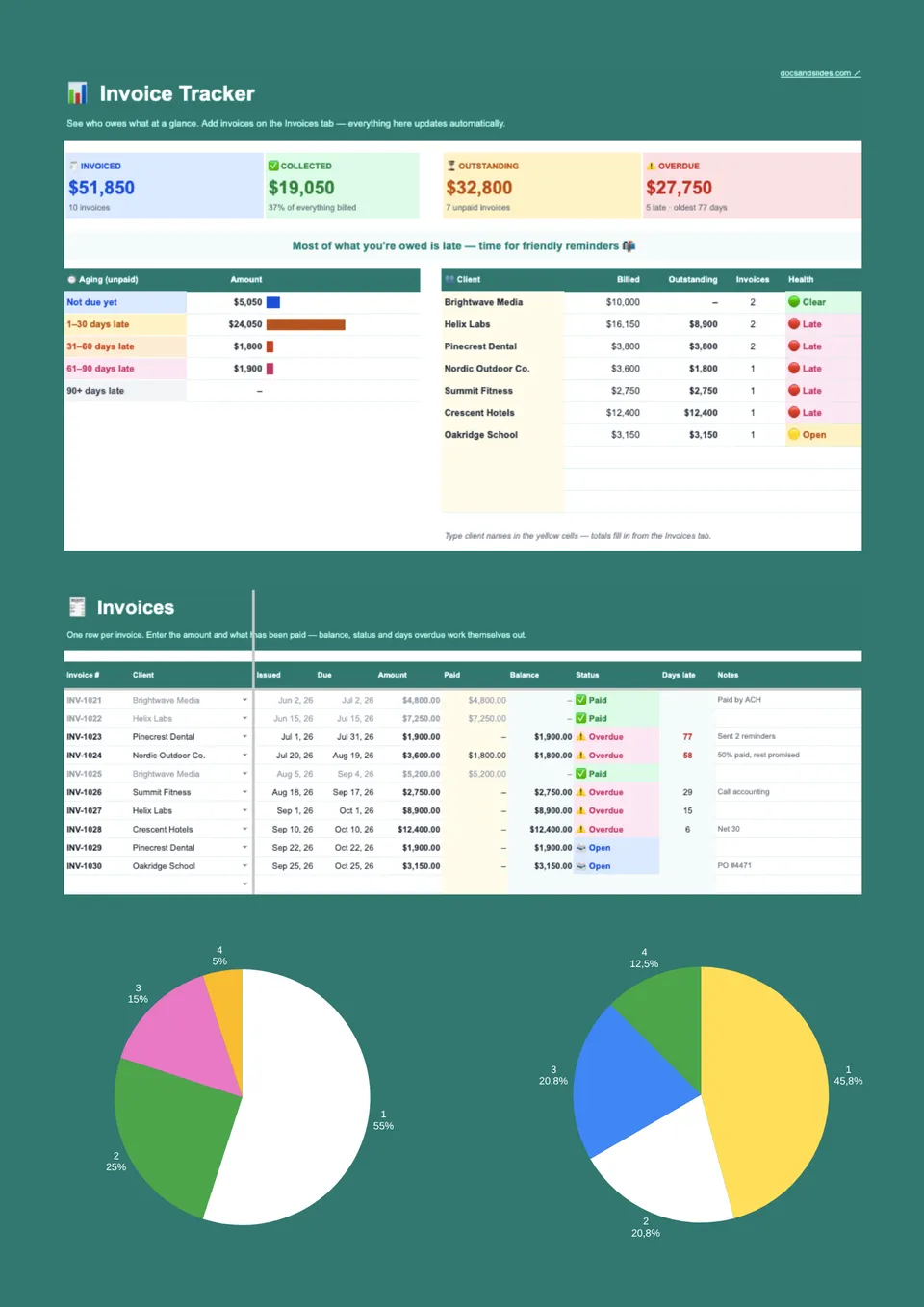
Unpaid bills are easier to follow up when due dates, payment status, and outstanding amounts sit in one place. Invoice Tracker Template provides a starting point for invoice numbers, customer names, issue dates, deadlines, amounts billed, payments received, and follow-up notes. Freelancers, bookkeepers, agencies, and small-business owners can adapt it to maintain a working overview of their receivables. Updating the sheet regularly helps distinguish settled transactions from those that still need attention without opening every invoice individually. Start with the free prepared tracker, customize its columns, and download your working copy to keep billing records organized.
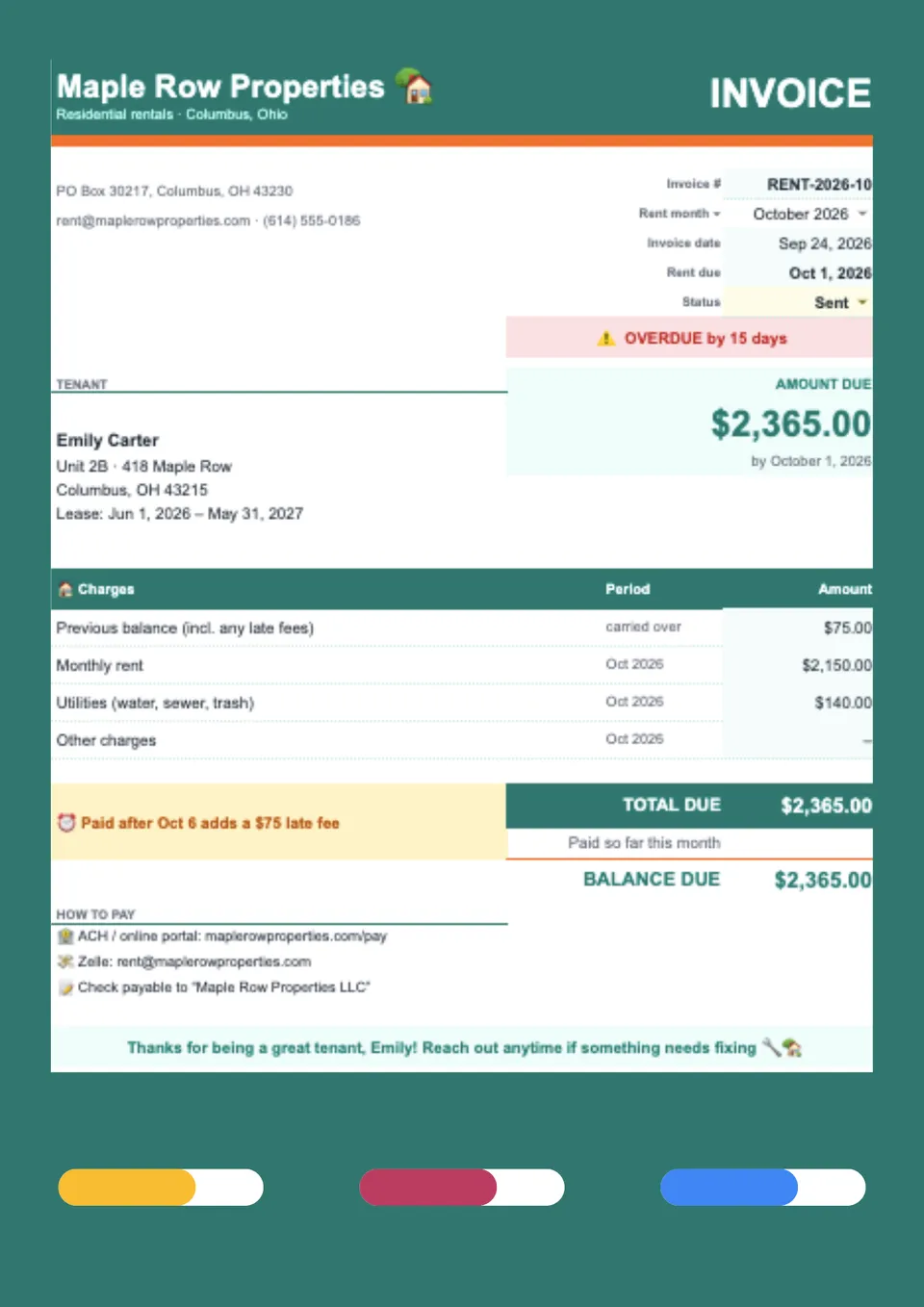
Renting out property or equipment and need customers to understand the rental period, rate, and any separate charges? Rental Invoice Template offers a foundation for customer details, the rented item or property, rental dates, agreed rates, and payment instructions. Landlords, equipment-hire businesses, venue operators, and independent owners can tailor the billing rows to their rental arrangements. Listing additional charges separately helps distinguish the rental fee from other amounts agreed with the customer. Pick up the free editable sheet, enter the relevant period and charges, and download the completed bill for your records and customer.
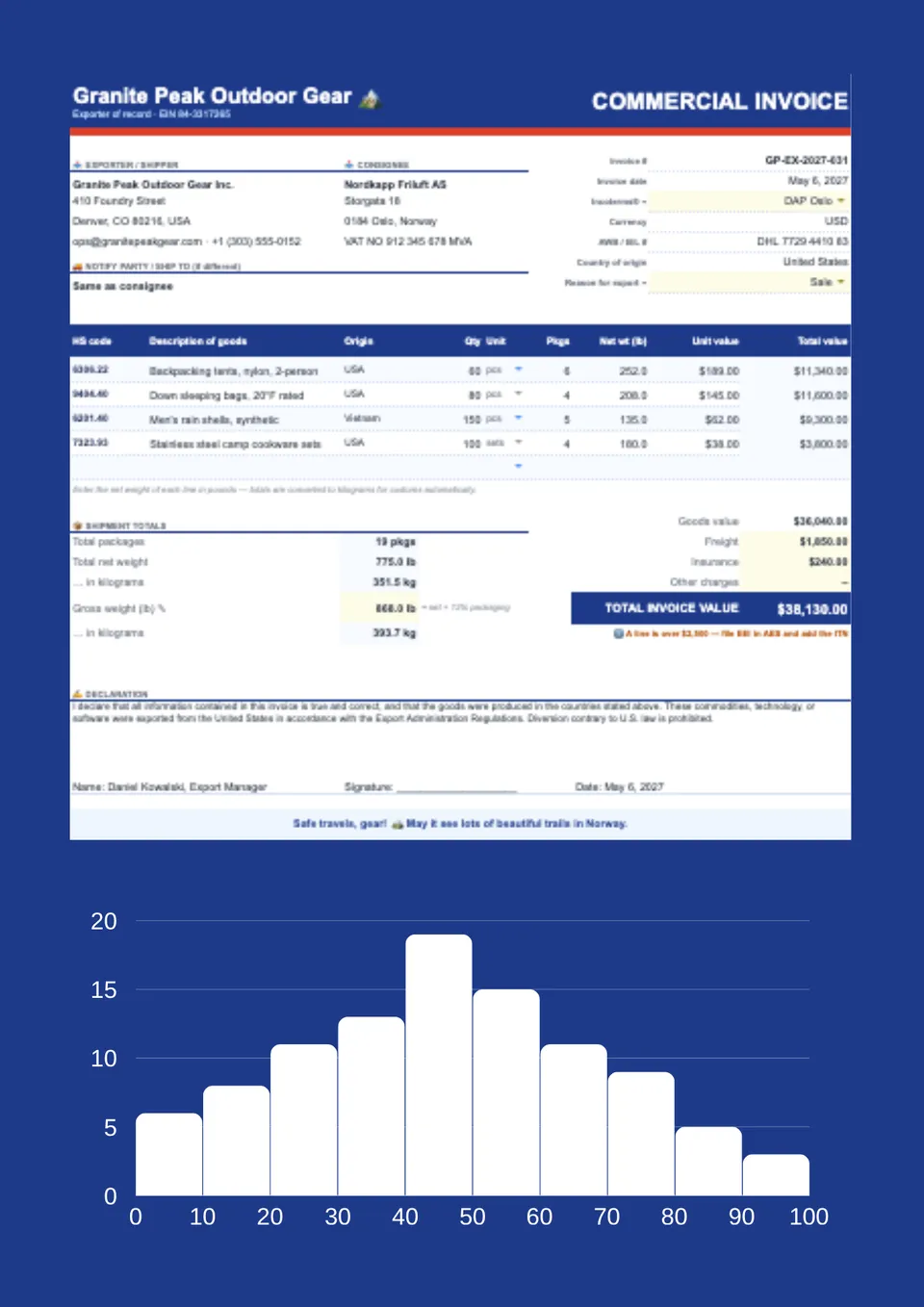
International shipments need accurate transaction information that can be checked against the goods being sent. Commercial Invoice Template provides a starting point for seller and buyer details, product descriptions, quantities, values, currency, origin, and relevant shipping information. Exporters, manufacturers, wholesalers, and ecommerce businesses can adapt the entries to the actual sale and destination requirements. Customs authorities use commercial invoices to assess shipments, so the completed information must be checked against applicable requirements rather than assumed compliant. Get the ready-made spreadsheet at no cost, personalize the fields, and download your reviewed copy for the shipment.
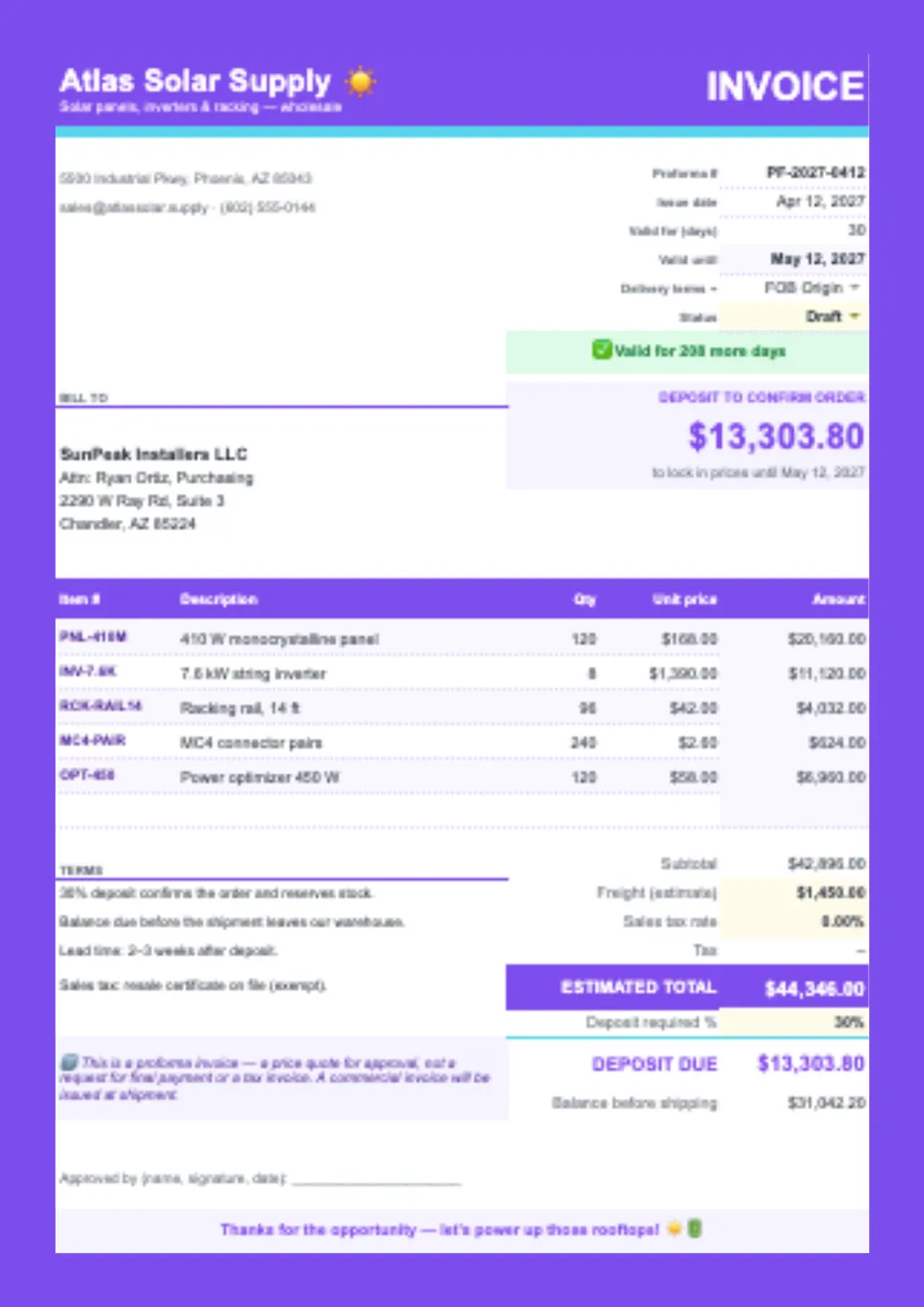
Quoting an order before it is finalized and need to show the proposed goods, prices, and terms clearly? Proforma Invoice Template offers a base for seller and buyer information, quoted items, quantities, estimated charges, delivery details, and payment terms. Suppliers, wholesalers, manufacturers, and exporters can adapt it to communicate an offer before issuing the final sales invoice. Its purpose is to present proposed transaction details, not to stand in for the completed-sale record. Use the free, easy-to-edit sheet, check the quotation and its validity period, and download it for the buyer’s review.
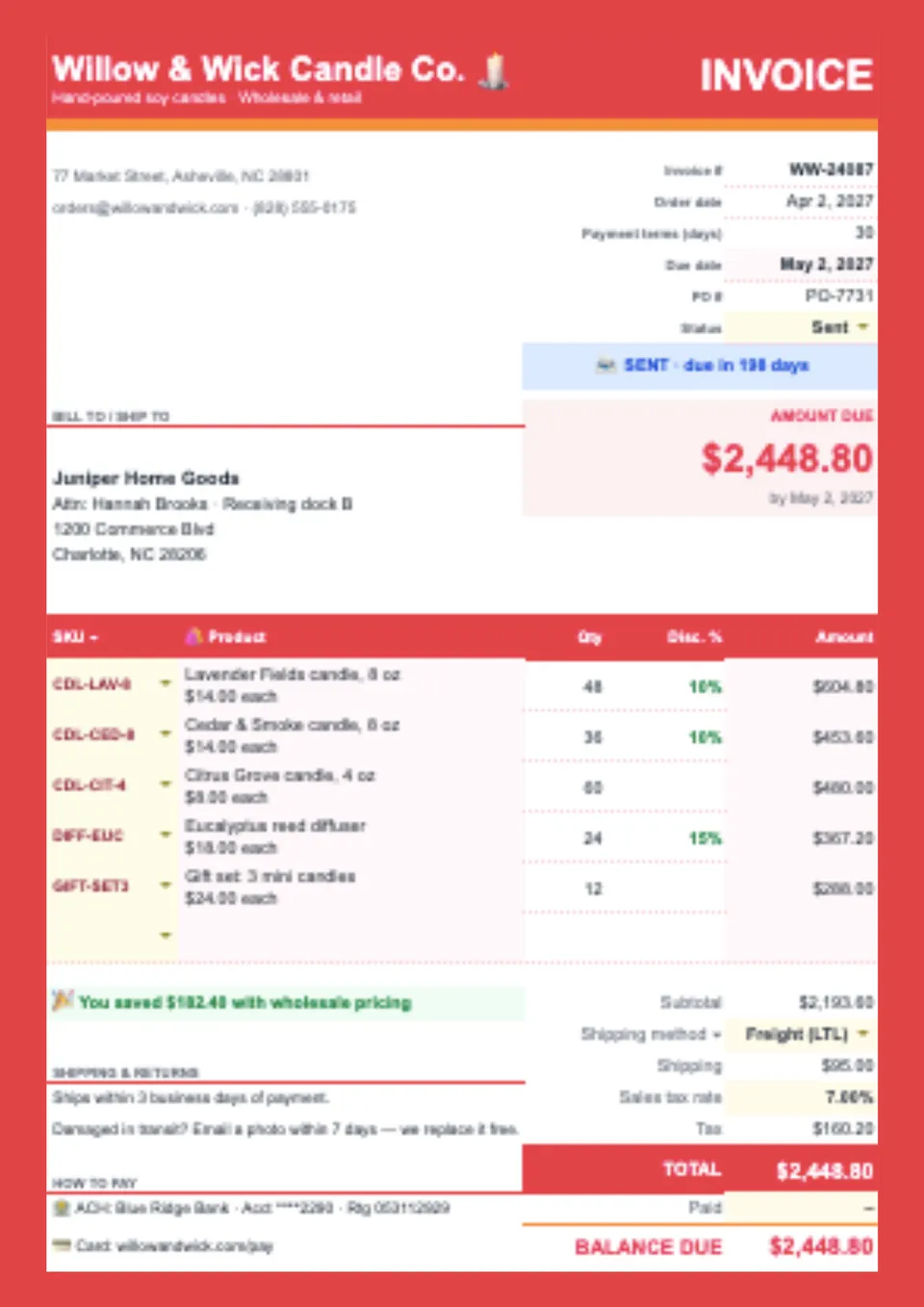
An organized sales record makes it easier to explain what a customer purchased and how the charges were calculated. Sales Invoice Template provides a starting point for seller and buyer details, order references, product descriptions, quantities, unit prices, and payment information. Retailers, wholesalers, makers, and small-business teams can tailor the spreadsheet to individual orders or repeat customers. Keeping products and prices in separate rows makes the purchase easier to review against an agreed order. Download the prepared design for free, replace the sample entries, and save a completed copy for your sales records.
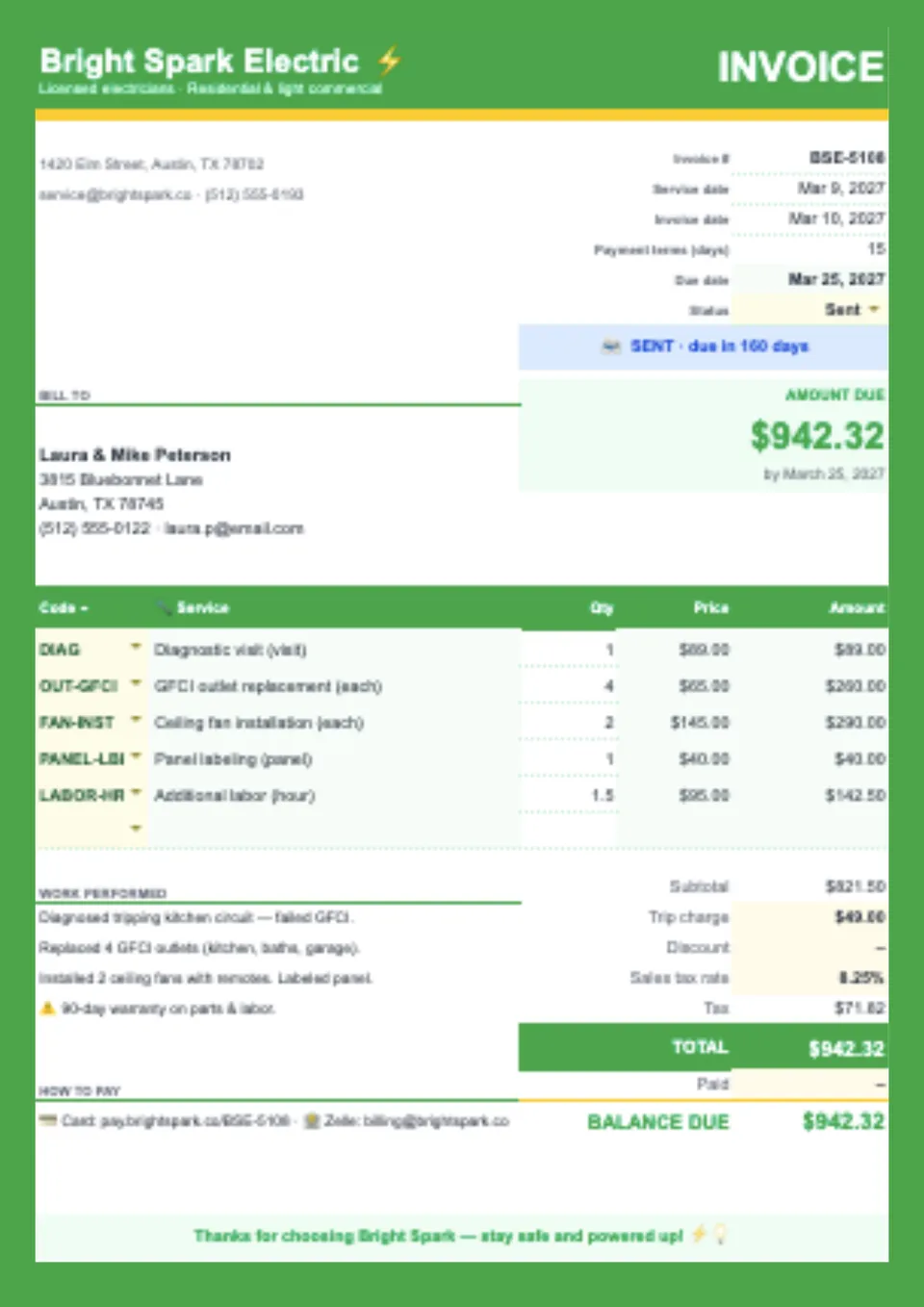
Charging for several services in one appointment and want to avoid presenting clients with an unexplained total? Service Invoice Template offers a foundation for listing completed tasks, service dates, quantities or hours, rates, and payment instructions. Cleaners, repair specialists, maintenance providers, agencies, and other service businesses can adjust the rows to match their work. Itemized entries give customers a clearer picture of what was included and provide a useful reference if they ask about a charge later. Obtain the free editable layout, enter your services, and download or print the finished bill after checking the amounts.
Are there templates for Google sheets?
How to create a template in Google sheets?
How to get more templates for Google sheets?
How to save a template in Google sheets?
Can I use Excel templates in Google sheets?
What Makes Google Sheets Useful for Organized Work?
Google Sheets is a flexible format for managing numbers, lists, schedules, and data in one place. It works well when you need to track budgets, monitor inventory, or record time without relying on complicated software. For users who want a practical tool for planning and analysis, this format gives a clean and efficient starting point.
It is especially useful for people who need structure, accuracy, and easy updates in their daily work. Instead of creating everything manually, you can start with a template that already supports the way your data is organized. That makes it a smart option for both routine tasks and more detailed tracking.

Why People Choose Our Google Sheets Templates
People choose our Google Sheets templates because they make data management faster and more reliable. They help turn repetitive work into a clearer process while keeping information easy to update and review.
- organize budgets, inventory, and schedules in a simple format;
- save time with a ready-made structure instead of building tables from scratch;
- adapt formulas, labels, and categories to fit the task;
- keep data easy to read, compare, and update;
- prepare working files that can be reused and expanded over time.
In practice, this format is useful when the main goal is control over information. It helps you keep important details in order without losing clarity.

Who Benefits Most from Google Sheets Templates?
Google Sheets templates are a strong fit for business owners, managers, freelancers, finance teams, and anyone who works with tracking or reporting. They are also useful for students, planners, and team members who need a simple way to manage structured information.
This format is especially valuable for people who want a reliable workspace for numbers and records. Whether the task is budgeting, stock tracking, or time logging, the templates help make the process more practical and easier to maintain.

How to Customize Google Sheets Templates
Google Sheets makes customization straightforward, even when the data set is large or repeated over time. You can open a template, replace the sample content, and shape it around your own workflow without rebuilding the spreadsheet from the beginning.
- Open the template and review the existing structure.
- Replace placeholder values with your own data, dates, or categories.
- Add formulas, notes, or extra columns if needed.
- Adjust formatting, colors, and labels to match your workflow.
- Save the finished sheet for daily use, sharing, or reporting.
This makes the format practical for both short-term tracking and ongoing work across many different tasks.

Explore Free Google Sheets Templates for Different Tasks
We’ve developed a range of Google Sheets templates to help you handle the most common tracking and planning tasks with less effort. Whether you need to manage finances, keep inventory in order, or record working hours, you can find a template that fits the job and makes the process easier to follow.
- Budget Templates — useful for managing expenses, income, and financial planning;
- Inventory Templates — practical for tracking stock, products, and supplies;
- Timesheet Templates — a simple option for logging work hours, tasks, and schedules.


Choose your preferred social media platform from options like Pinterest, Facebook, Twitter, and more. Share our templates with your contacts or friends. If you’re not active on these social networks, you can simply copy the link and paste it into the one you use.