

 Back to templates
 Google Drawings Templates
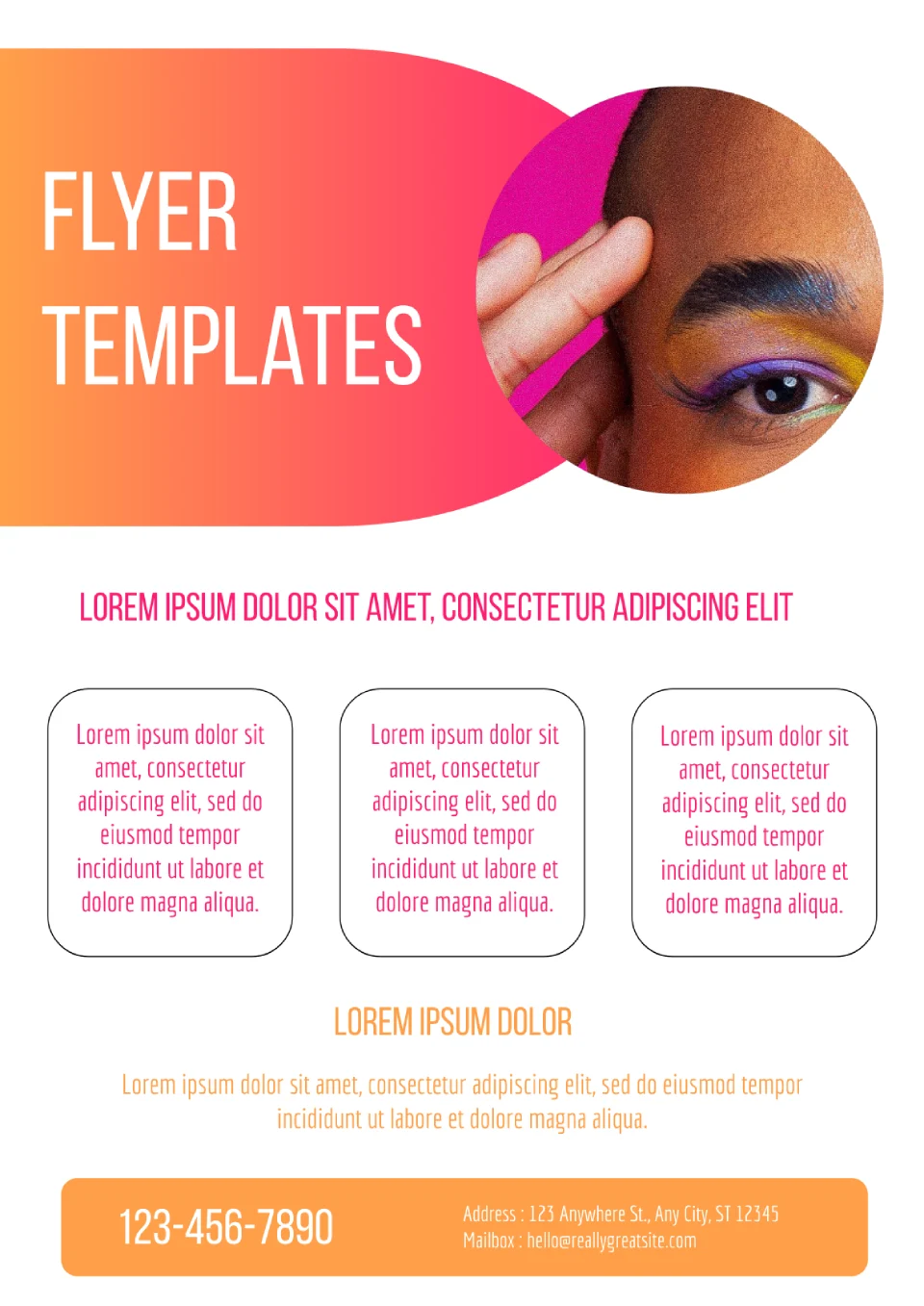
You need a flyer for an event, product, or promotion, but your current design looks too plain and doesn't grab attention? Flyer Drawing Template gives you a professional A4 layout that makes your message, images, and offers stand out clearly. It works for businesses, schools, clubs, and creators who need a clean flyer for web, social media, or print. The template has editable color, text, and objects so you can customize it to your brand, event, or campaign quickly. Free for personal and business use, ready to use, and perfect for flyers that need to look sharp and professional.

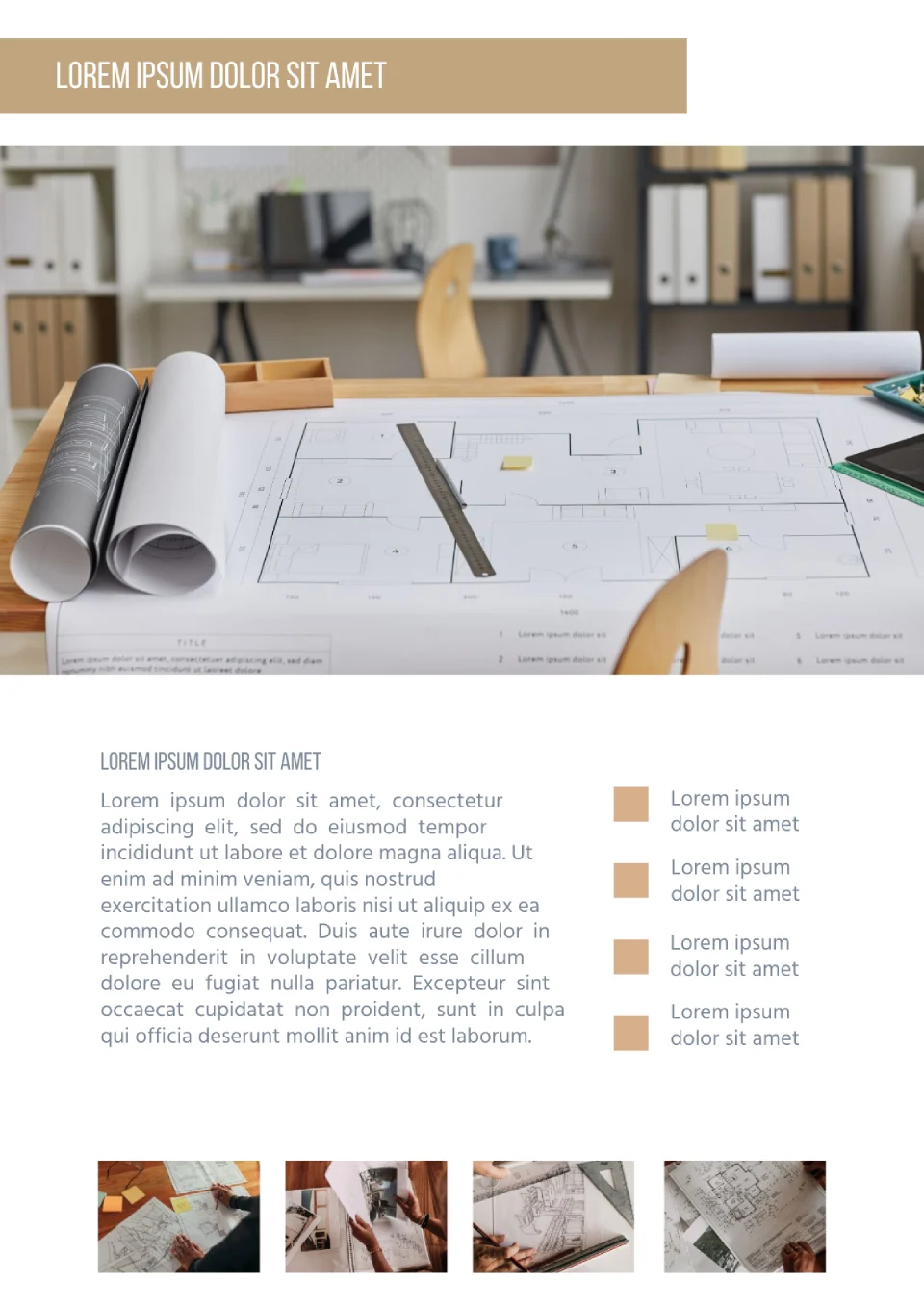
You're planning a home renovation, office layout, or real estate project, but drawing a floor plan from scratch feels too slow and messy? Floor Plan Drawing Template provides a clean A4 structure for rooms, walls, doors, windows, and furniture that you can edit fast in Google Drawings. It suits homeowners, designers, architects, real estate agents, and students who need a clear visual plan for spaces. Editable color, text, and objects let you adapt the plan to your project size, style, and labeling needs. Free for personal and business use, ready to use, and great for floor plans that need to look organized and professional.
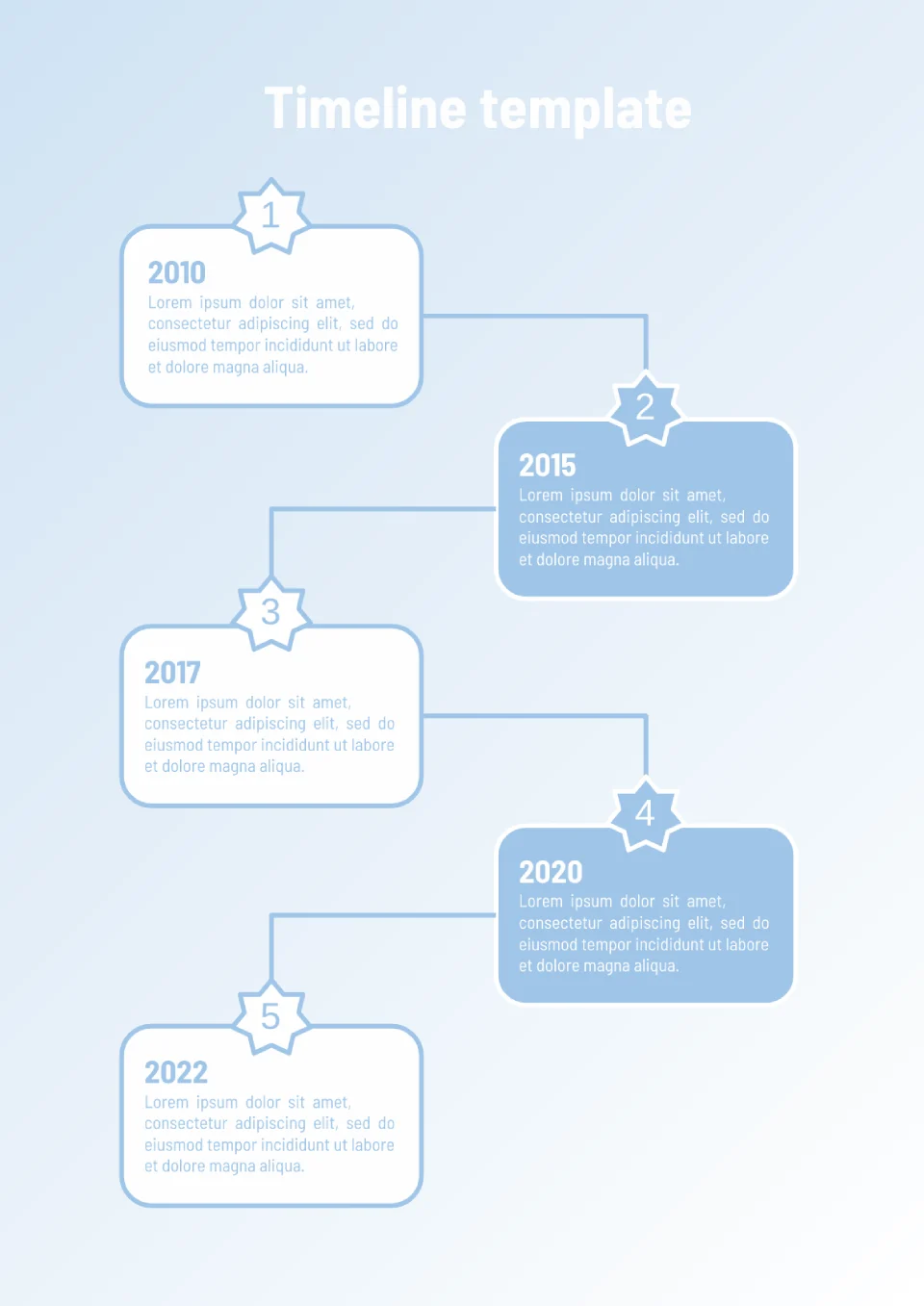
Timeline Drawing Template is a clean, structured way to show project stages, events, history, or milestones without building a timeline from scratch. It works well for students, teachers, teams, and presenters who need to visualize dates, phases, or key moments in a clear visual format. The template supports editable color, text, and objects so you can match the timeline to your topic, brand colors, and content length. Free for personal and business use, ready to use, and ideal for timelines that need to look simple, organized, and easy to follow.

You need to show a network, IT structure, or system connections, but drawing nodes and lines manually takes too much time and looks inconsistent? Network Drawing Template gives you a professional A4 layout for servers, devices, connections, and labels that you can edit directly in Google Drawings. It suits IT teams, students, educators, and tech presenters who need a clear network diagram for documentation or presentations. Editable color, text, and objects make it easy to adapt the network to your infrastructure, naming style, and visual needs. Free for personal and business use, ready to use, and perfect for network diagrams that should look clean, structured, and professional.
Are there templates for Google Drawings?
What format is Google Drawings?
Are Google Drawings Templates free to use?
Can I customize Google Drawings Templates?
What Makes Google Drawings Useful for Visual Projects?
Google Drawings is a simple but flexible format for creating visuals that need to be clear, fast to edit, and easy to understand. It works well when you want to build diagrams, posters, simple layouts, or visual references without using a more complex design tool. For users who need practical visuals instead of heavy graphics work, this format gives a clean starting point.
It is especially useful for people who want to organize information visually and keep the process straightforward. Rather than spending time building everything from scratch, you can begin with a template that already supports the structure of your project. That makes it a smart choice for quick visual work and everyday content creation.

Why People Choose Our Google Drawings Templates
People choose our Google Drawings templates because they save time while still leaving room for customization. They make it easier to create neat and functional visuals without needing advanced design experience.
- create simple visuals, diagrams, and layouts with less effort;
- work from a ready-made structure instead of building from zero;
- adapt colors, text, and shapes to match the project;
- keep the design clean and easy to follow;
- prepare materials that are easy to edit and reuse.
In practice, this format is useful when the main goal is clarity. It helps you build a visual that looks organized and purposeful without becoming too complicated.

Who Benefits Most from Google Drawings Templates?
Google Drawings templates are a strong fit for teachers, students, planners, marketers, and teams that need simple graphics for communication or organization. They also work well for people who want a lightweight tool for building visual support materials, project outlines, or presentation elements.
This format is also helpful for anyone who needs a fast way to turn an idea into a usable visual. Whether the goal is planning, teaching, promoting, or mapping out information, the templates help make the process more approachable and efficient.

How to Customize Google Drawings Templates
Google Drawings makes customization easy, even for users who do not work with design tools every day. You can open a template, adjust the content, and shape it around your own idea without rebuilding the layout from the ground up.
- Open the template and review the existing layout.
- Replace placeholder text with your own details or labels.
- Add shapes, images, icons, or lines where needed.
- Adjust colors, spacing, and fonts to match your project.
- Save the finished design for sharing, printing, or continued editing.
This makes the format practical for both one-time tasks and ongoing visual projects.

Explore Free Google Drawings Templates for Different Tasks
Our Google Drawings templates come in different types so you can choose the right one for the job. Some are better for mapping relationships, some for organizing ideas, and others for creating simple promotional or planning visuals.
- Network Templates — useful for mapping connections, relationships, and structured flows;
- Plan Templates — practical for organizing steps, goals, and project outlines;
- Flyer Templates — a simple option for visual announcements, promotions, and event notices.


Choose your preferred social media platform from options like Pinterest, Facebook, Twitter, and more. Share our templates with your contacts or friends. If you’re not active on these social networks, you can simply copy the link and paste it into the one you use.