
 Back to templates
 Free Envelope Google Docs Templates
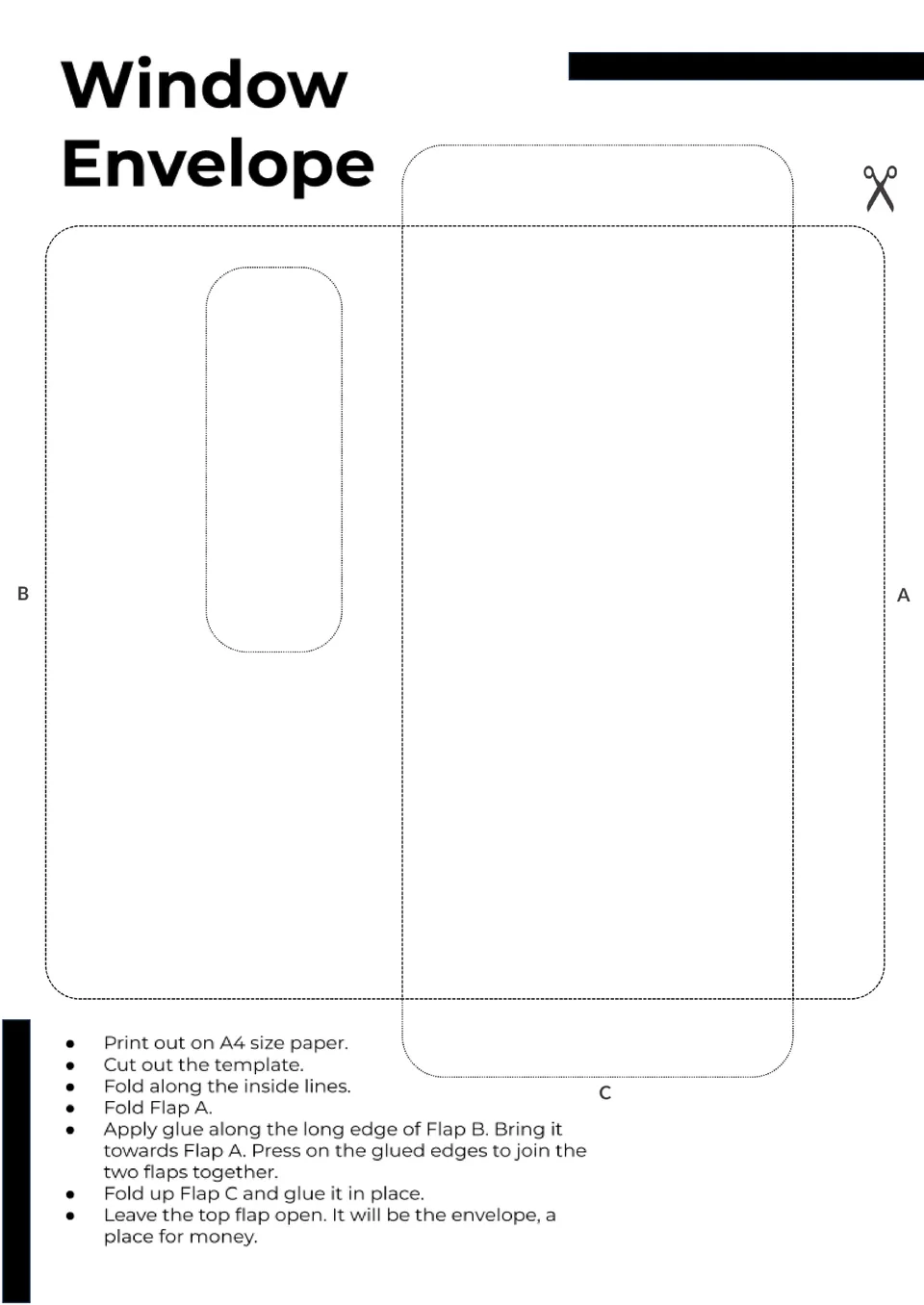
Need envelopes that make your mail instantly legible through a window? The Window Envelope Template offers accurate dimensions and editable positioning so your addresses align perfectly.

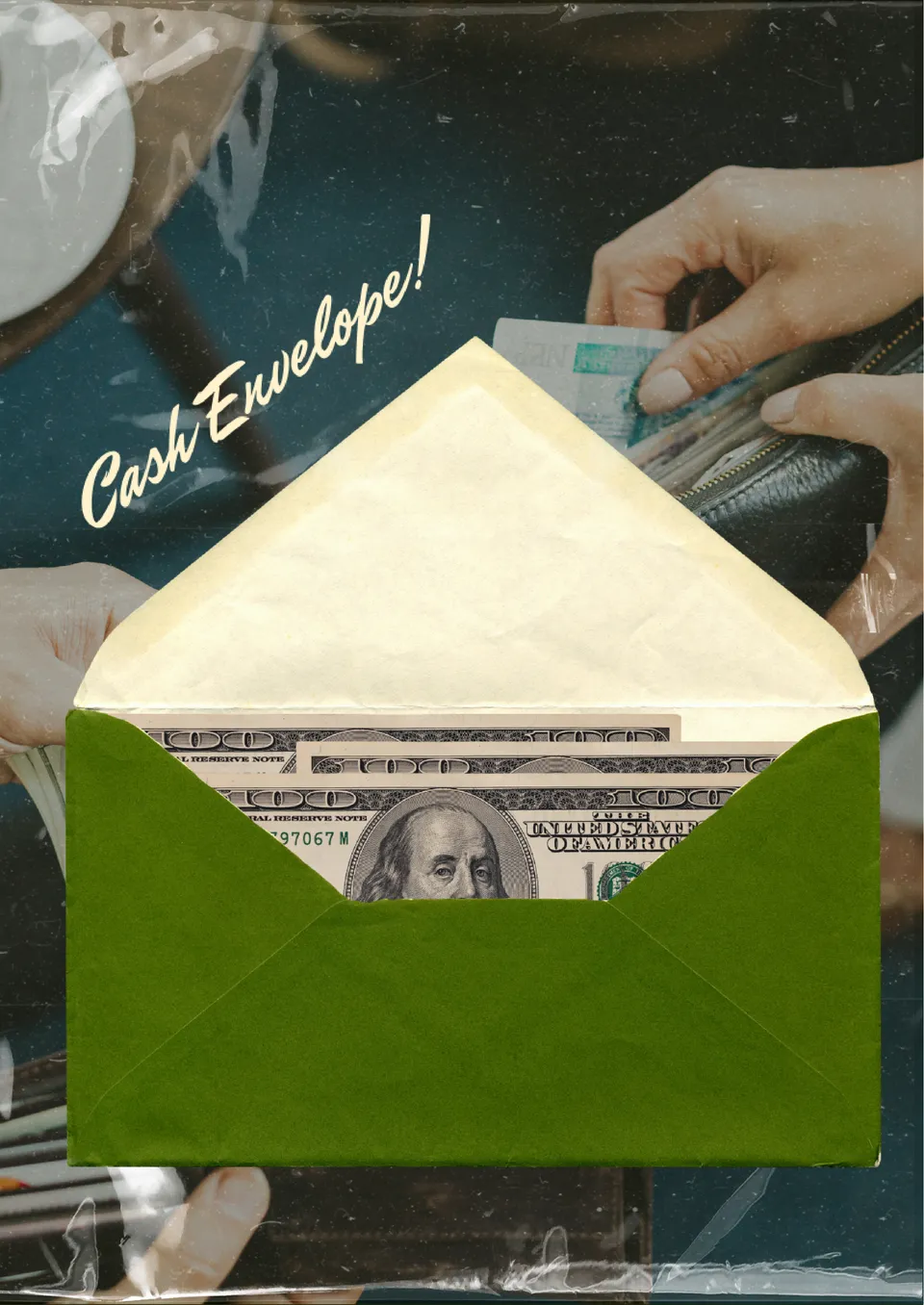
Want a simple system to organize your budget or manage spending? The Cash Envelope Template gives you a structured layout for categorizing money by purpose—like groceries, rent, or entertainment.
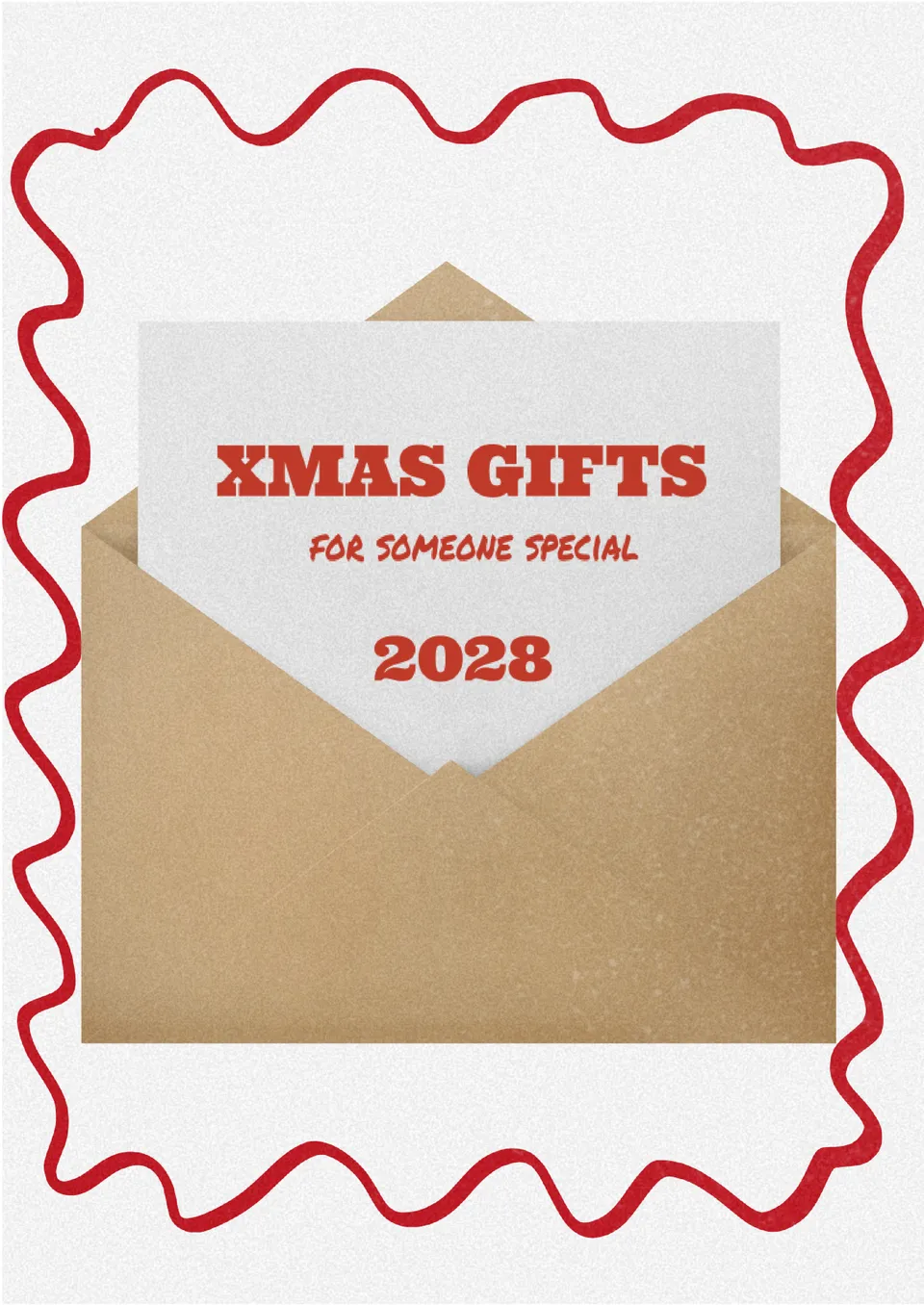
Looking for a stylish way to present gift cards or small surprises? The Gift Card Envelope Template provides fun, easy‑to‑customize designs perfect for holidays, birthdays, and celebrations.
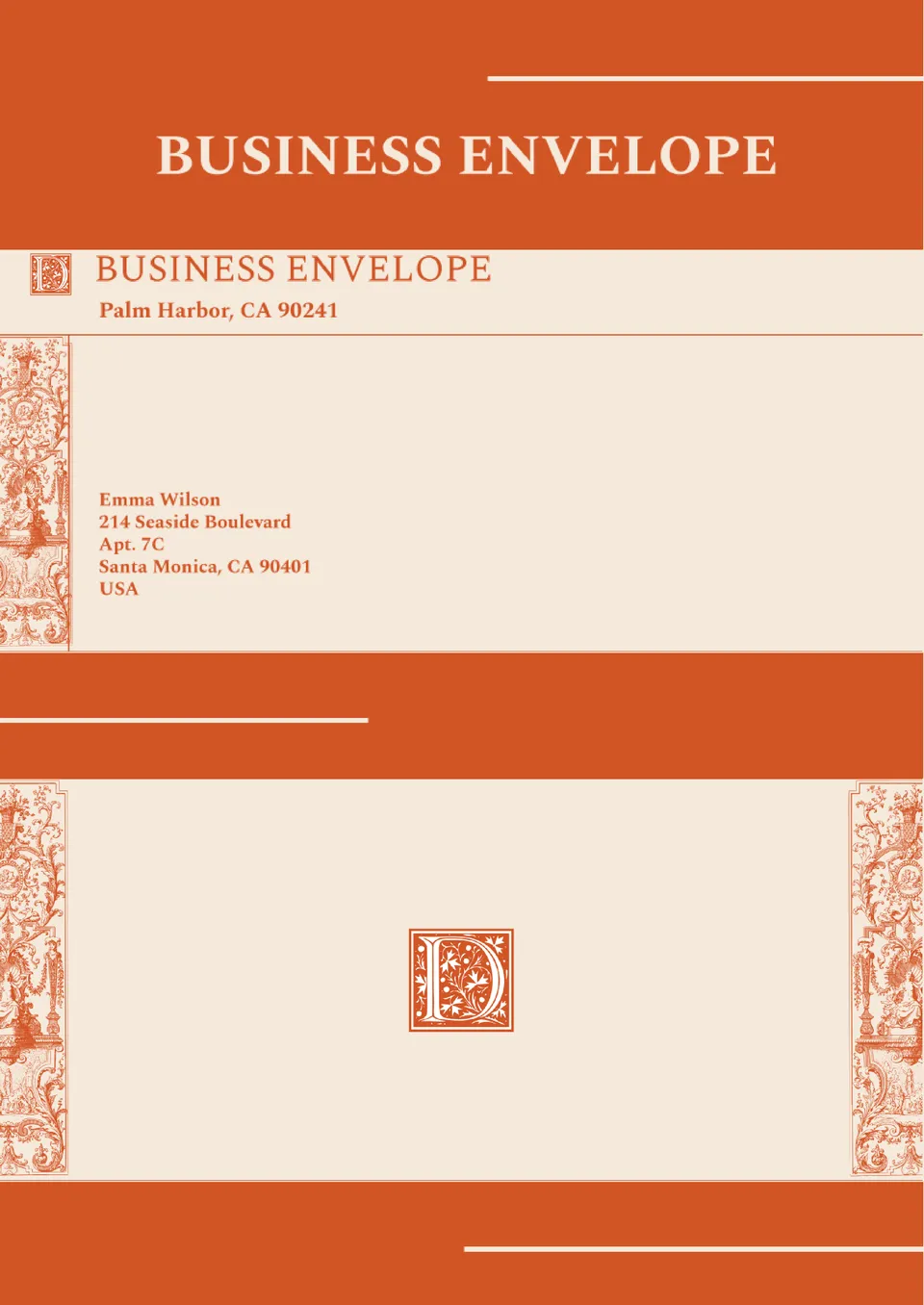
Want your business mail to look as professional as your brand? The Business Envelope Template offers a sleek layout for company logos, return addresses, and contact details.

Looking for an effortless way to design envelopes that match your mail style? The Mail Template Envelope gives you clean, editable layouts for addresses and graphics in Google Docs.
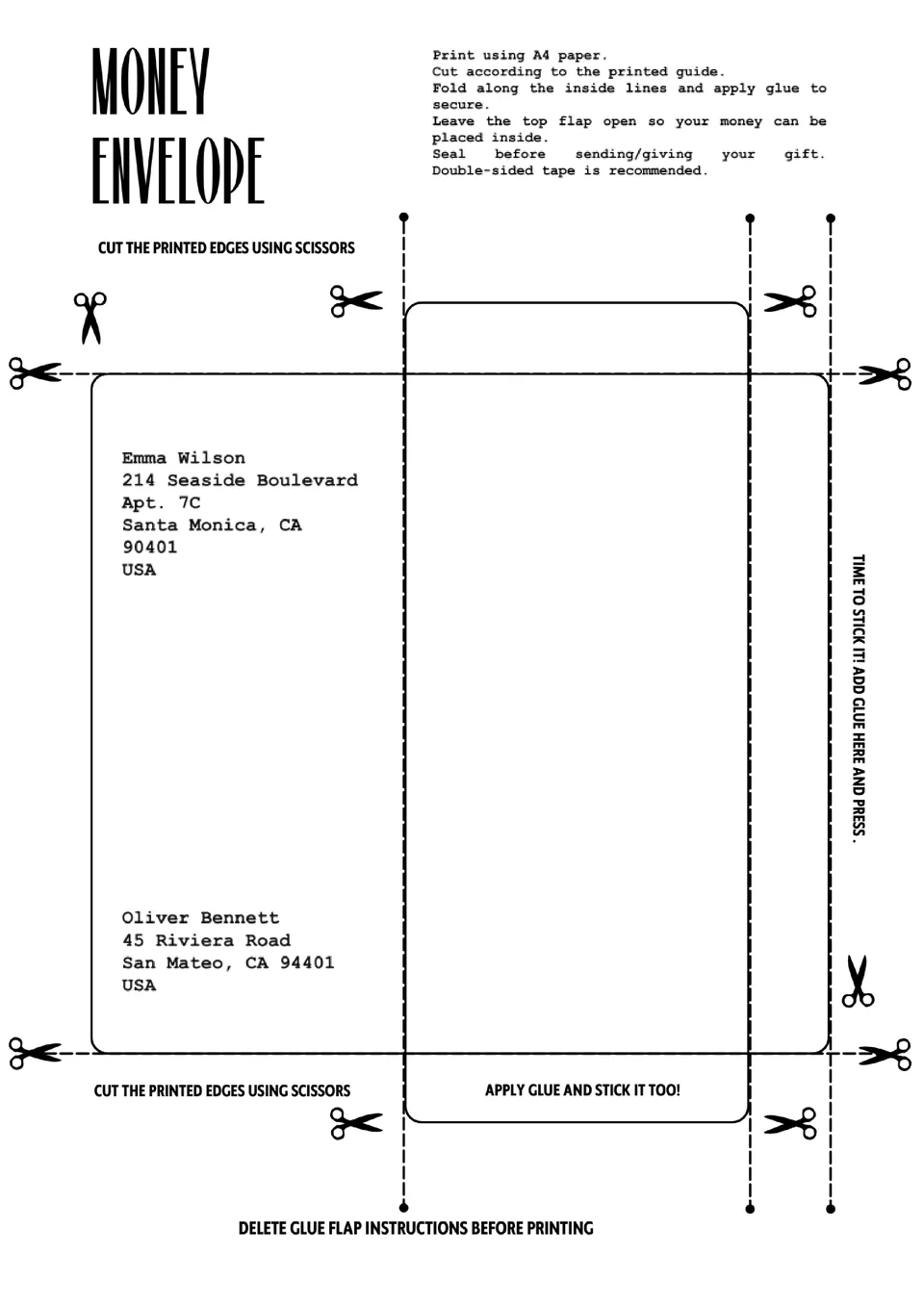
The Money Envelope Template gives you clear, editable layouts for cash gifts, event tips, or fundraisers. It’s ideal for weddings, holidays, or business purposes where presentation matters.
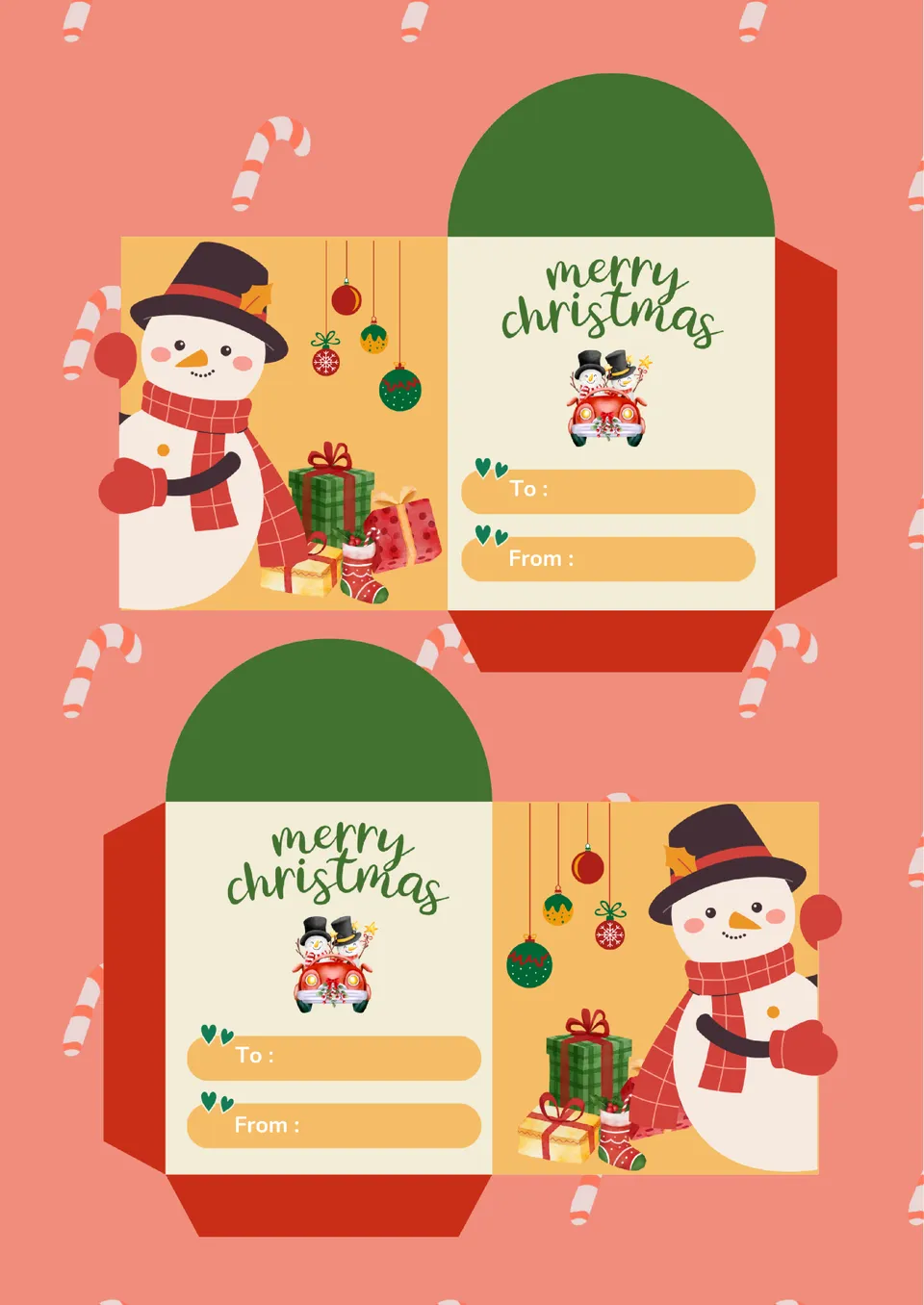
The Mini Envelope Template helps you design small, cute envelopes for cards, notes, or gift holders. Its easy‑to‑use layout lets you adjust size and artwork in minutes. Perfect for parties, businesses, or personal stationery projects.
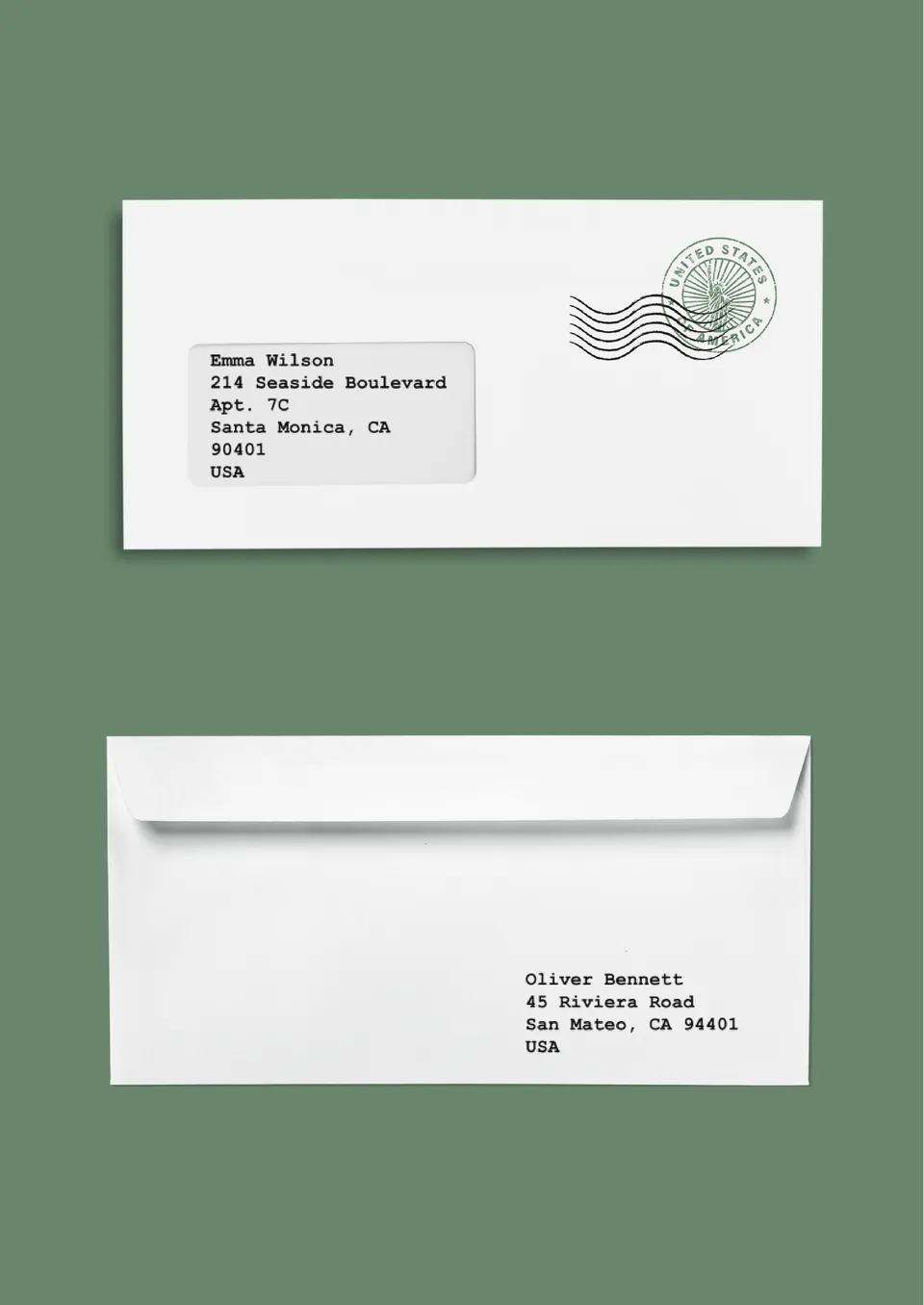
Looking to create perfectly sized, ready‑to‑print envelopes? The Letter Envelope Template gives you accurate dimensions and fold‑lines so every piece comes out crisp.
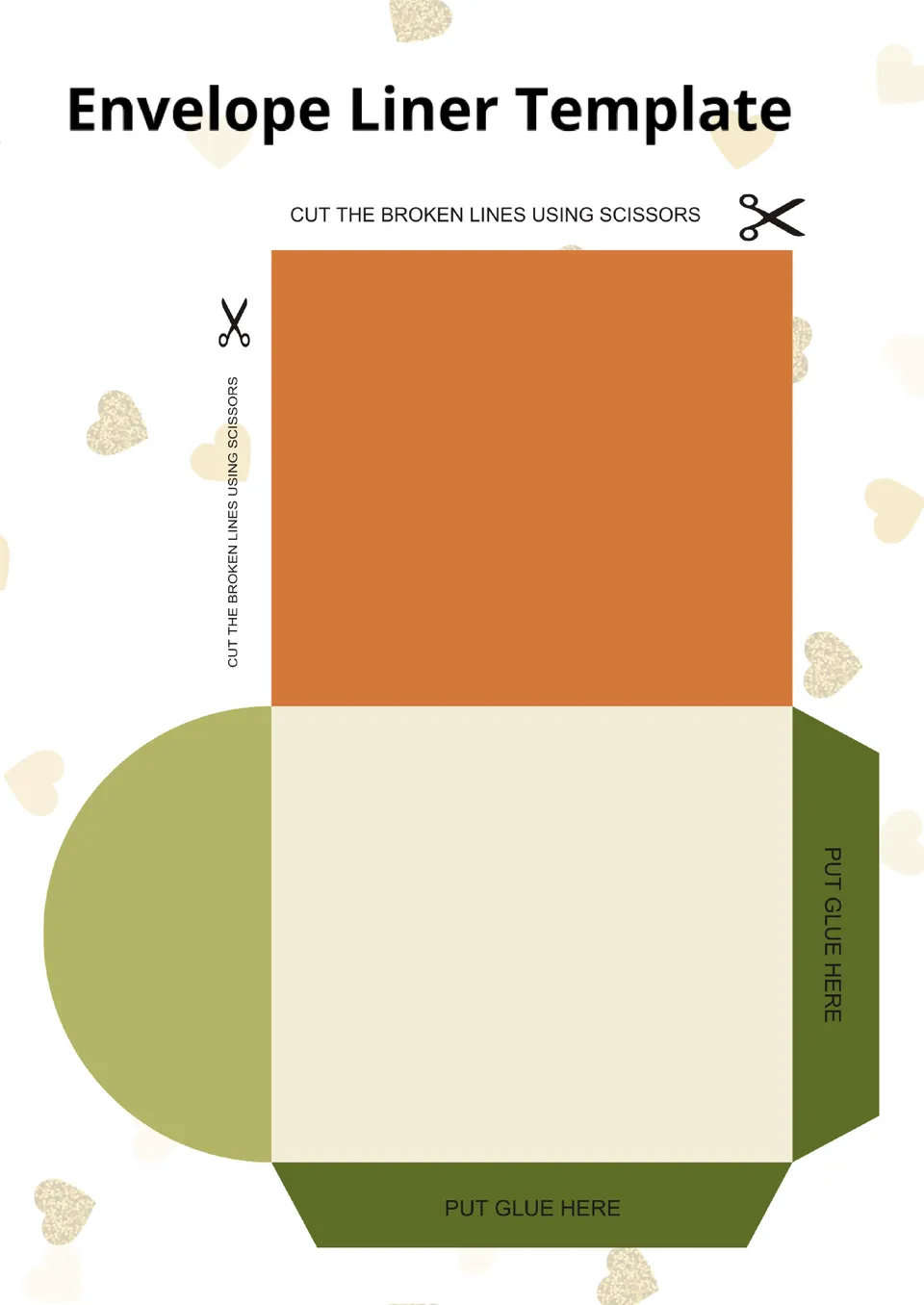
Want to add a stylish, custom touch to your envelopes? The Envelope Liner Template allows you to design and fit liners that match your theme or brand.
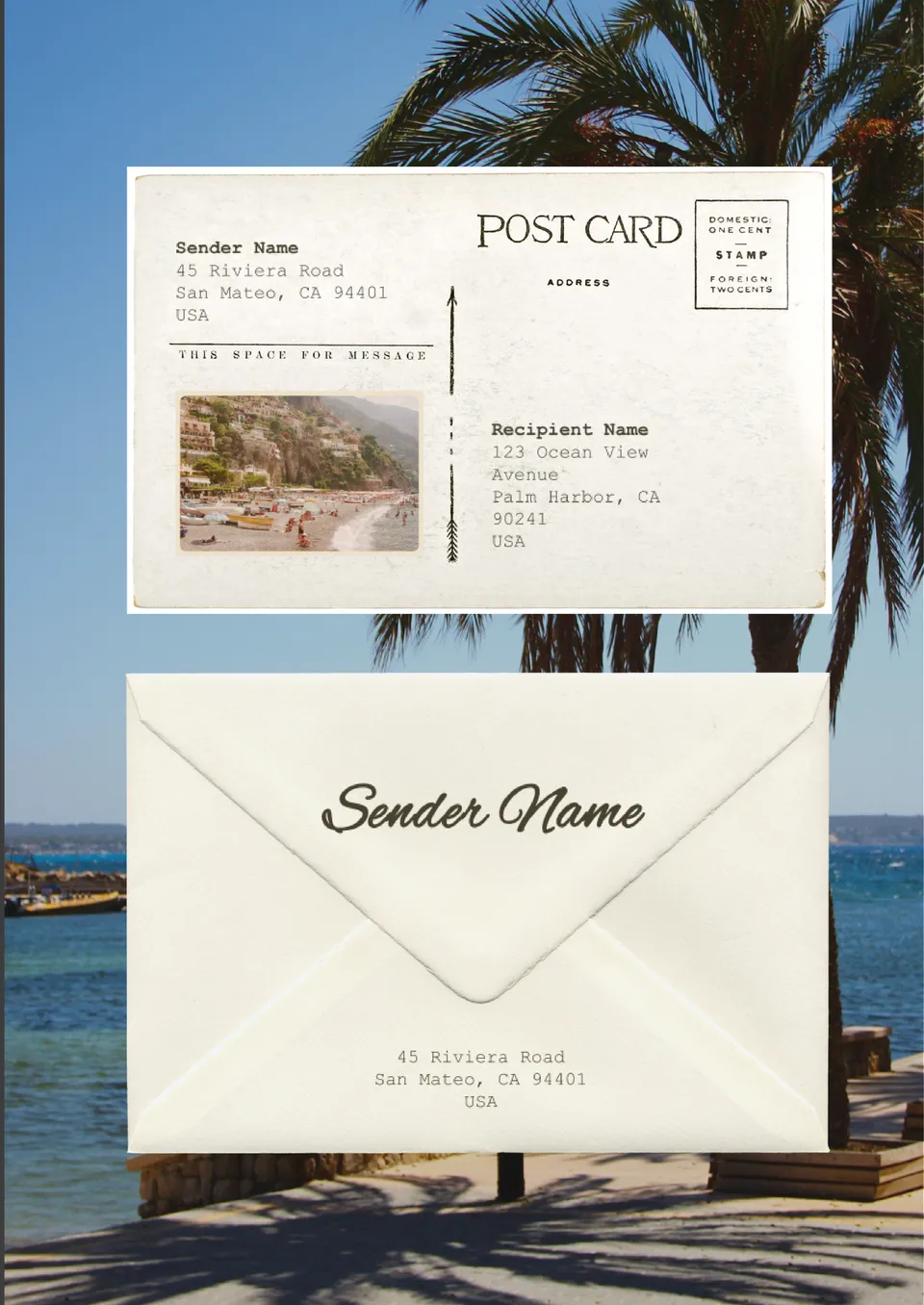
Looking for a quick way to print neat, professional envelope addresses? The Envelope Address Template gives you editable layouts to enter names and addresses with clean formatting.
What Are Envelope Templates for Google Docs and MS Word?
Envelope Templates are ready-made layouts for businesses, event planners, and personal users who need envelopes with clear formatting and a polished look. They are useful for business mail, addressed letters, window envelopes, and cash or gift envelopes where neat presentation matters. If you also want your outgoing mail to match your branded documents, take a look at our Letterhead Templates.
We create these templates to help you save time and keep every envelope easy to edit, print, and use. They work well when you need accurate placement for addresses, return details, logos, or decorative elements without building the layout from scratch. They also help you keep your mail more consistent, whether you are sending formal correspondence or preparing envelopes for personal events.

Benefits of Using Envelope Templates
Envelope Templates make it easier to prepare mail that looks clean and organized. They also help you present addresses and contact details in a more professional way.
- format addresses and return details in a clear layout;
- save time with a ready-made envelope design;
- adapt the template for business, personal, or event use;
- keep printed envelopes neat and easier to read;
- prepare envelopes for mailing, gifting, or cash organization.
In practice, a good envelope template helps you avoid layout mistakes and gives your mail a more polished appearance.

How to Customize Envelope Templates in Google Docs
Google Docs makes it simple to edit an envelope template and adjust it to your needs. You can update the text, refine the layout, and prepare the final version in just a few steps.
- Open the template in Google Docs or download it as a Word file.
- Replace placeholder text with names, addresses, return information, or labels.
- Add a logo, icon, or decorative details if needed.
- Adjust fonts, spacing, and alignment to fit the envelope style.
- Save the finished file as PDF, DOCX, or print it directly.
You can also create different versions for formal mail, business communication, or money envelopes depending on the purpose.

Popular Types of Envelope Templates
We offer different Envelope Templates for mailing, business use, and gift-style purposes. Each option is designed for a specific need, so you can choose the version that fits your task best.
- Envelope Address Template — a simple format for printing names and mailing details clearly;
- Letter Envelope Template — a practical choice for formal correspondence and standard mail;
- Window Envelope Template — a useful layout for documents that need visible address placement;
- Business Envelope Template — a professional option for company mail, logos, and return addresses;
- Money Envelope Template — a flexible design for cash gifts, budgeting, or event-related use.
Download Free Envelope Templates for Your Needs
Our Envelope Templates are free to download and easy to adapt for different mailing and presentation needs. Choose the design that matches your purpose, edit it in Google Docs or Word, and create envelopes that look neat and professional. We design these templates to help you save time, improve presentation, and make every detail of your mail feel more complete.

Choose your preferred social media platform from options like Pinterest, Facebook, Twitter, and more. Share our templates with your contacts or friends. If you’re not active on these social networks, you can simply copy the link and paste it into the one you use.