

 Back to templates
 Free Handout Google Docs Templates
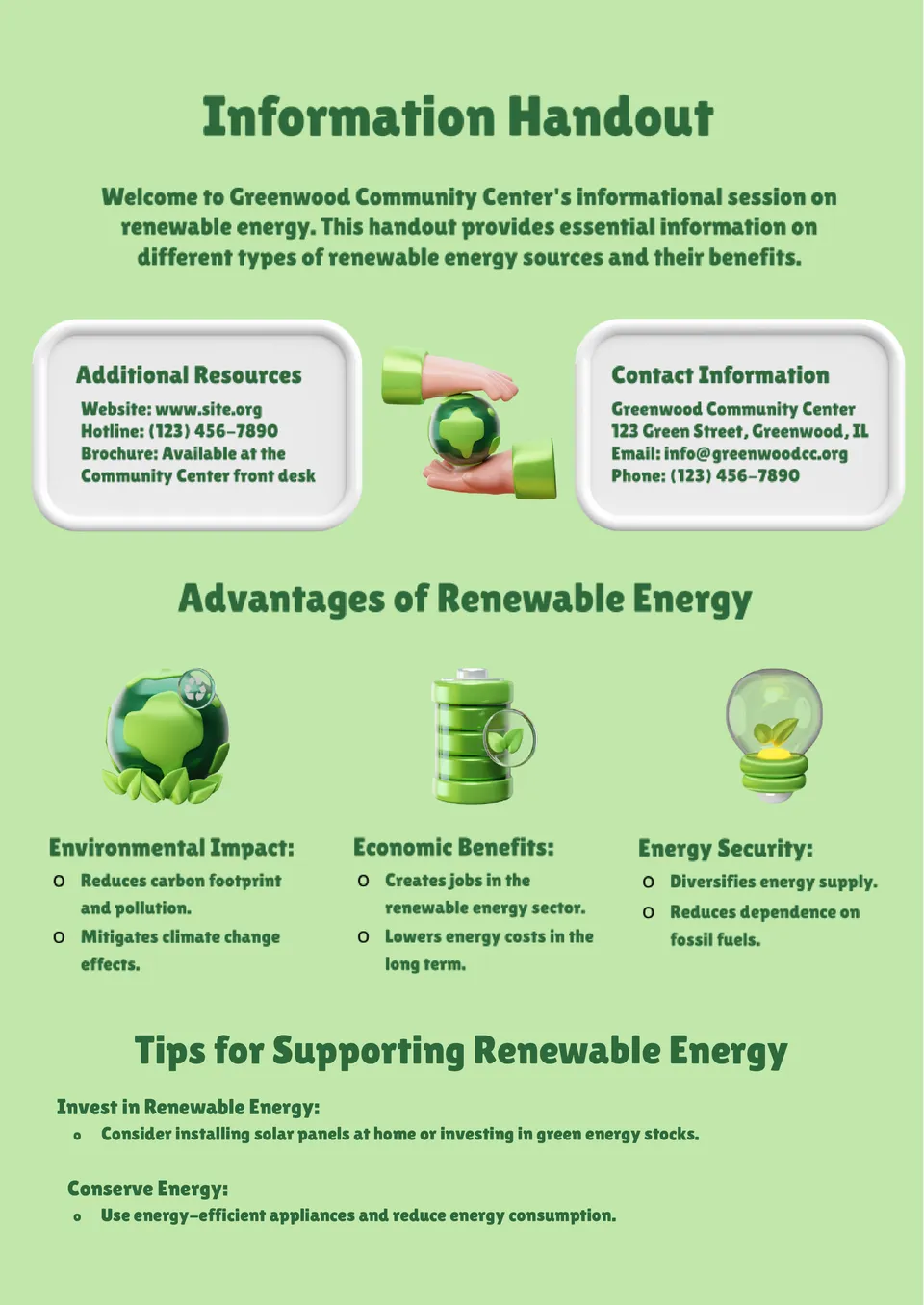
Streamline how you share key details with the Information Handout Template. It offers structured slides for data, announcements, or instructions in a format that’s easy to read and edit.

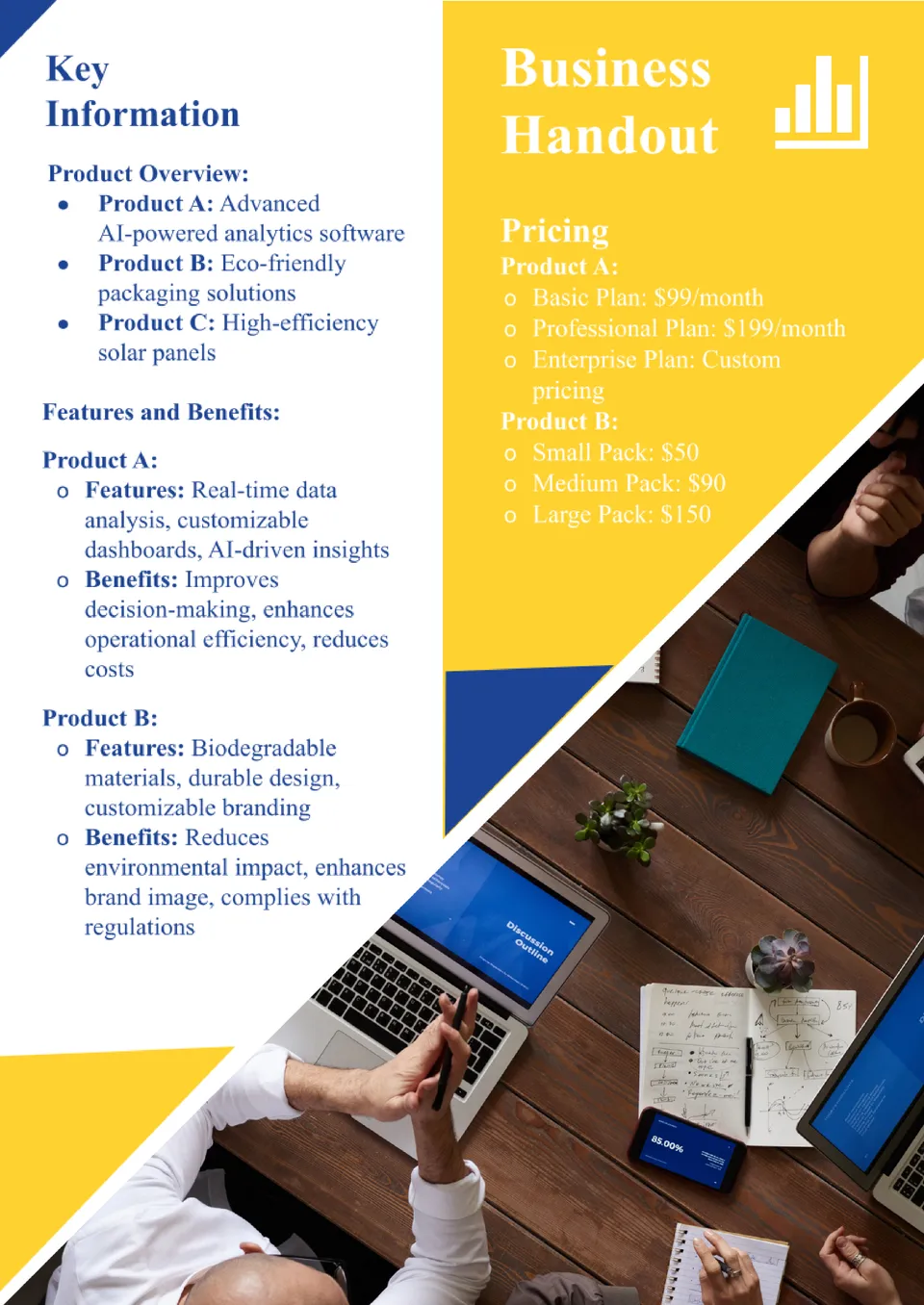
Make your corporate materials stand out with the Business Handout Template. This editable design ensures your company’s messaging, achievements, and services are presented neatly and professionally.
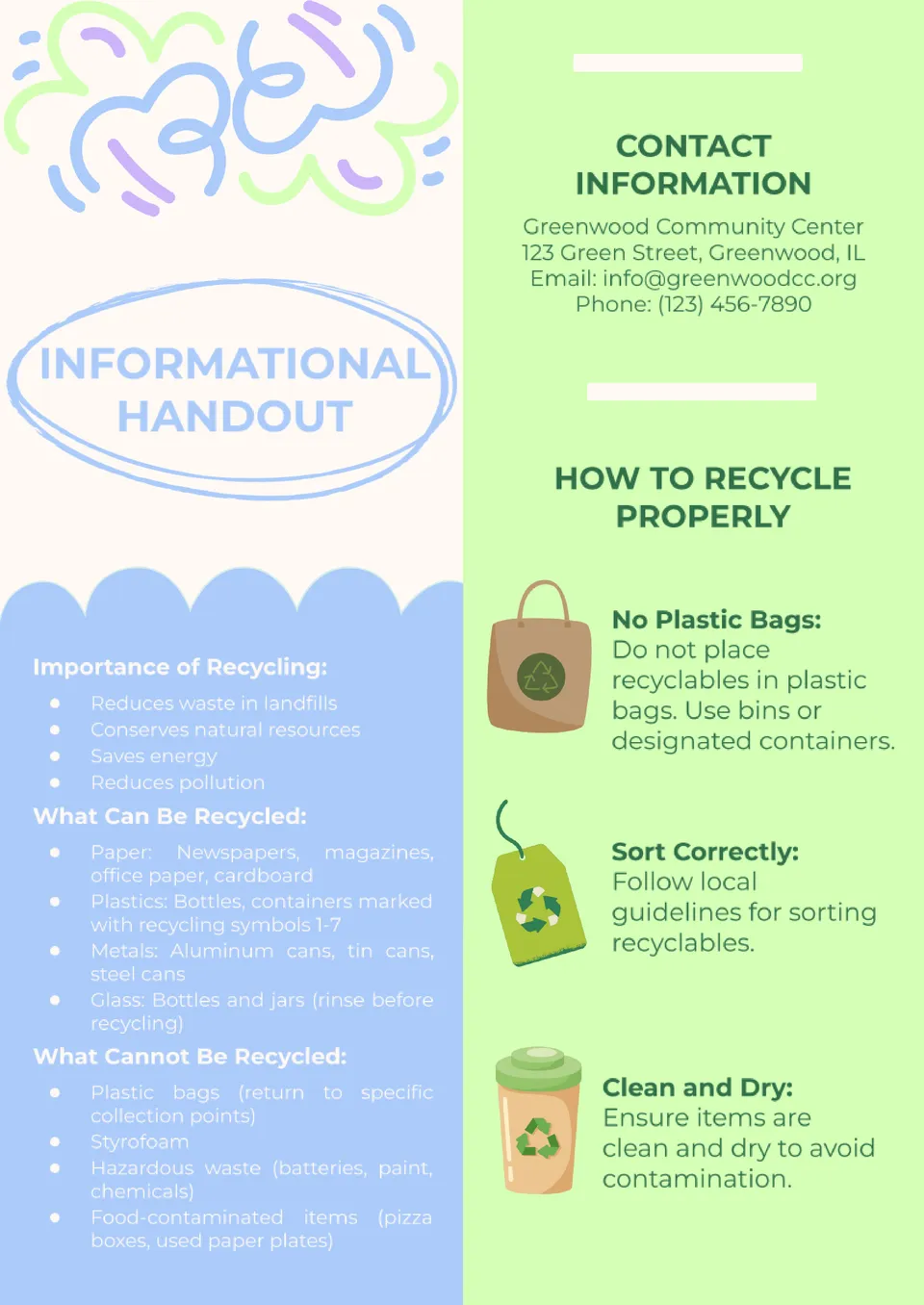
Want to deliver information clearly and professionally? The Informational Handout Template enables you to present facts, tips, or instructions with clarity and style.
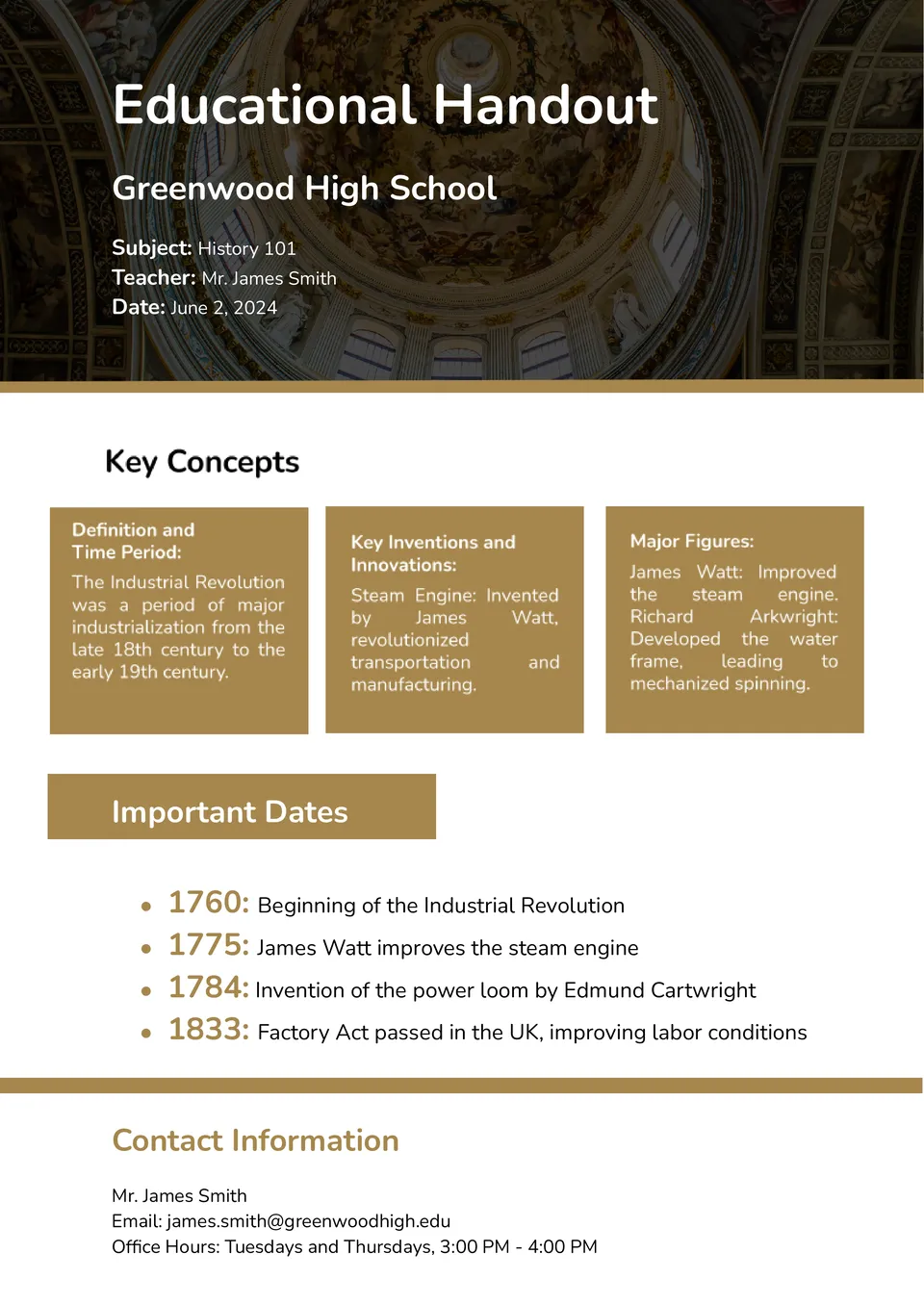
Looking for an engaging way to share learning materials with students? The Educational Handout Template offers editable slides tailored for lessons, summaries, or classroom activities.
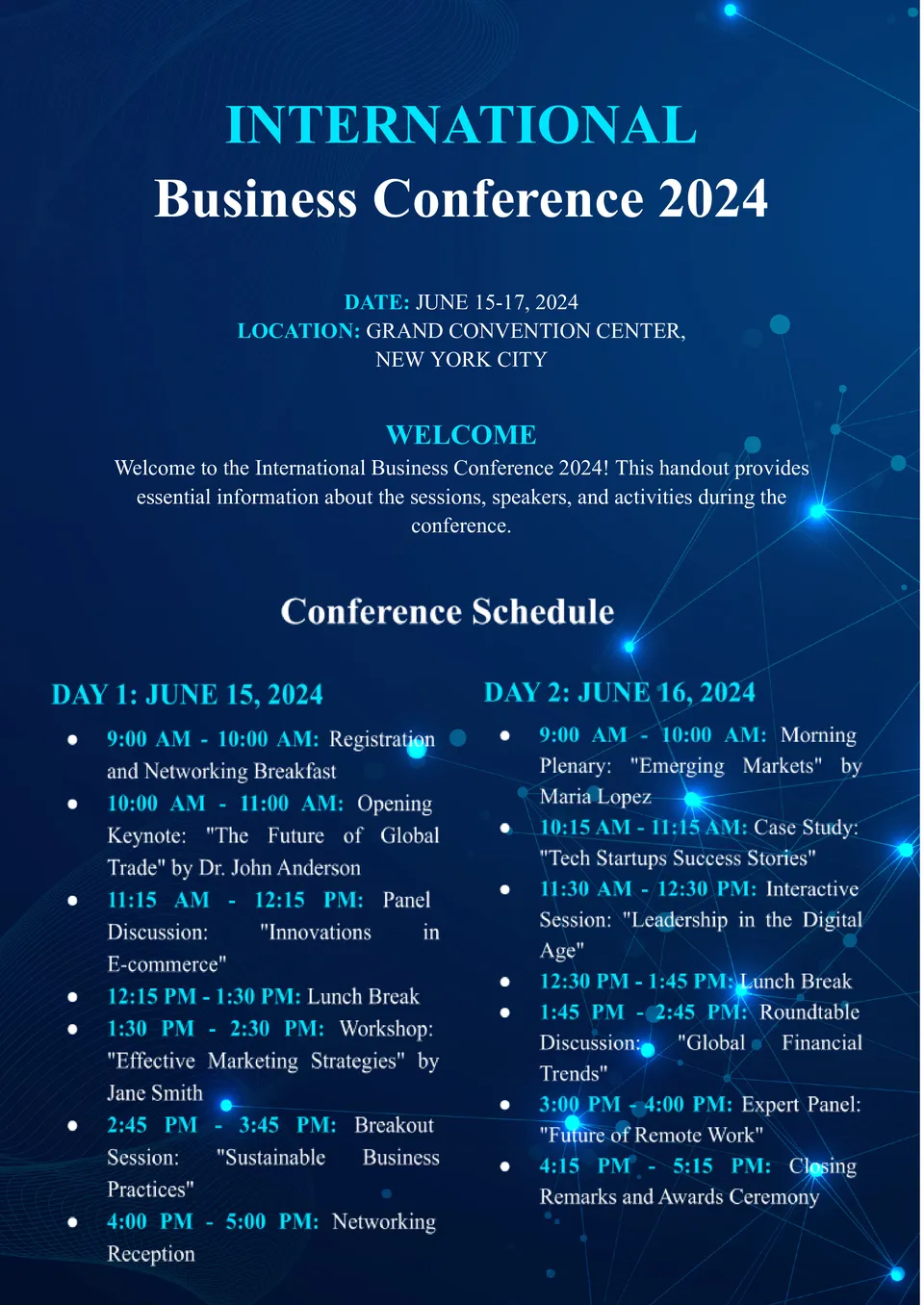
Planning a conference and need a polished handout that impresses? The Conference Handout Template allows you to highlight sessions, speakers, and key takeaways in a clean, professional layout.
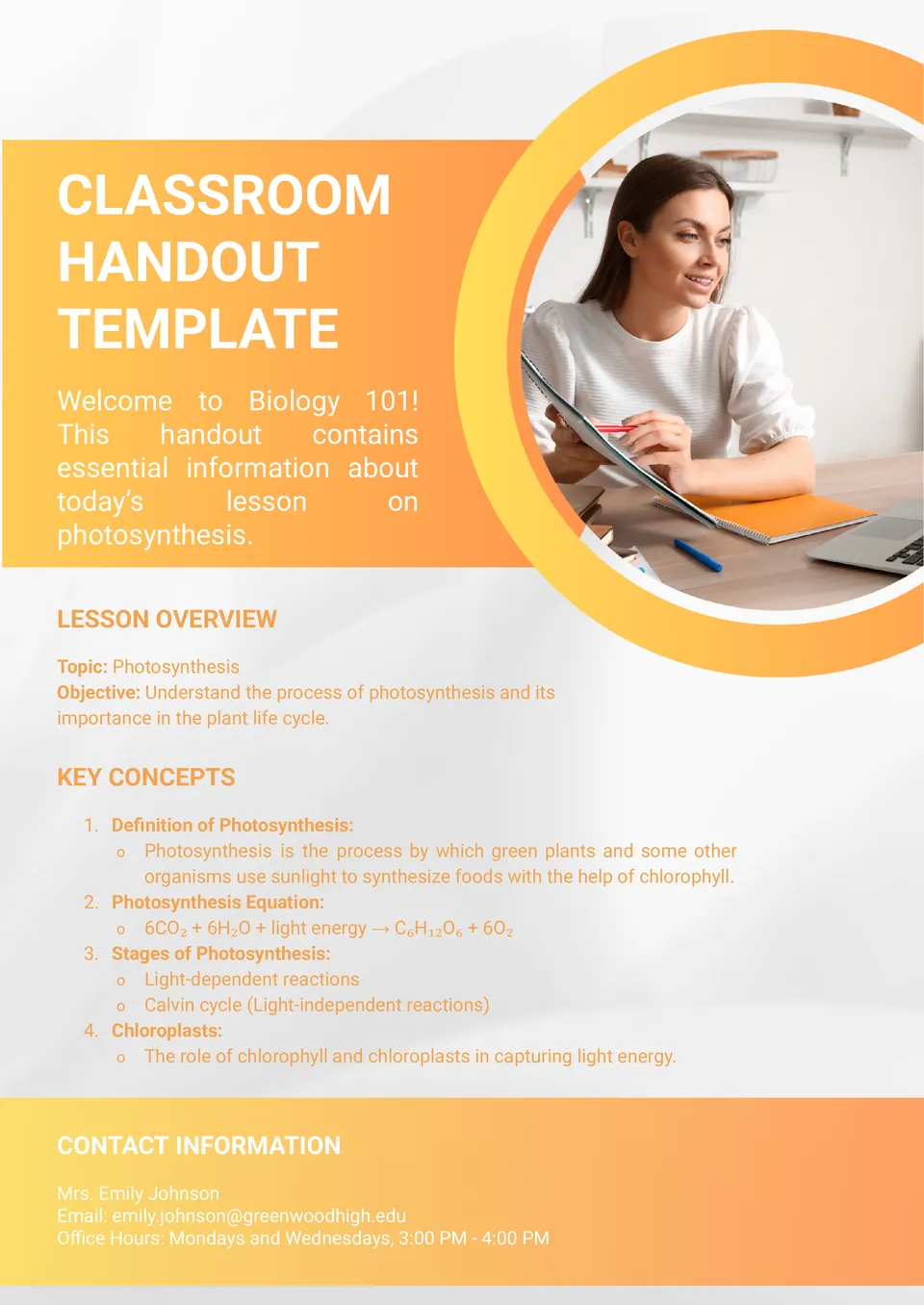
Teachers deserve tools that make lesson prep faster and more effective. The Classroom Handout Template offers clean, student-friendly layouts for worksheets, lesson summaries, or activity sheets.
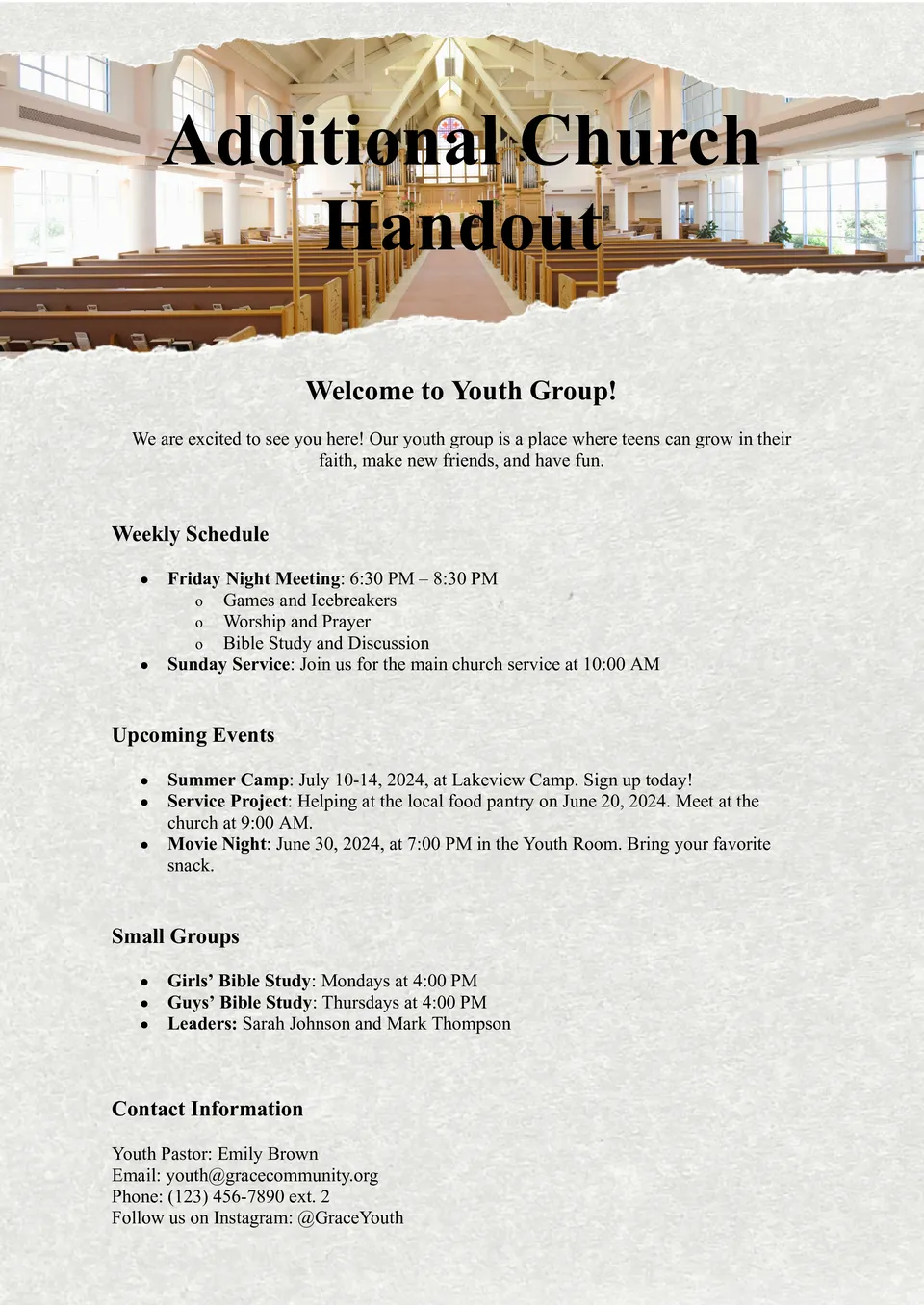
Your congregation deserves thoughtfully designed and relevant materials. The Church Handout Templates collection lets you create bulletins, event flyers, or sermon notes with ease and style.
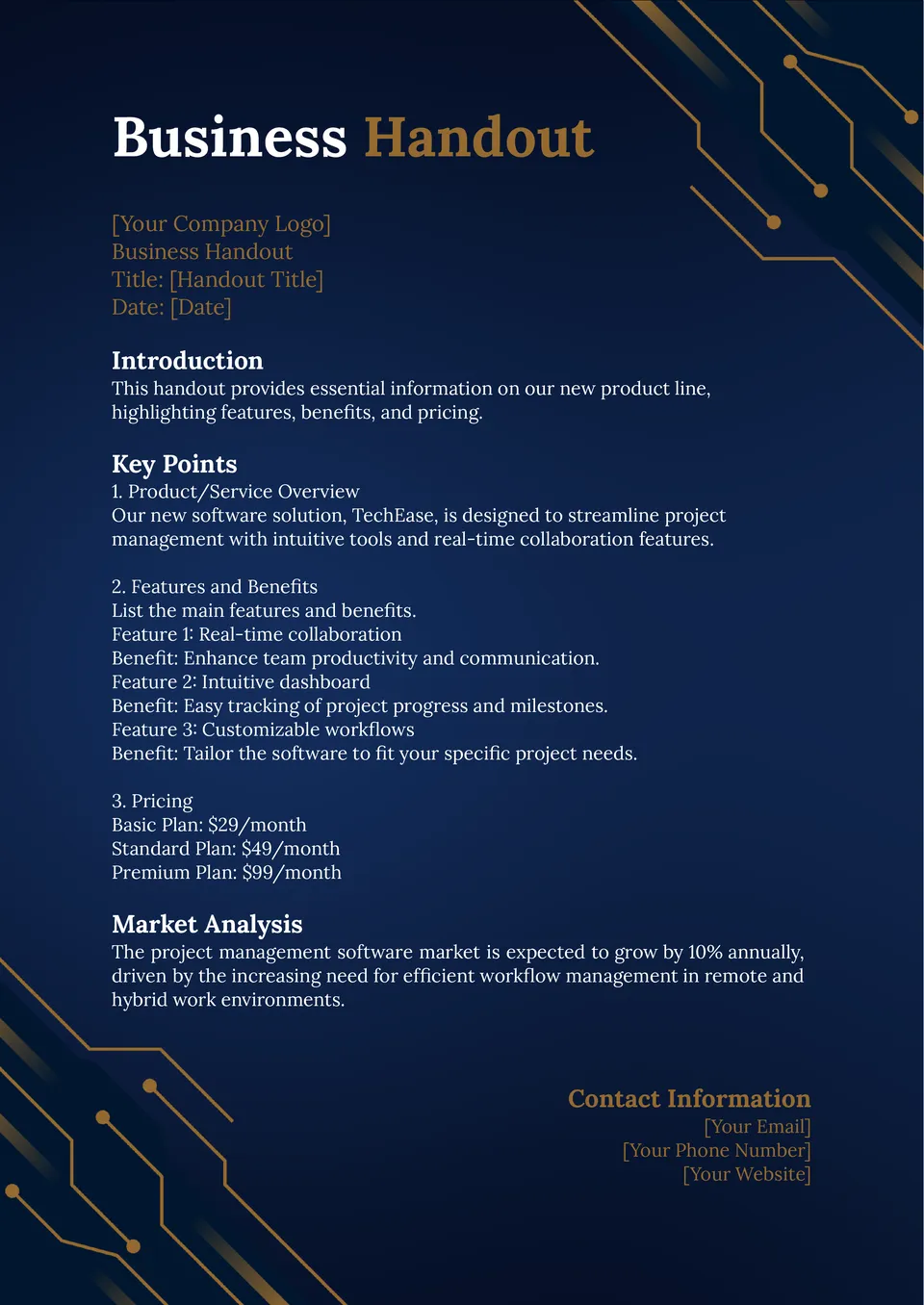
Want to leave a memorable impression at your next meeting or event? The Business Handout Template provides modern layouts to showcase your services, team, or company achievements in a clean, professional way.
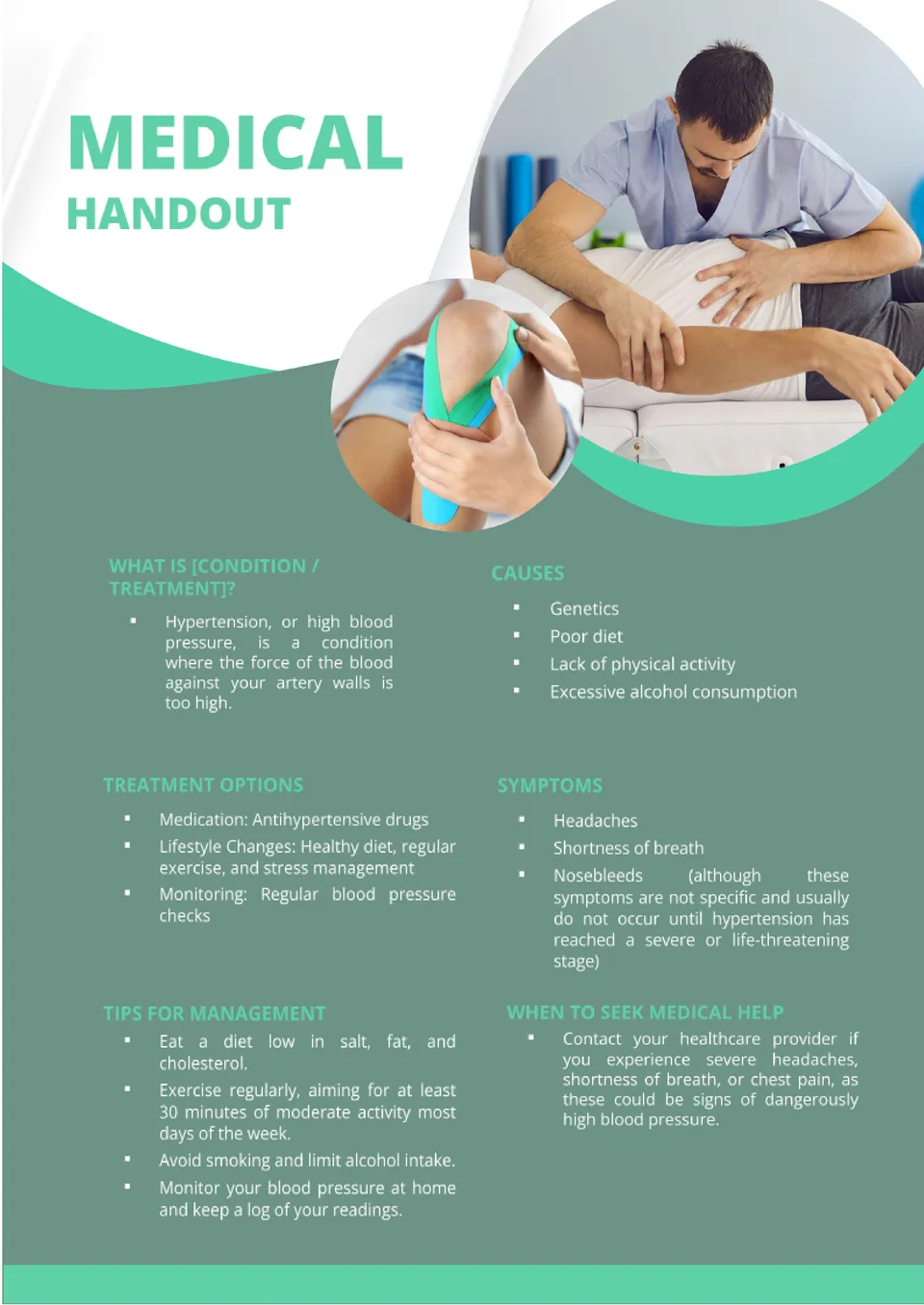
Are you looking to create educational materials that stand out in a healthcare setting? The Medical Handout Template gives you polished layouts to present research, wellness tips, or clinic information.
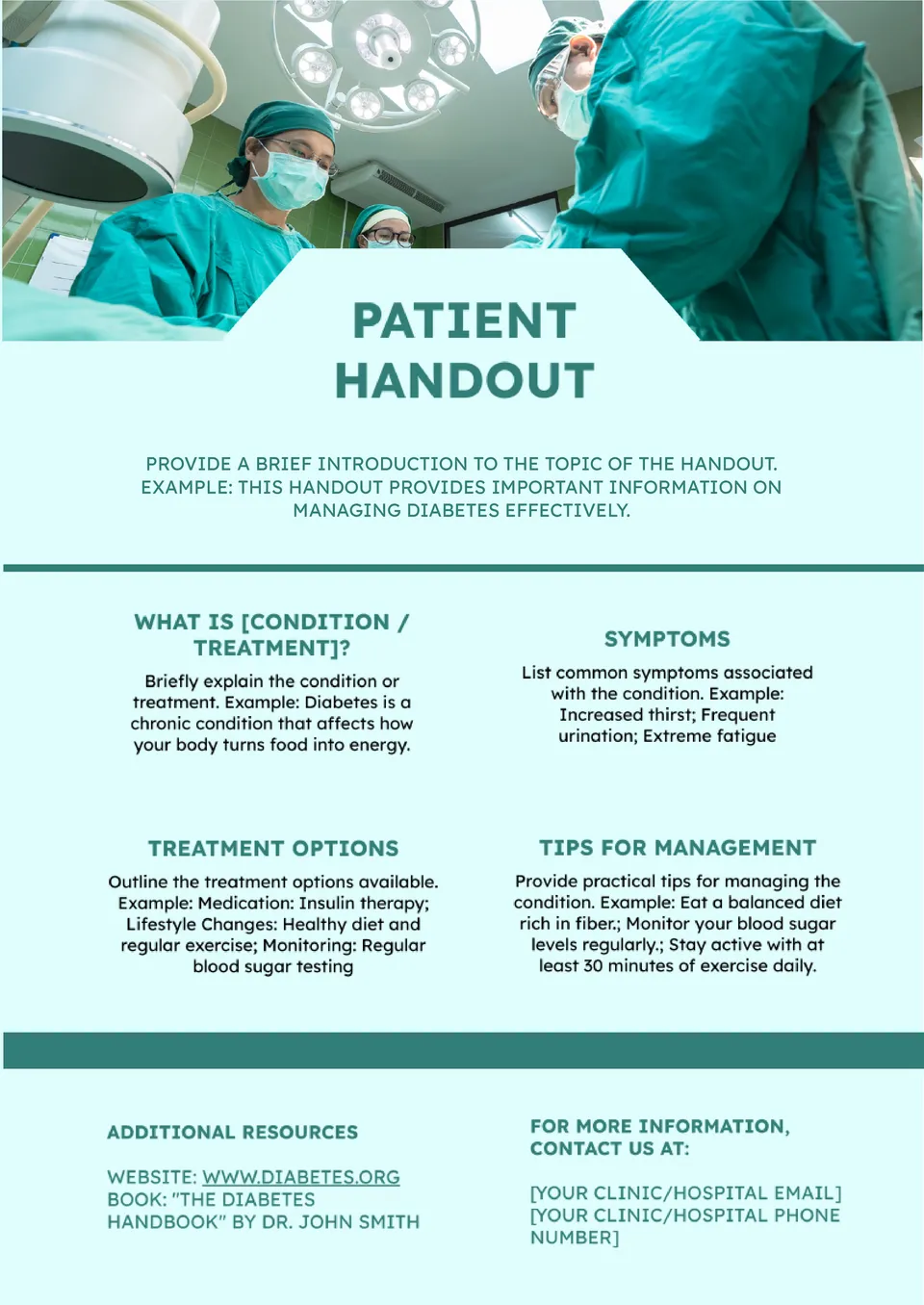
Do you need a clear and professional way to share medical information with patients? The Patient Handout Template offers editable, well-structured layouts designed for clinics, doctors, and health educators.
What Are Handout Templates for Google Docs and MS Word?
Handout Templates are ready-made documents for teachers, presenters, businesses, and church teams who need to share information in a clear and easy-to-read format. They are useful for lessons, conferences, business meetings, and church events where people need a simple summary or reference sheet. If you also need a more multi-page format for detailed printed material, take a look at our Booklet Templates.
We create these templates to help you save time and keep your handouts organized, readable, and simple to customize. They work well when you want to present key points, important notes, or supporting information without building the layout from scratch. They also help you keep the same structure across different events or topics, so your handouts stay consistent and professional.

Benefits of Using Handout Templates
Handout Templates make it easier to present information in a format that is practical and professional. They also help you guide readers through the most important points without extra formatting work.
- share information in a clear and organized way;
- save time with a ready-made layout;
- adapt the design for educational, business, or faith-based use;
- keep notes and key details easy to follow;
- prepare handouts for printing or digital sharing.
In practice, a good handout helps people quickly find the information they need and remember the main points better.

How to Customize Handout Templates in Google Docs
Google Docs makes it simple to edit a handout template and adapt it to your topic or event. You can update the text, adjust the design, and prepare the final version in just a few steps.
- Open the template in Google Docs or download it as a Word file.
- Replace placeholder text with your topic, headings, and main points.
- Add bullet points, notes, images, or supporting details if needed.
- Adjust fonts, spacing, and colors to match the purpose of the handout.
- Save the finished file as PDF, DOCX, or print-ready format.
You can also create versions for different audiences if your handout needs to work in more than one setting.

Popular Types of Handout Templates
We offer different Handout Templates for information sharing, business use, education, and church events. Each option is designed for a specific purpose, so you can choose the version that fits your needs best.
- Information Handout Template — a simple format for sharing core details and quick reference points;
- Business Handout Template — a practical choice for company overviews, service details, and client materials;
- Educational Handout Template — a useful layout for lessons, study guides, and classroom support;
- Conference Handout Template — a clean option for speaker notes, schedules, and event summaries;
- Church Handout Template — a respectful format for services, announcements, and faith-based events.
Download Free Handout Templates for Your Needs
Our Handout Templates are free to download and easy to adapt for different purposes. Choose the design that matches your topic, edit it in Google Docs or Word, and create a handout that looks clean and is easy to follow. We design these templates to help you save time, share information clearly, and keep your materials well organized.


Choose your preferred social media platform from options like Pinterest, Facebook, Twitter, and more. Share our templates with your contacts or friends. If you’re not active on these social networks, you can simply copy the link and paste it into the one you use.