

 Back to templates
 Free Chicago Style Google Docs Templates
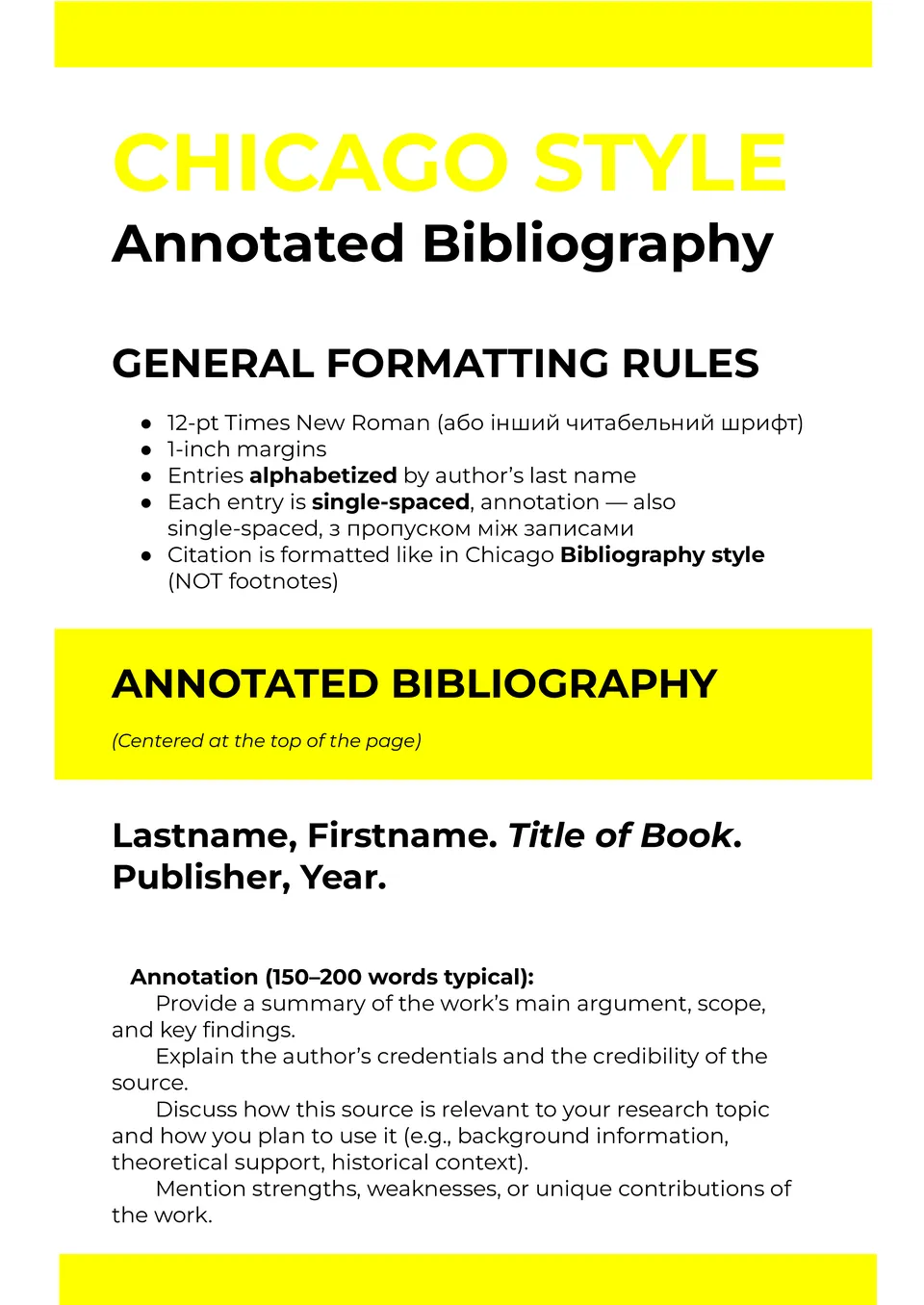
The Chicago Style Annotated Bibliography Template organizes sources with concise summaries and evaluations, making Chicago‑style formatting simple. It follows citation rules for clarity and consistency, ensuring your references look professional.

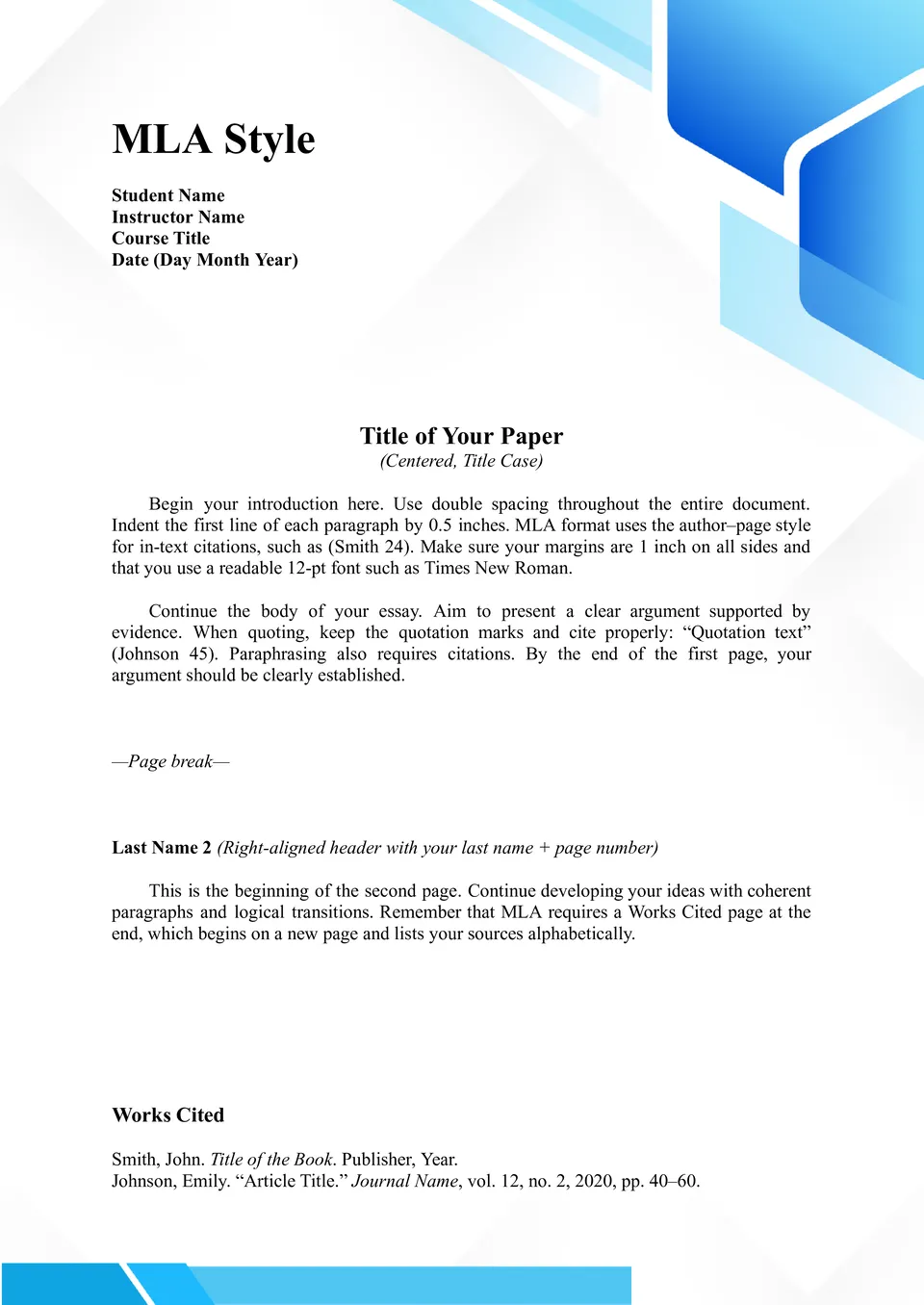
Wondering how to combine Chicago and MLA elements for hybrid formatting projects? The MLA Chicago Style Template gives you a flexible setup blending key aspects of both systems, useful for interdisciplinary work.

Need a ready‑made structure to start any Chicago‑style document? The Chicago Style Template for Writing provides formatted text, footnotes, and consistent styles throughout.
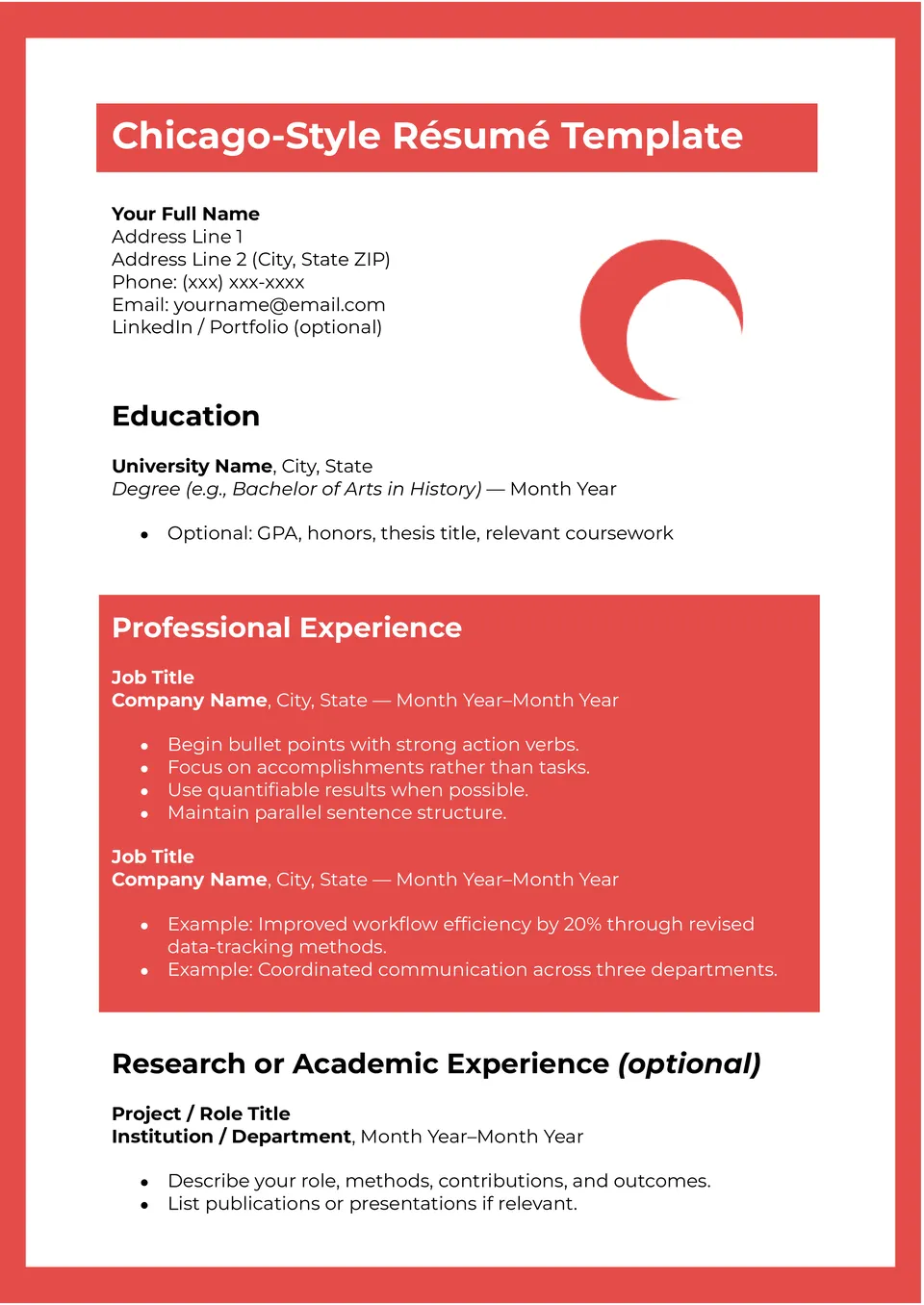
Want a resume that looks clean, structured, and easy to read? The Chicago Style Resume Template gives you a professional layout with sections for experience, education, and skills.
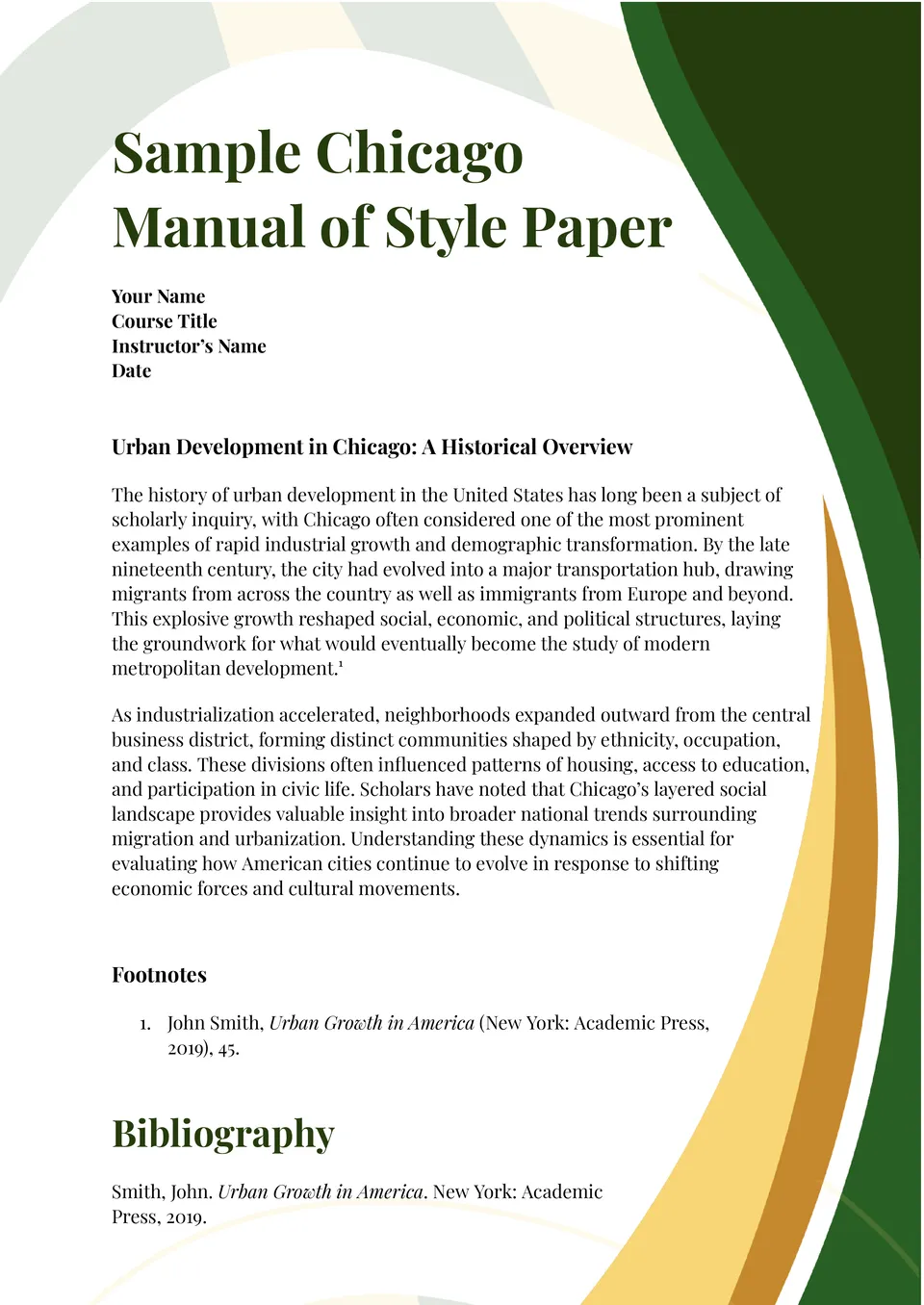
Looking for a reliable starting point for any Chicago‑style document? The Chicago Manual of Style Template sets up margins, spacing, headings, and footnote formats so you don’t start from scratch.
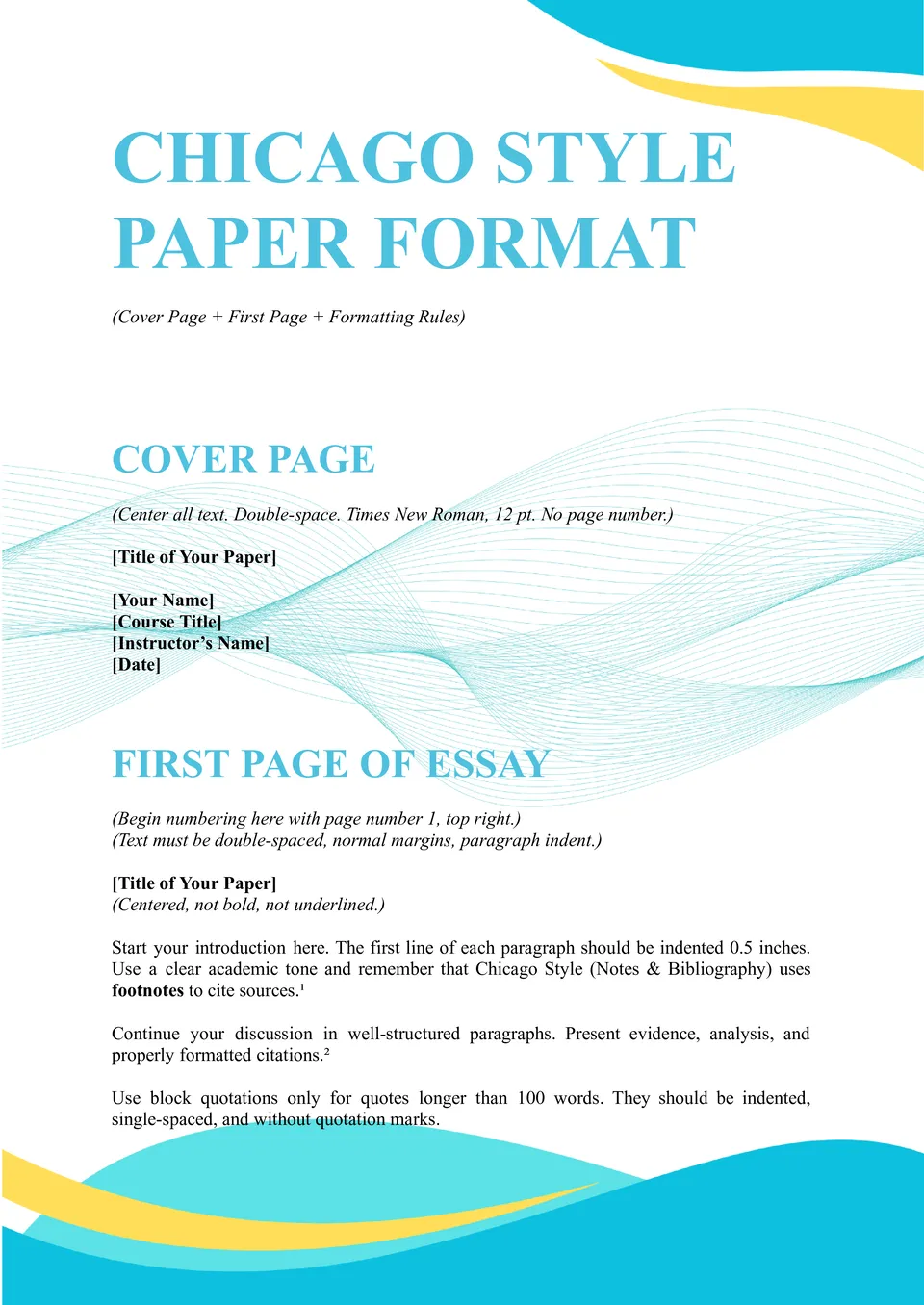
The Chicago Style Paper Format Template helps you apply correct Chicago formatting across the entire document. It organizes margins, spacing, and layout so everything stays consistent.
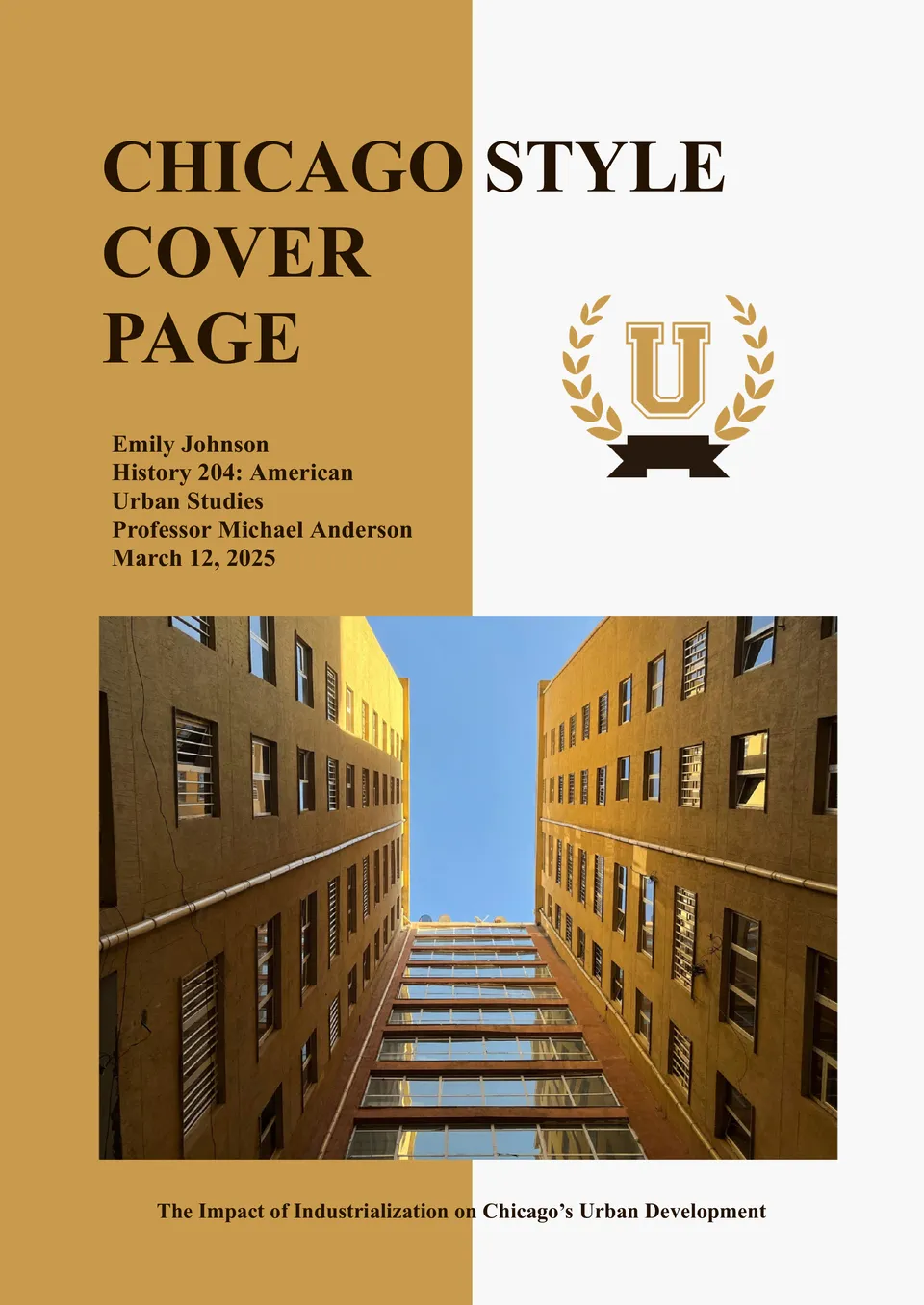
The Chicago Style Cover Page Template gives your paper a polished and professional first impression. It includes a clear structure for titles, names, and dates without formatting stress.
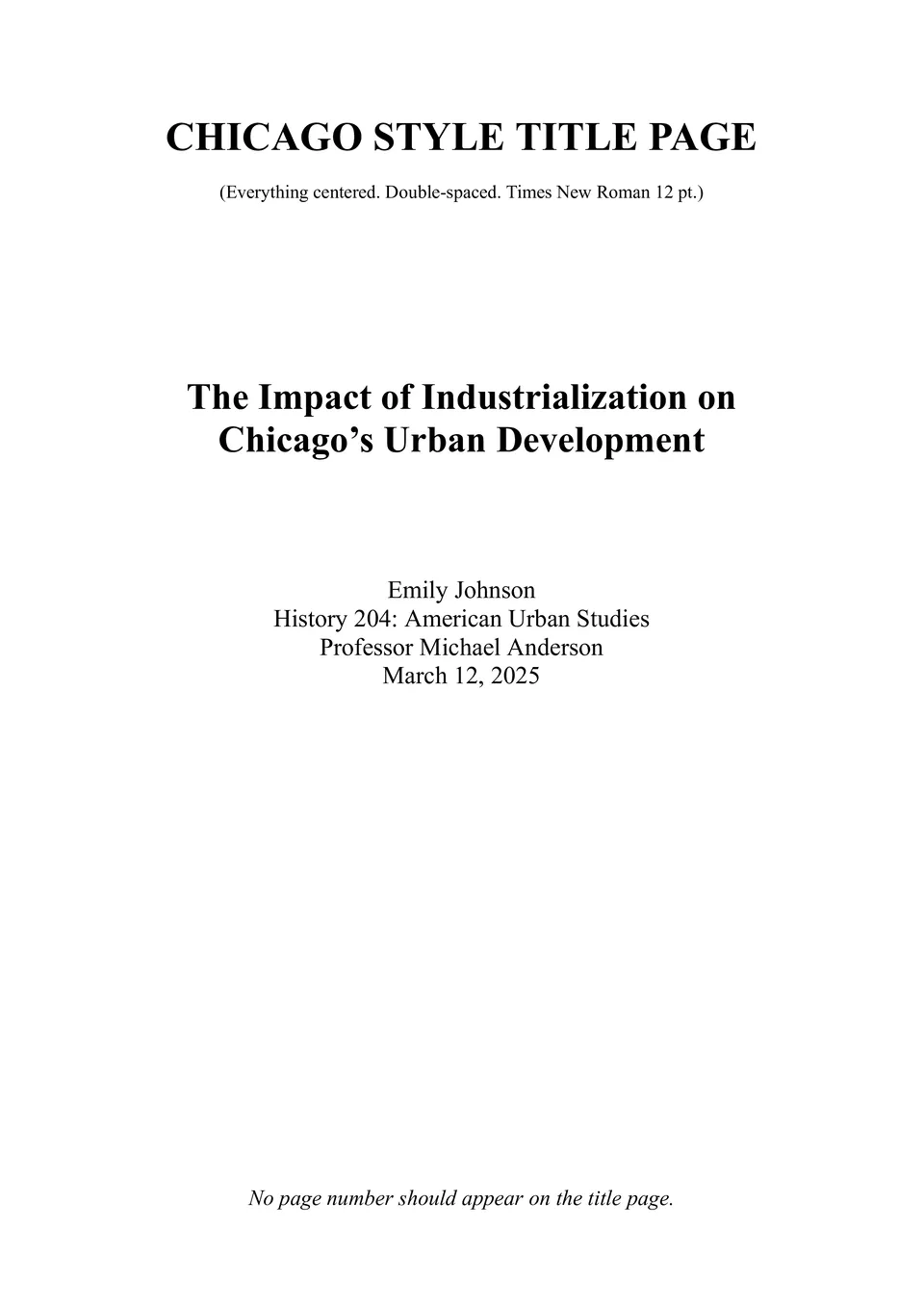
Need a title page that meets Chicago requirements instantly? The Chicago Style Title Page Template provides correct spacing and placement for all required details.
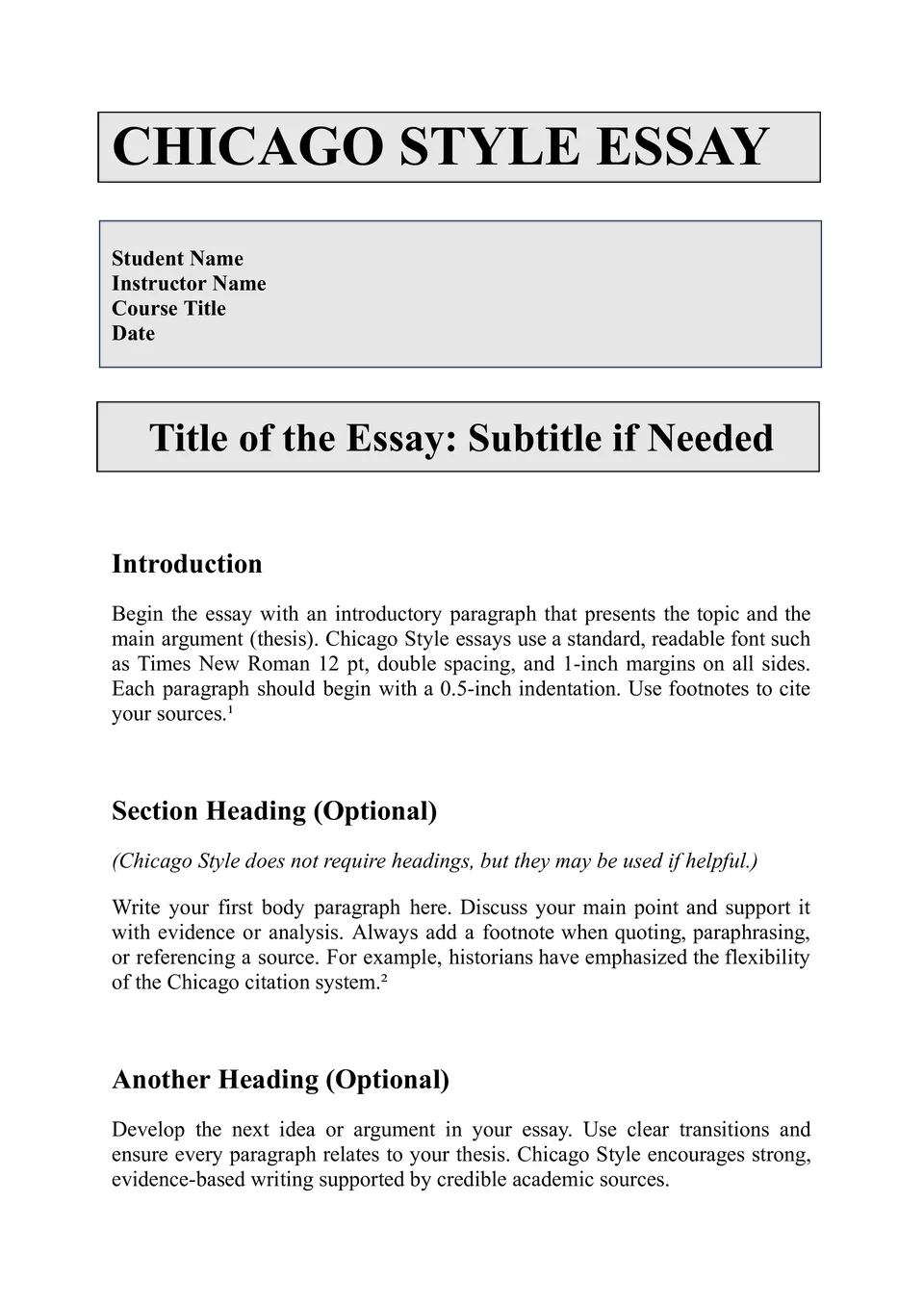
Want your essay to follow Chicago style without constant formatting checks? The Chicago Style Essay Template sets up the proper layout so your writing stays consistent.
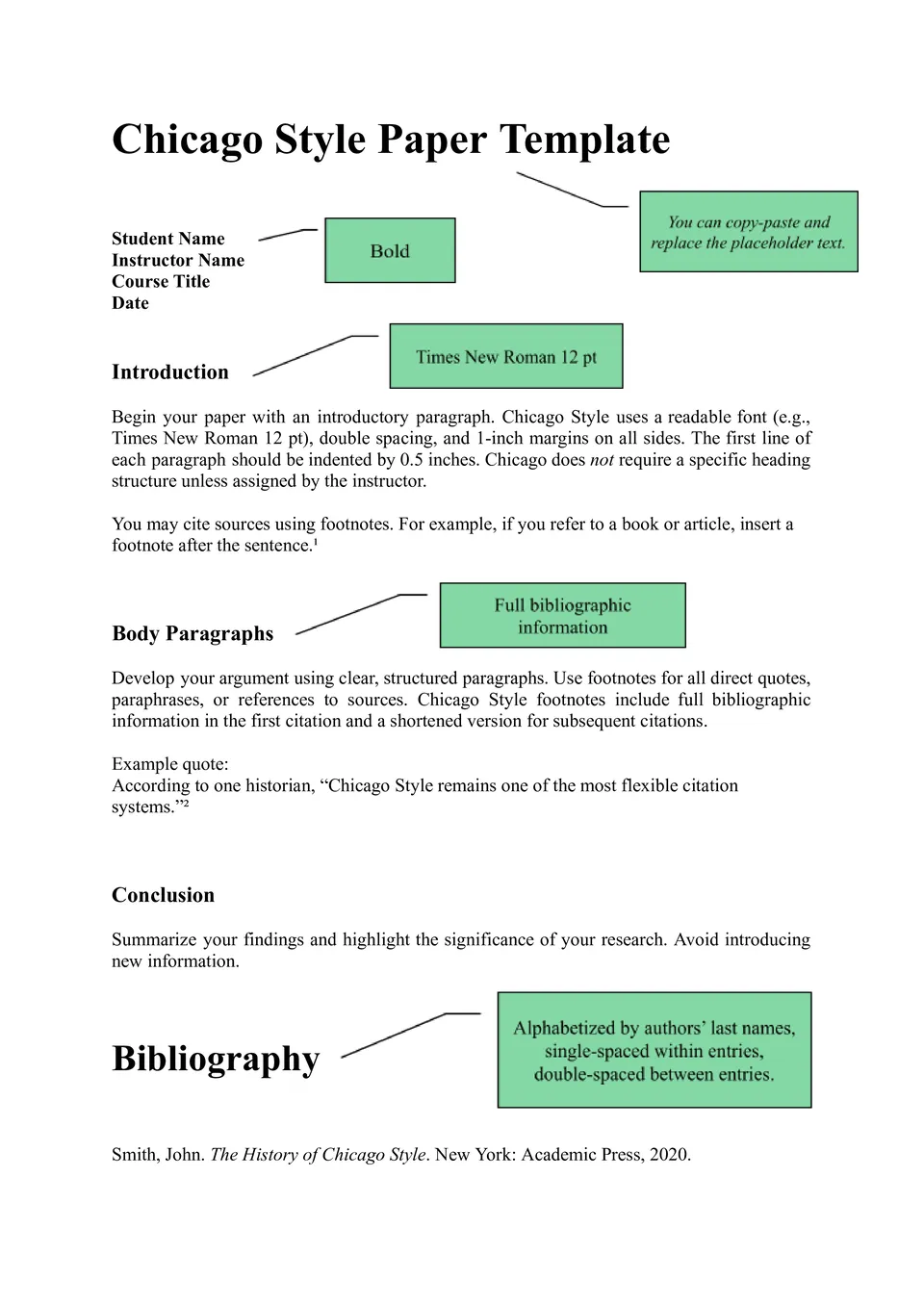
Looking for an easy way to format a paper in Chicago style correctly? The Chicago Style Paper Template gives you the right margins, spacing, and structure from the start.
What Are Chicago Style Templates for Google Docs and MS Word?
Chicago Style Templates are ready-made documents for students, researchers, and writers who need to format papers according to Chicago style rules. They are useful for essays, research papers, title pages, and hybrid academic work, where margins, headings, and citations must follow a clear structure. If you also need a simpler academic format for essays and papers, take a look at our MLA Templates.
We create these templates to help you save time and keep your paper organized, consistent, and easier to format. They work well when you want to focus on writing instead of adjusting spacing, notes, and page layout from scratch. They also help you follow Chicago style more accurately, so your document looks polished and ready for submission.

Benefits of Using Chicago Style Templates
Chicago Style Templates make it easier to prepare academic documents that look structured and professional. They also help reduce formatting mistakes that can happen when building a paper by hand.
- format papers according to Chicago style rules;
- save time with a ready-made academic layout;
- adapt the document for essays, reports, or research writing;
- keep title pages, notes, and references organized;
- prepare your paper for digital submission or printing.
In practice, a good Chicago template helps you work faster while keeping the formatting clean and consistent.

How to Customize Chicago Style Templates in Google Docs
Google Docs makes it simple to edit a Chicago Style template and adapt it to your assignment. You can update the content, refine the layout, and prepare the final version in a few clear steps.
- Open the template in Google Docs or download it as a Word file.
- Replace placeholder text with your name, course, instructor, and date.
- Add your paper title, body text, citations, footnotes, or bibliography.
- Adjust fonts, spacing, and headings to match Chicago style requirements.
- Save the finished file as PDF, DOCX, or another required format.
You can also use different Chicago layouts depending on whether you are preparing a paper, an essay, or a title page.

Popular Types of Chicago Style Templates
We offer different Chicago Style Templates for papers, essays, resumes, and mixed academic formats. Each option is designed for a specific use, so you can choose the version that fits your project best.
- Chicago Style Paper Template — a practical format for full academic papers and class assignments;
- Chicago Style Essay Template — a useful choice for essays that need proper Chicago formatting;
- Chicago Style Title Page Template — a structured option for papers that require a formal title page;
- Chicago Style Resume Template — a unique layout for resume-style documents with a Chicago-inspired format;
- MLA Chicago Style Template — a flexible option for hybrid academic formatting needs.
Download Free Chicago Style Templates for Your Needs
Our Chicago Style Templates are free to download and easy to adapt for different academic tasks. Choose the design that matches your assignment, edit it in Google Docs or Word, and create a paper that looks organized and follows Chicago style rules. We design these templates to help you save time, present your work clearly, and submit with confidence.


Choose your preferred social media platform from options like Pinterest, Facebook, Twitter, and more. Share our templates with your contacts or friends. If you’re not active on these social networks, you can simply copy the link and paste it into the one you use.