

 Back to templates
 Free Timesheet Google Sheets Templates
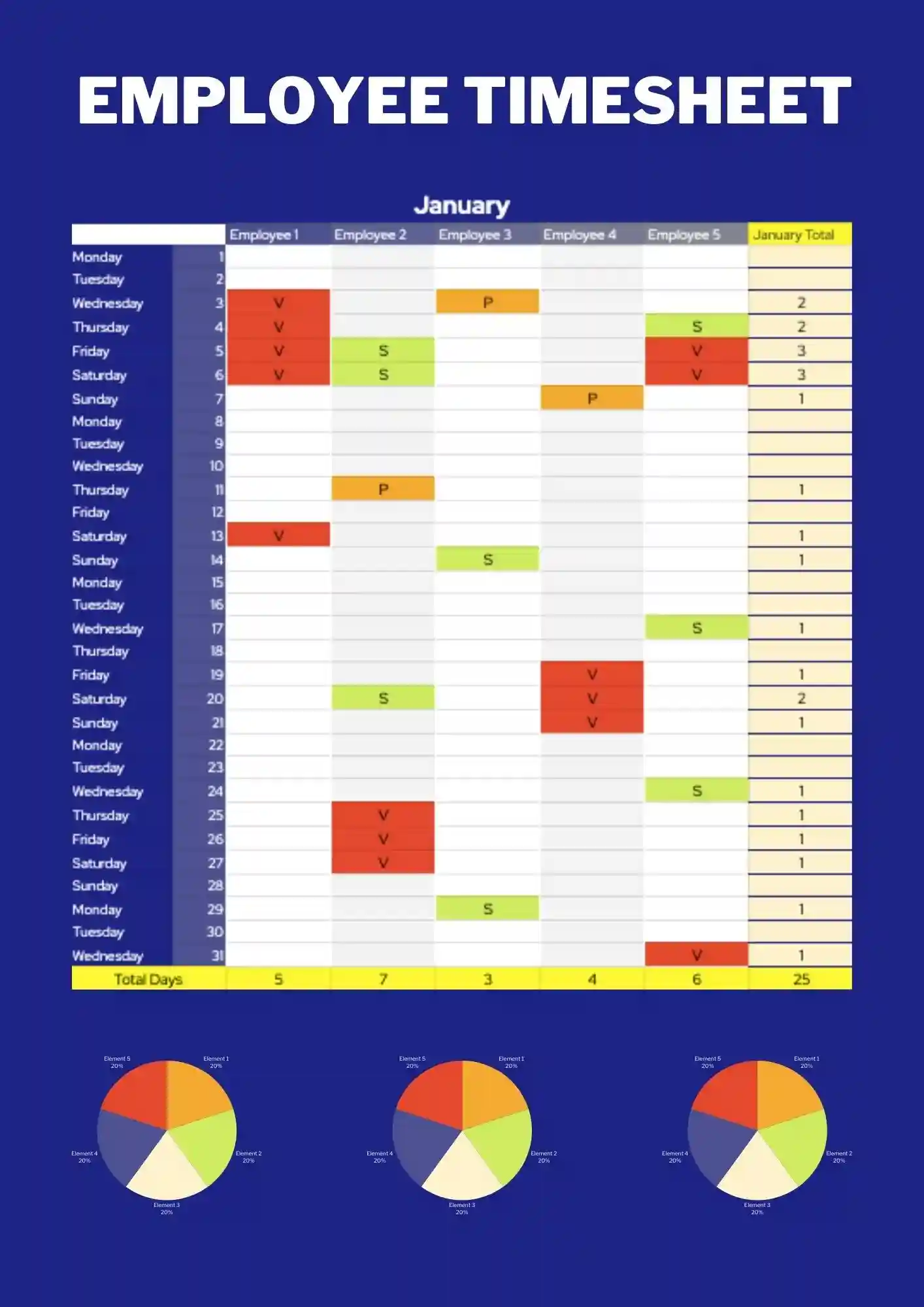
Employee Timesheet Template is built for tracking employee hours, tasks, and worked time in a clear and organized way. It works for HR, managers, small companies, and freelancers who track time by employee. Rename fields, update colors, and adjust styles to fit your team's structure. It keeps staff hours organized and makes payroll or reporting much simpler. Get this template free and use it right out of the box.

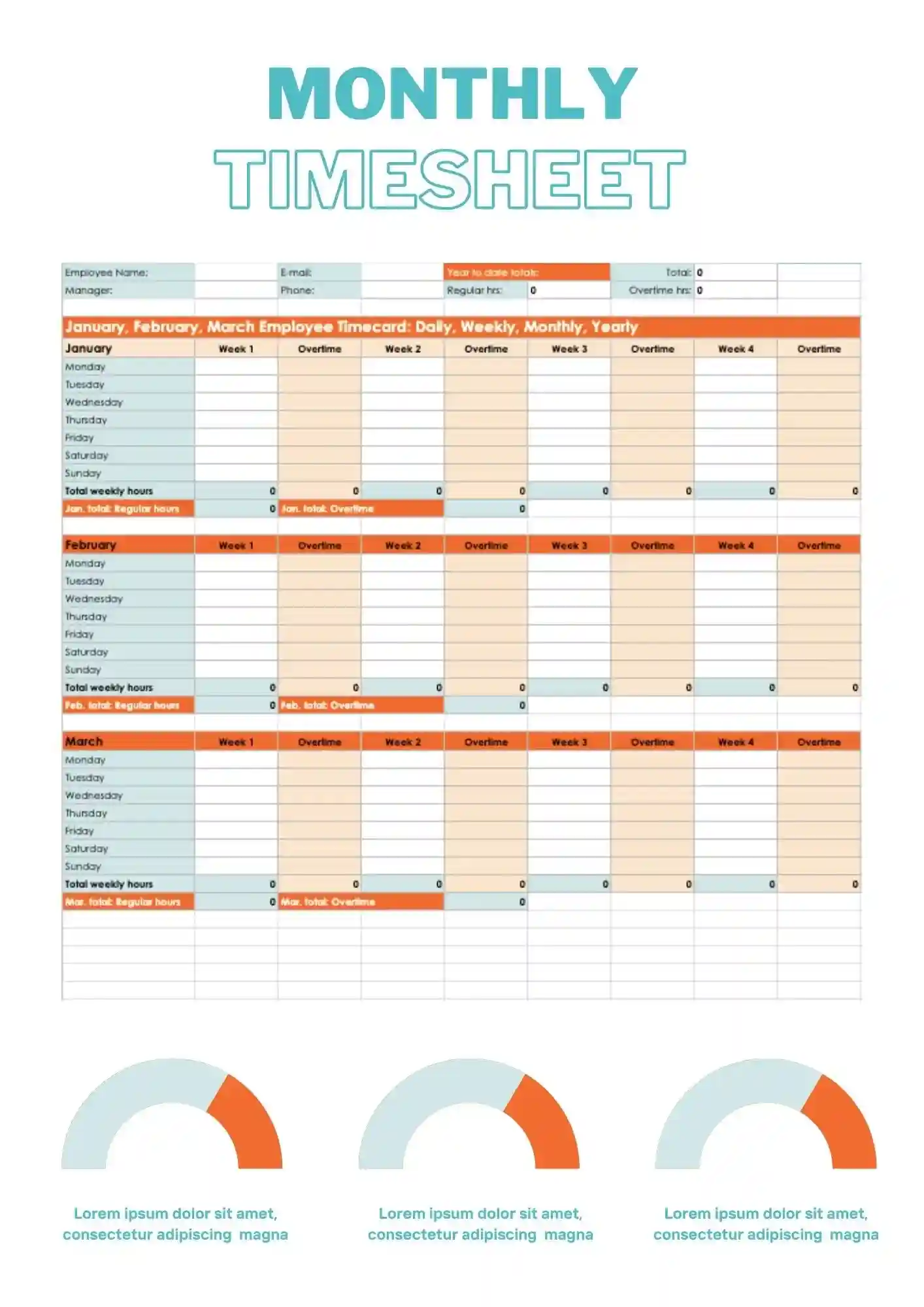
You need monthly time tracking, but your current spreadsheet is messy and doesn't give a clear picture for the month? Monthly Timesheet Template gives you a ready-to-use solution for tracking hours, tasks, and projects in one place. It works for freelancers, teams, managers, and students who track time by month. Adjust the text, colors, and layout to match your reporting needs. This layout makes it easy to review your full month at once. Free to download and ready to use right away.
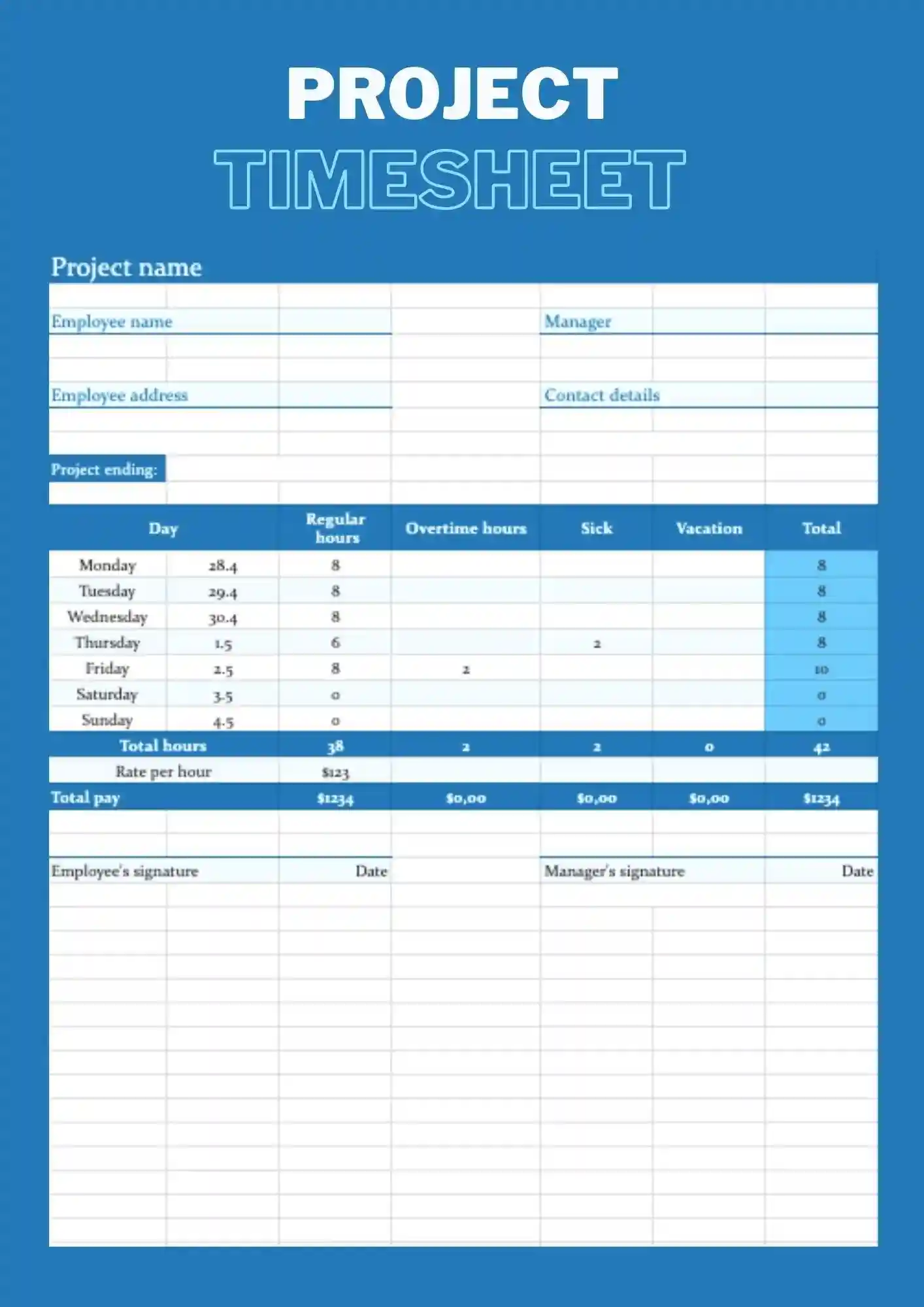
Project Timesheet Template is a Google Sheets structure for tracking time by specific projects, tasks, and phases. It works for managers, teams, freelancers, and students who track time by project. Every cell, label, and color is customizable so you align the sheet with your project structure. It helps you see how much time each project consumes and where your effort goes. The built-in layout makes it easy to compare time spent across multiple projects at once.
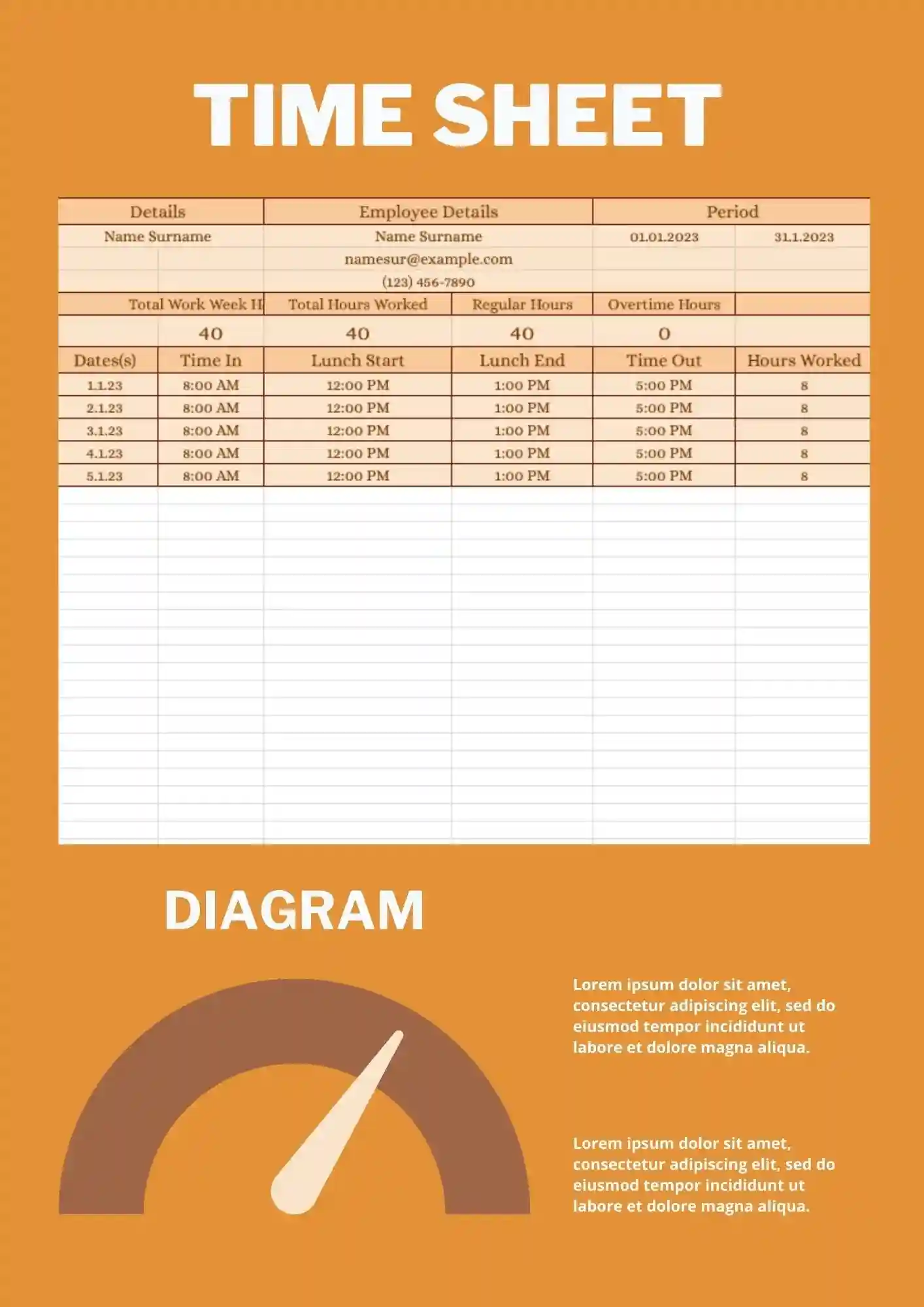
Timesheet Template is a simple, ready spreadsheet in Google Sheets for tracking work hours, tasks, and projects without extra formatting. It works for freelancers, small teams, teachers, and students who track general time. You can modify all labels, dates, and colors directly to fit your tracking style. Use it to keep daily or weekly hours logged cleanly without building a tracker from scratch. It integrates seamlessly with Google Sheets for real-time updates and shared access across your team.
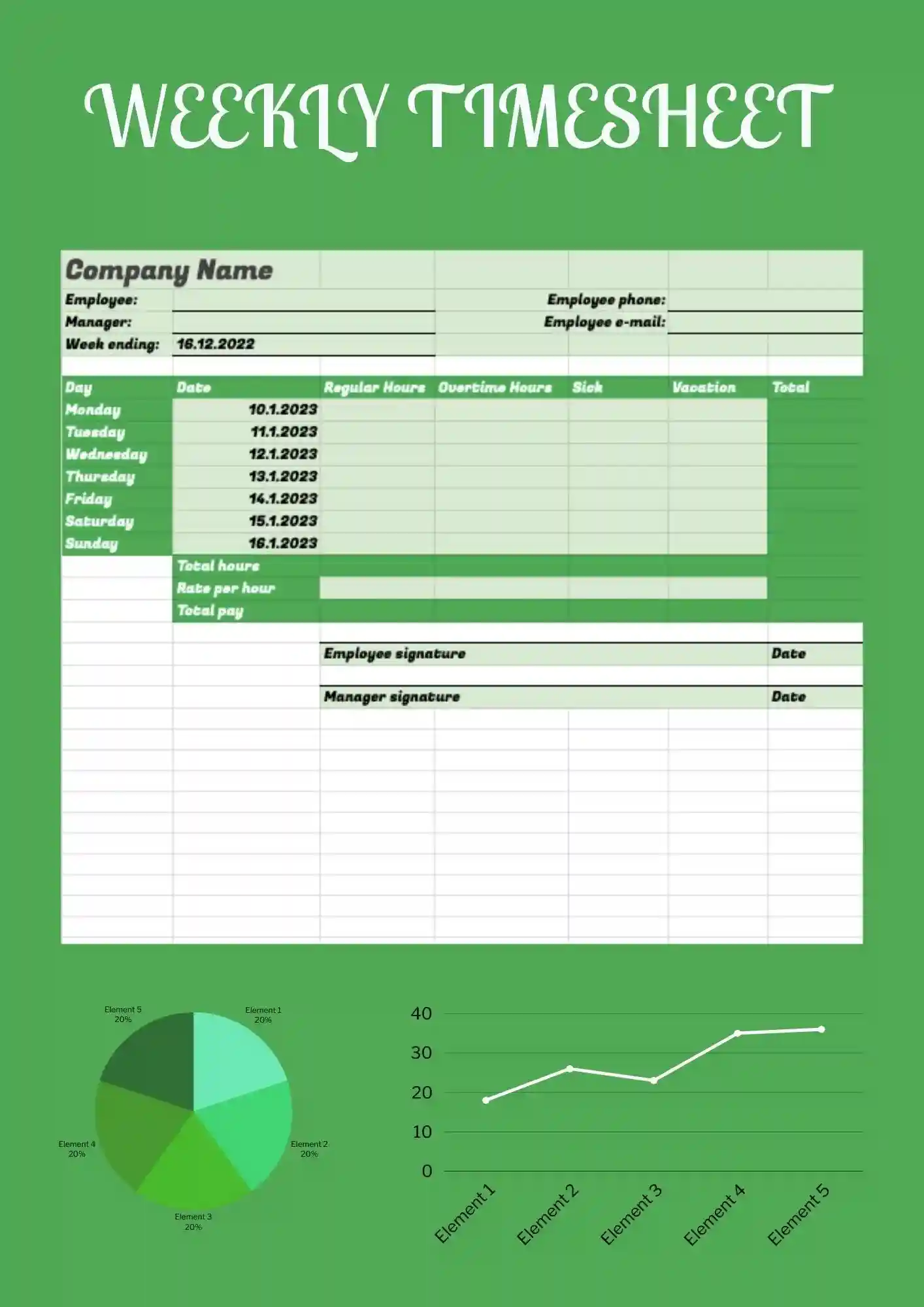
You spend too much time tracking hours, but your current timesheet looks scattered and doesn't give a clear picture for the week? Weekly Timesheet Template gives you a ready-to-use Google Sheets structure for weekly tracking of hours, tasks, and projects that you can adapt quickly. It works for freelancers, teams, managers, and students who track time by week. Colors, text, and objects are editable, so you easily change names, schedules, and styles to fit your needs. Free for personal and business use, ready to use, and perfect for a timesheet that needs to feel clear and professional.
What Are Timesheet Templates for Google Sheets and Microsoft Excel?
Timesheet Templates are structured spreadsheets we created to help managers, freelancers, office administrators, and teams track working hours, project tasks, and employee time without manual calculation or messy layouts. When you need to bill hours, organize project work, or manage weekly employee logs, these templates give you clarity and organization.
Each template works in Google Sheets and Microsoft Excel, so you can enter hours, adjust task labels, and automatically calculate totals. We built these Timesheet Templates to let you focus more on your work and less on adding formulas or fixing formats.

Benefits of Using Timesheet Templates
Using Timesheet Templates helps you eliminate guesswork in tracking hours, ensuring accuracy, transparency, and fairness. These layouts help you distribute work, report projects, or invoice clients with reliable data and easy‑to‑follow tables.
- suitable for employees, contractors, project teams, or administrative staff;
- includes columns for dates, start & end times, tasks, and total hours;
- editable templates so you can add overtime, breaks, or special project codes;
- clean designs that look good on screen or when printed;
- reduces errors and saves time by automating calculations.
With clear and structured sheets, your time tracking becomes reliable and efficient.

How to Customize Google Sheets Timesheet Templates
Customizing Timesheet Templates is fast and user‑friendly. Open your selected template, replace placeholders with your project or task details, adjust layouts to match your tracking style, and export when needed.
- Open the selected template in Google Sheets or Microsoft Excel.
- Replace placeholder headings with your project name, employee or task identifiers, dates, or times.
- Add or remove rows or columns for tasks, overtime, or other job types.
- Adjust fonts, cell coloring, date formats, or alignment for readability.
- Export the completed timesheet as Microsoft Excel, PDF, ODS, CSV, or TSV for sharing, submission, or archival.
If you also manage budgets, our Budget Templates may help you align your time tracking with financial planning.

Popular Types of Timesheet Templates
We offer Timesheet Templates tailored to different work styles:
- Employee Timesheet Template – standard layout for tracking individual work hours;
- Monthly Timesheet Template – overview for full‑month tracking and summaries;
- Project Timesheet Template – task‑oriented format suited to projects with multiple phases;
- Timesheet Template – versatile layout for various contexts;
- Weekly Timesheet Template – breakdown by week for regular schedules or recurring tasks.
Download Free Timesheet Templates for Your Needs
Choose a Timesheet Template, fill in your hours, and start tracking immediately. All templates are free, easy to edit, and ready to use. Download our free Timesheet Template today and make your time tracking simple and accurate.


Choose your preferred social media platform from options like Pinterest, Facebook, Twitter, and more. Share our templates with your contacts or friends. If you’re not active on these social networks, you can simply copy the link and paste it into the one you use.