

 Back to templates
 Free Quote Google Docs Templates
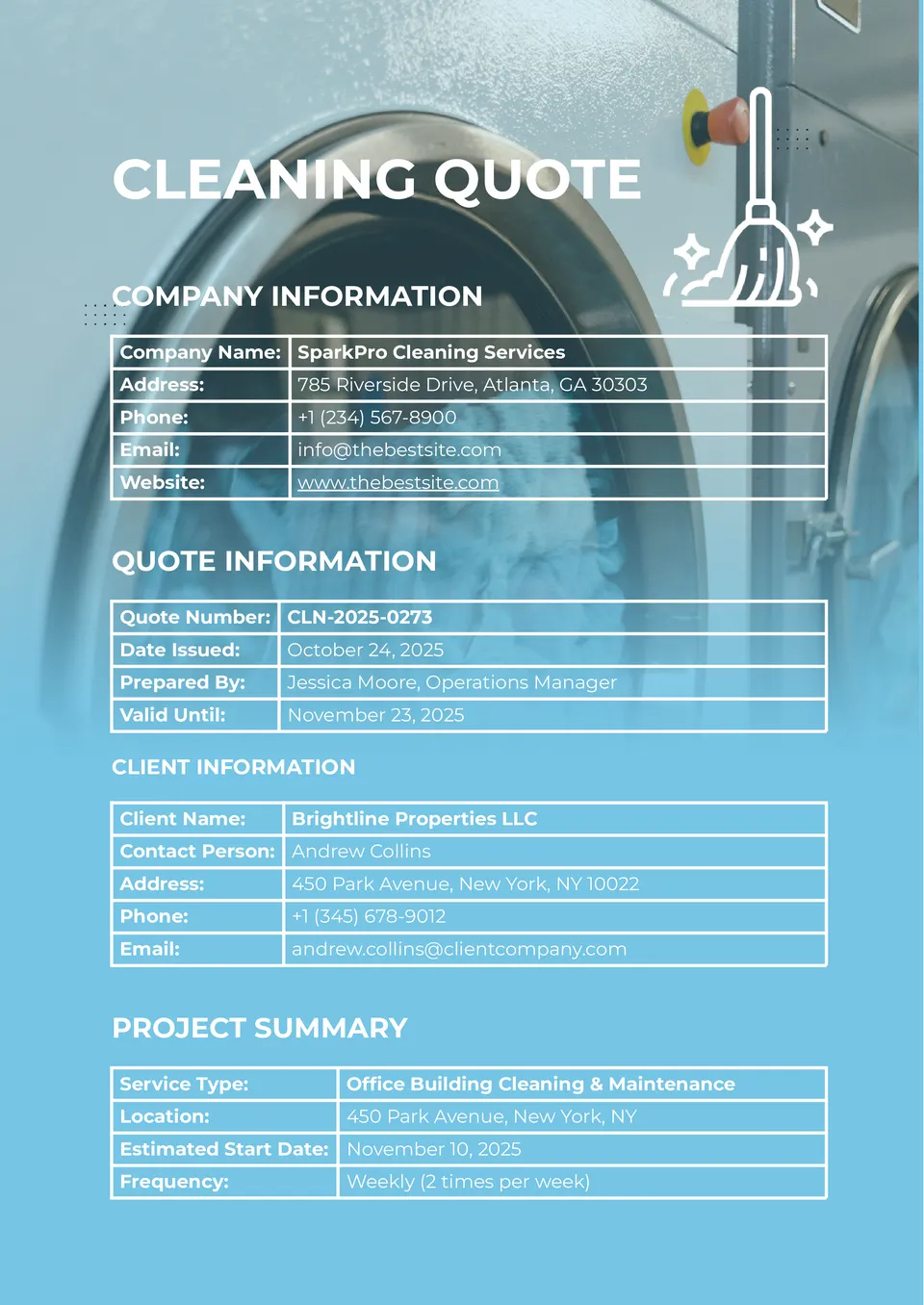
The Cleaning Quote Template helps your cleaning business offer transparent, professional quotes for recurring or one-time services. With editable fields for tasks, frequency, pricing, and terms, it’s great for home or commercial cleaning providers.

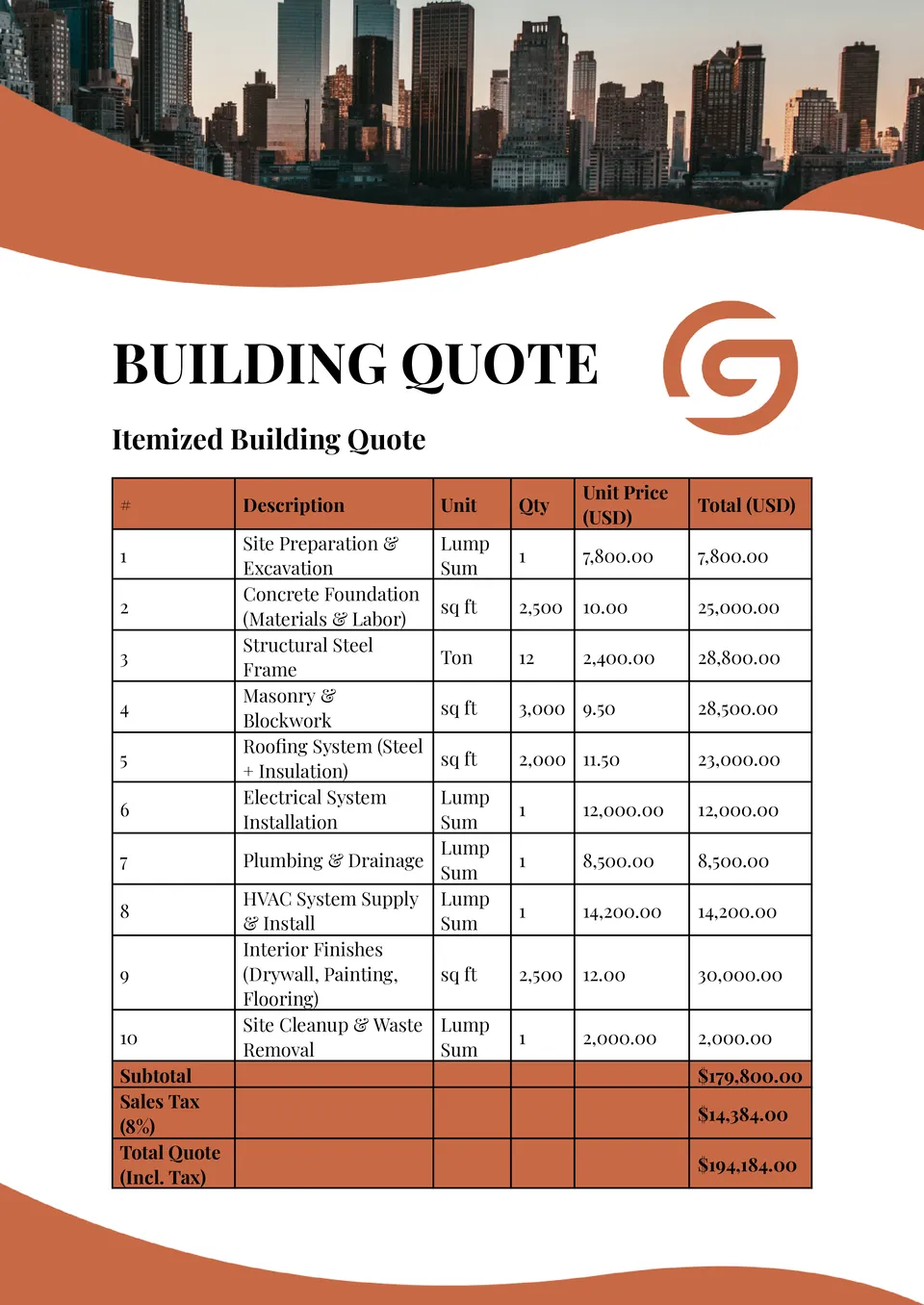
The Building Quote Template organizes structural work, finishes, and site services into a coherent document your clients can trust. Perfect for builders, contractors, and construction firms needing to send detailed, branded quotes.
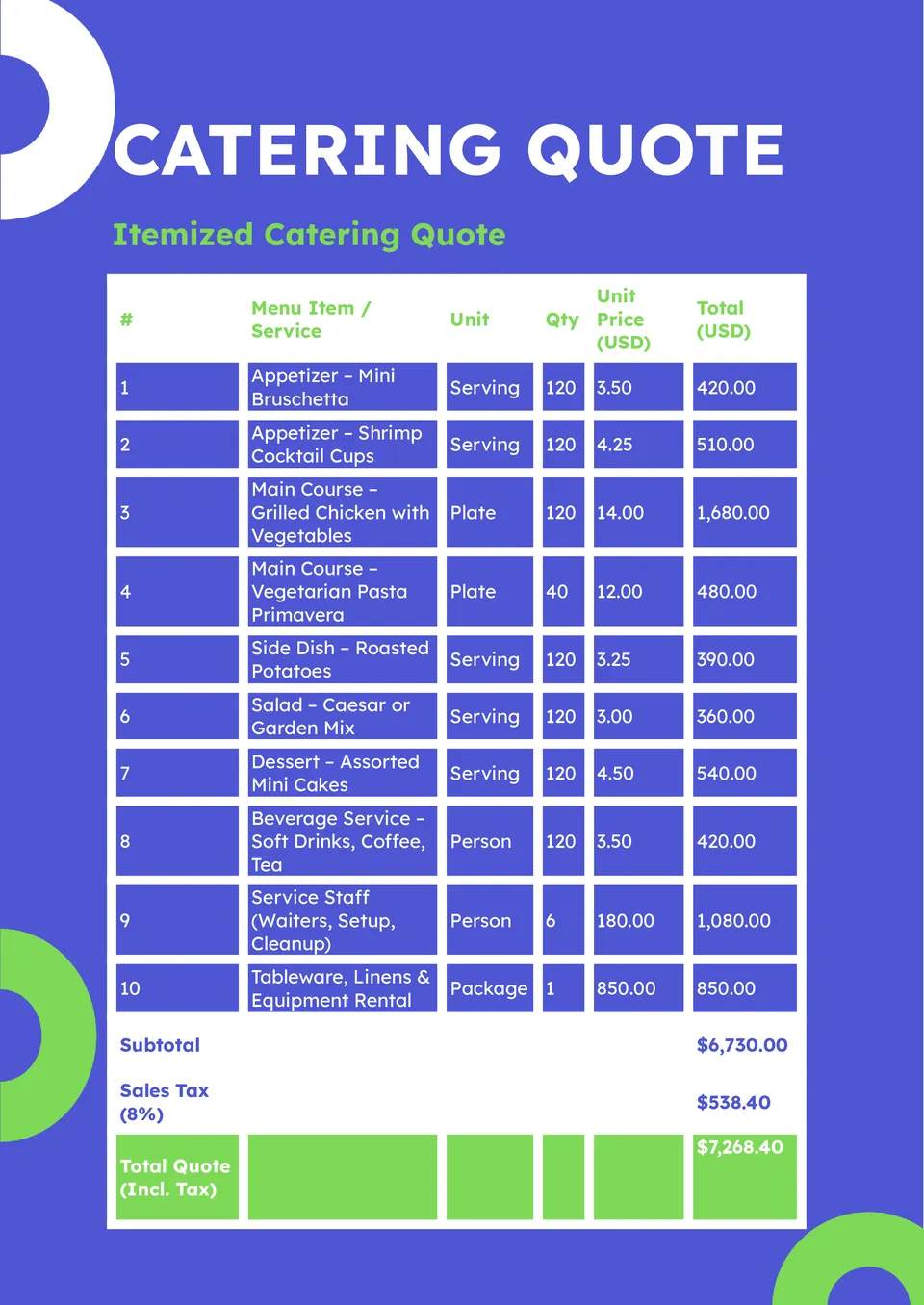
Looking to make your catering proposals as polished as your events? The Catering Quote Template lays out menu items, headcounts, pricing tiers, and terms in a visually appealing format.
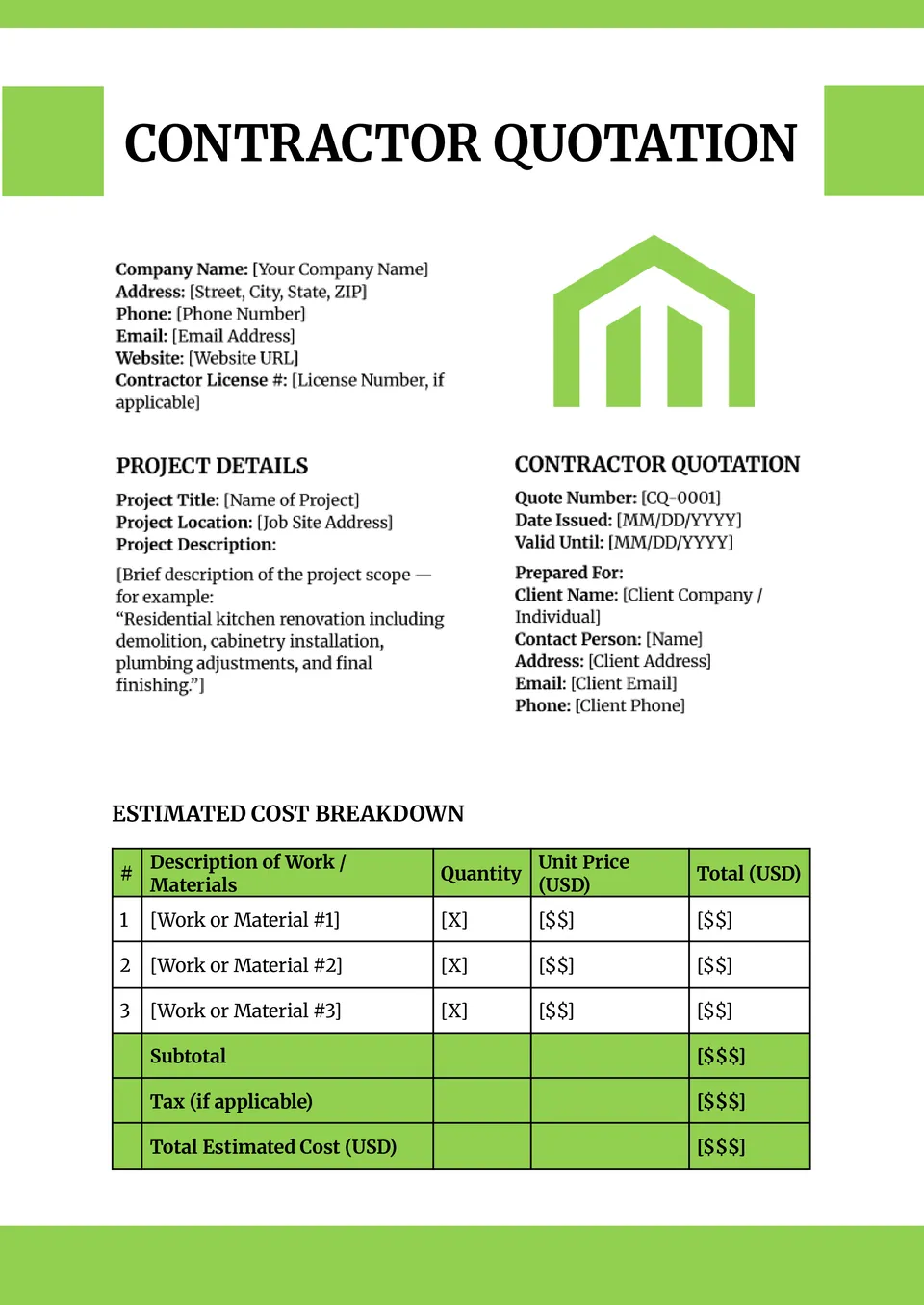
Want to deliver project estimates that look organized and credible? The Contractor Quote Template provides a ready-to-use format for scope, labor, materials, and pricing.
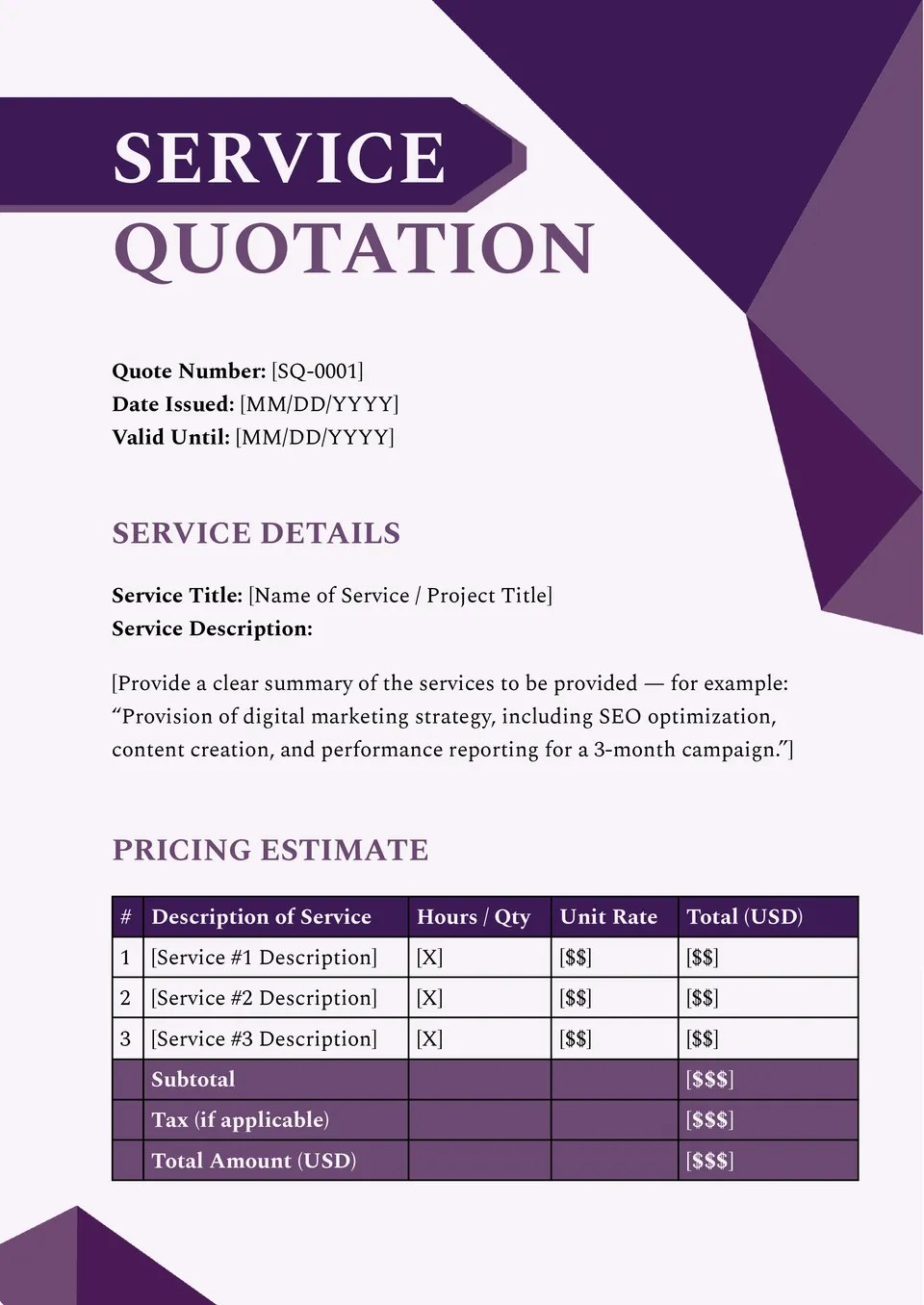
Looking to present your services clearly and professionally in one document? The Services Quote Template gives you editable sections for service description, rates, and terms in a clean layout.
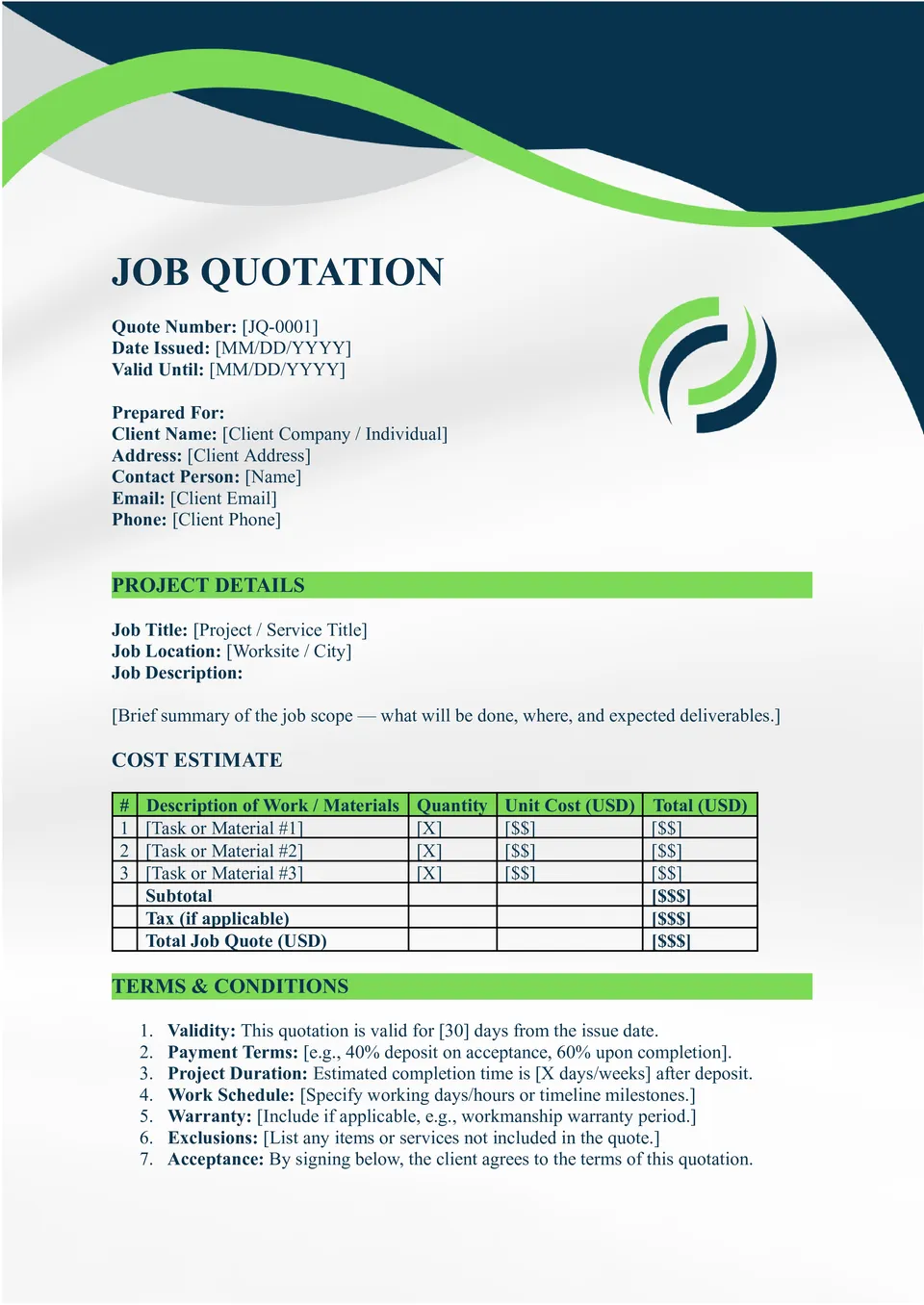
The Job Quote Template helps service professionals issue accurate, professional proposals in minutes. With editable fields for job description, pricing, terms, and client details, it supports clear communication.
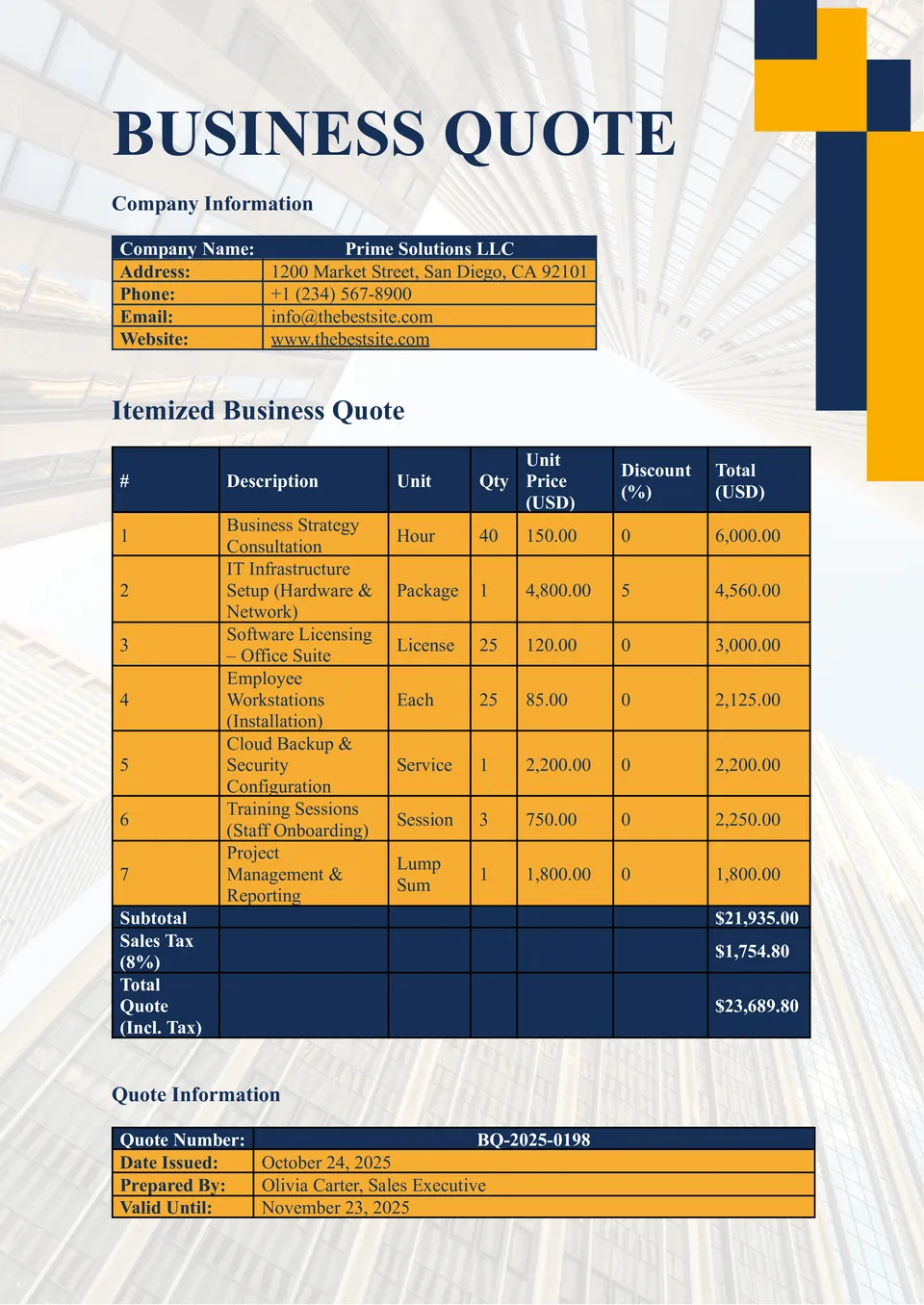
The Business Quote Template provides a refined document format for services, projects, or consultations. Tailored for startups, agencies, and small firms, it lets you highlight scope, cost, and next steps with ease.
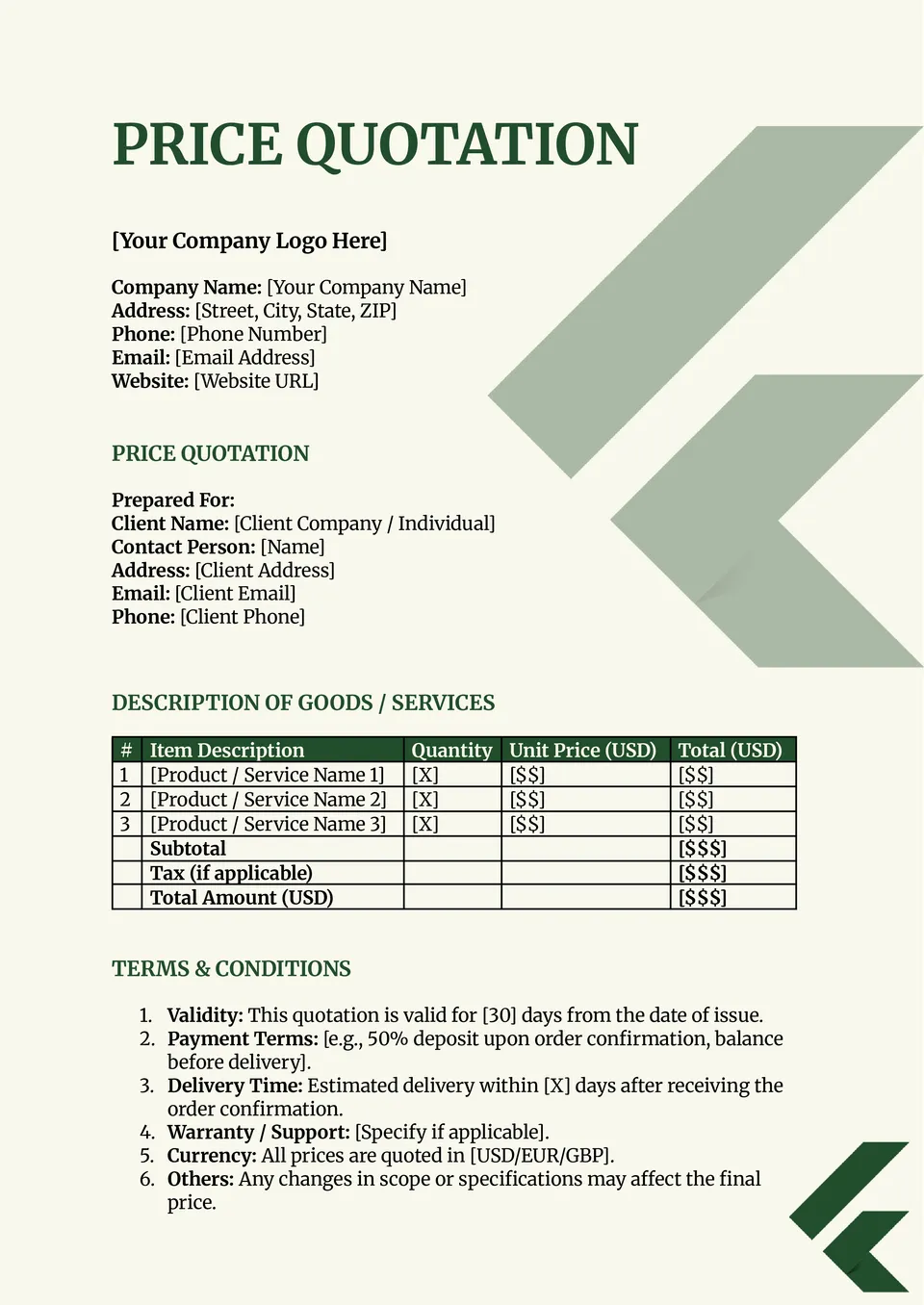
Want a simple, efficient way to send quotes without delays? The Price Quote Template streamlines the process by laying out items, quantities, and totals clearly.
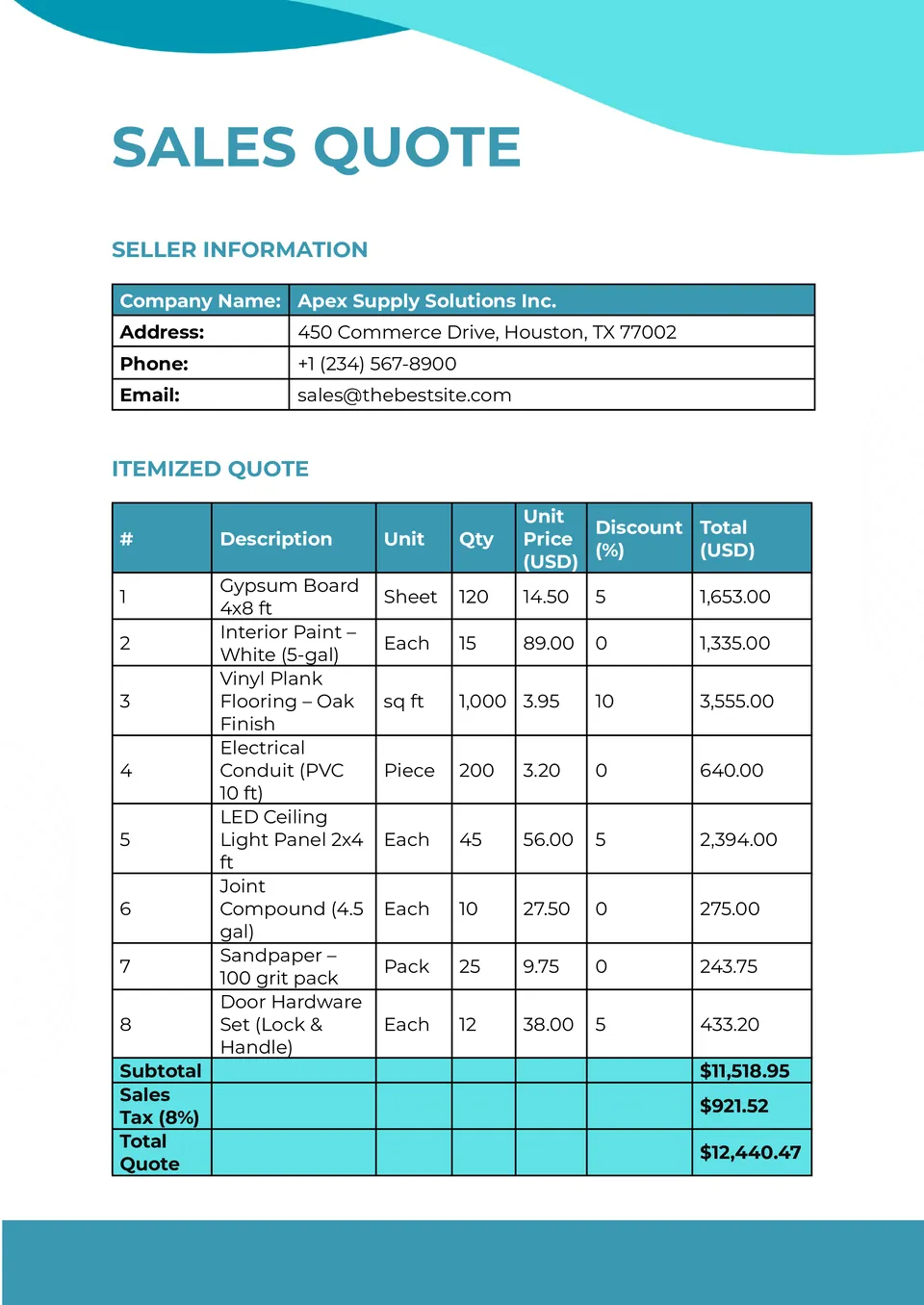
Looking to boost your conversion rate with clearer offers? The Sales Quote Template presents your products, packages, and pricing in a clean, engaging format.
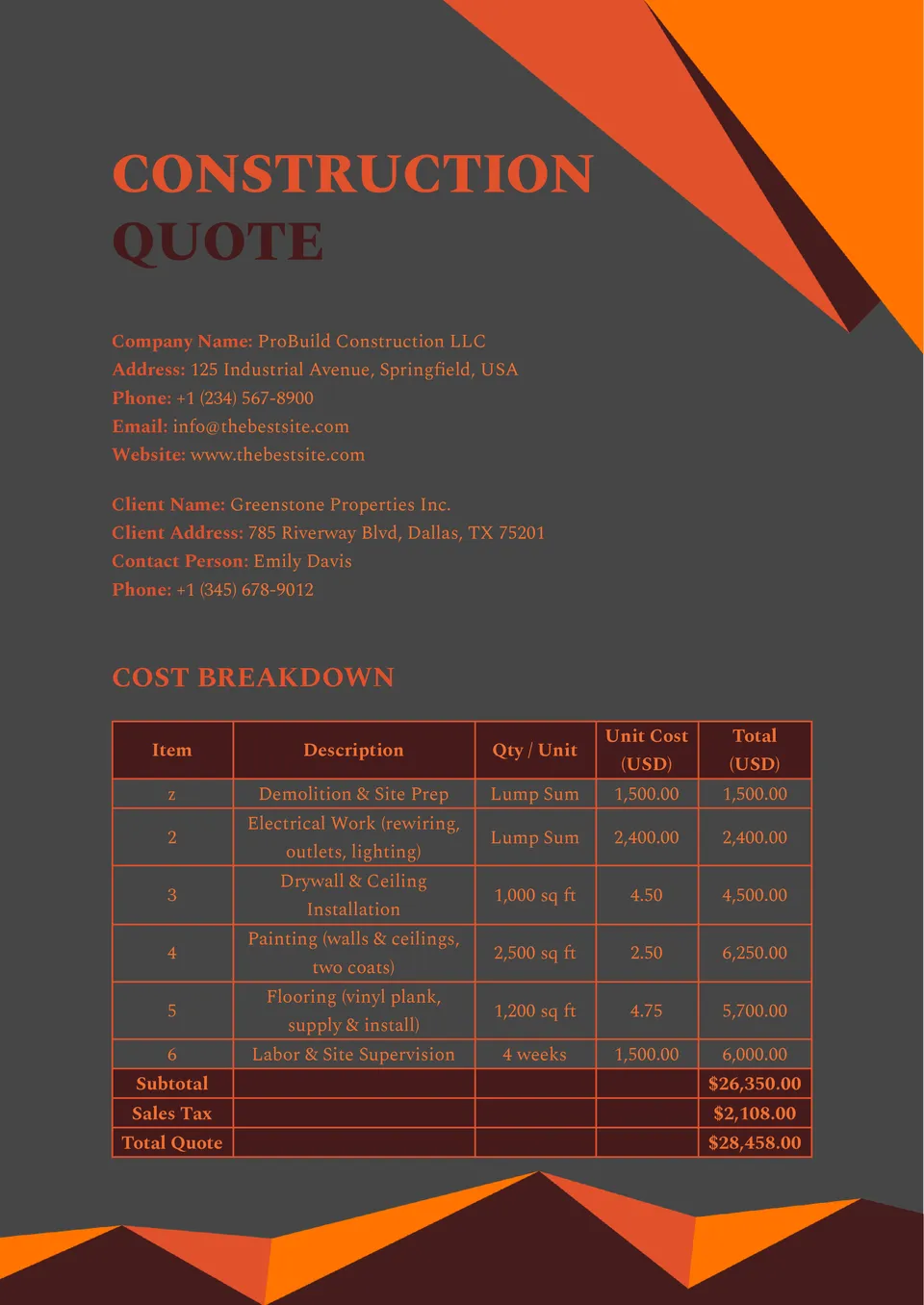
Want to deliver professional estimates that win projects from the start? The Construction Quote Template gives contractors a polished layout for labor, materials, and pricing.
What Are Quote Templates for Google Docs and MS Word?
Quote Templates are ready-made documents for businesses, contractors, and service providers who need to present pricing in a clear and professional way. They are useful for construction jobs, sales offers, business services, and building projects, where a well-structured quote helps clients understand the cost and scope. If you also need a simple document for collecting customer orders, take a look at our Order Form Templates.
We create these templates to help you save time and keep every quote organized, accurate, and easy to customize. They work well when you want to present prices, labor, materials, and terms without building the layout from scratch. They also help you keep the information in a consistent format, so clients can review and compare offers more easily.

Benefits of Using Quote Templates
Quote Templates make it easier to prepare pricing documents that look clear and professional. They also help you present costs in a way that is simple for clients to read and approve.
- present pricing and service details in a structured format;
- save time with a ready-made quote layout;
- adapt the document for business, construction, or contractor work;
- keep materials, labor, and terms easier to review;
- prepare quotes for email, digital use, or printing.
In practice, a good quote template helps you communicate value clearly and speed up the approval process.

How to Customize Quote Templates in Google Docs
Google Docs makes it simple to edit a quote template and adapt it to a specific client or project. You can update the content, refine the layout, and prepare the final version in a few easy steps.
- Open the template in Google Docs or download it as a Word file.
- Replace placeholder text with your client name, project details, and pricing information.
- Add labor costs, materials, terms, and due dates if needed.
- Adjust fonts, spacing, and colors to match your brand style.
- Save the finished file as PDF, DOCX, or a shareable digital document.
You can also create different versions for small jobs, large projects, or repeat clients if your workflow needs more than one format.

Popular Types of Quote Templates
We offer different Quote Templates for construction, sales, and contractor work. Each option is designed for a specific use, so you can choose the version that fits your project best.
- Construction Quote Template — a practical format for building costs, materials, and labor estimates;
- Sales Quote Template — a useful choice for product pricing and customer offers;
- Business Quote Template — a professional layout for service-based pricing and company offers;
- Contractor Quote Template — a clear option for project bids, trades, and subcontracting work;
- Building Quote Template — a structured format for renovation and building project estimates.
Download Free Quote Templates for Your Needs
Our Quote Templates are free to download and easy to adapt for many different services. Choose the design that matches your work, edit it in Google Docs or Word, and create a quote that looks professional and is easy to understand. We design these templates to help you save time, present pricing clearly, and make client communication more efficient.


Choose your preferred social media platform from options like Pinterest, Facebook, Twitter, and more. Share our templates with your contacts or friends. If you’re not active on these social networks, you can simply copy the link and paste it into the one you use.