
 Back to templates
 Google Docs Templates - Page 56
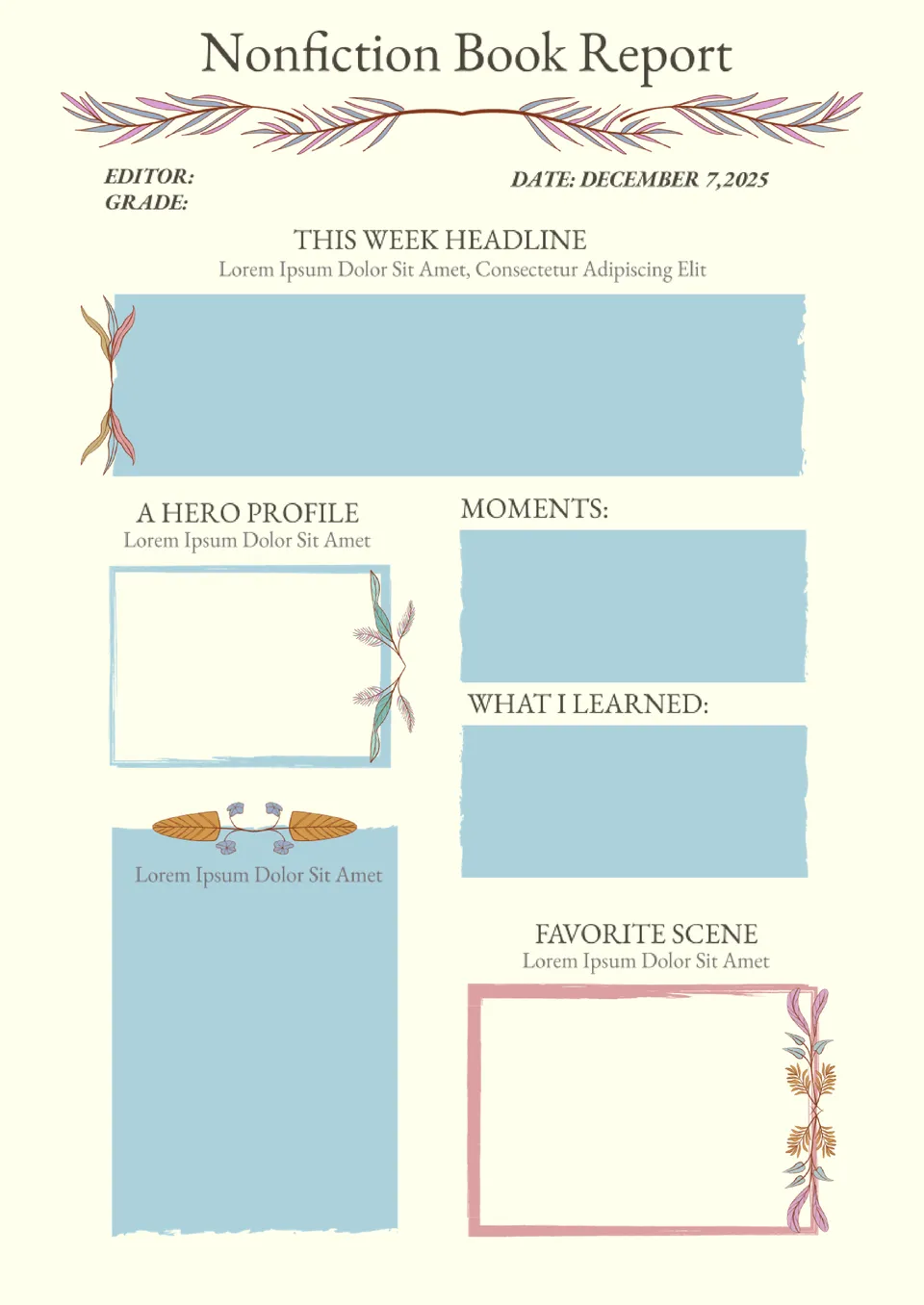
This stylish template is designed to simplify the process of writing an essay. After reading the book, you need to write information about the characters, the main points of the plot, what the story taught you, and your favorite scene in the book in the appropriate blocks.

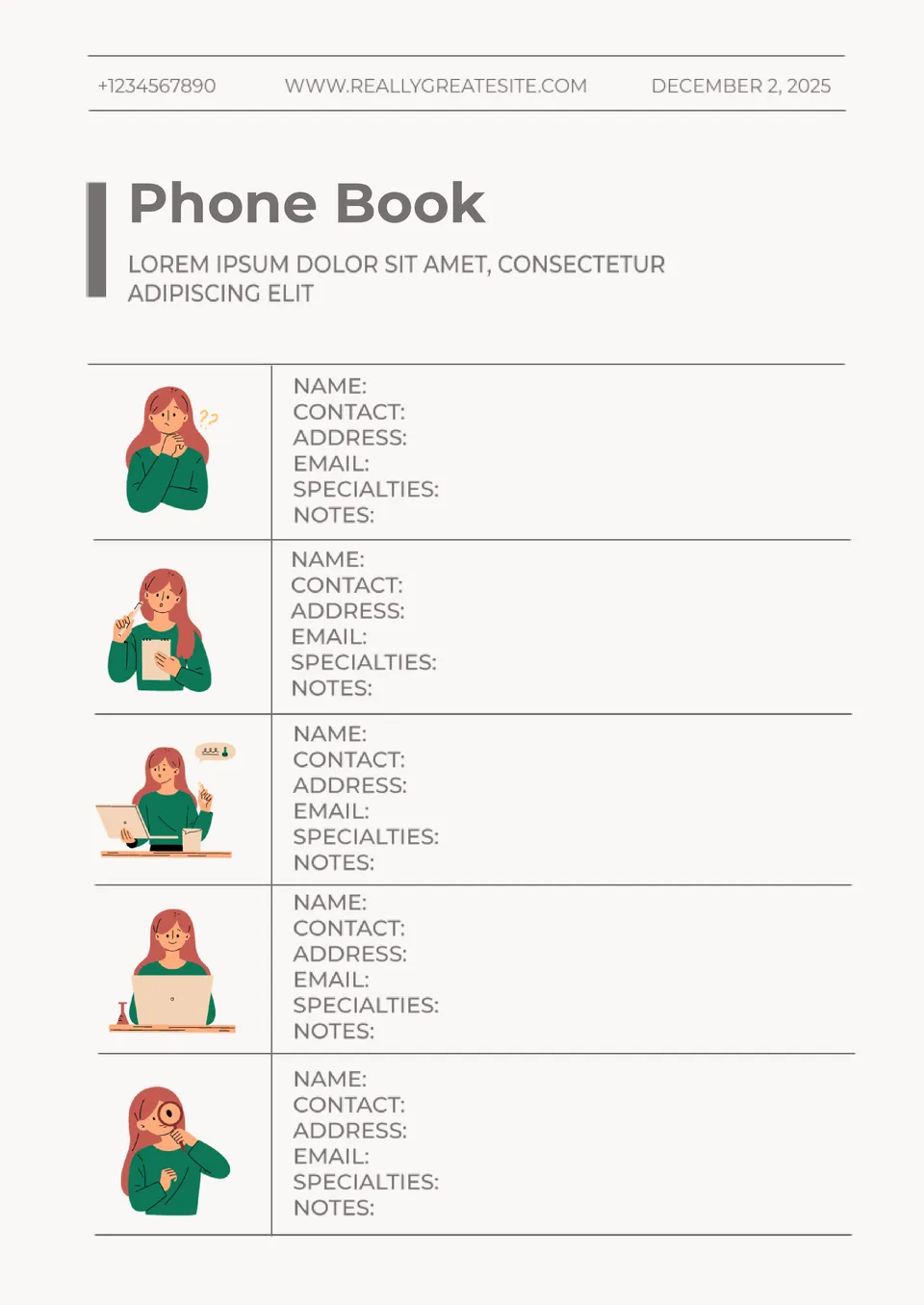
Keep all your important contacts at your fingertips by storing them in an editable Phone Book Template in Google Docs. In addition to the usual data such as name and phone number, there is a place to specify the person’s specialization and your own notes on how to communicate with them.
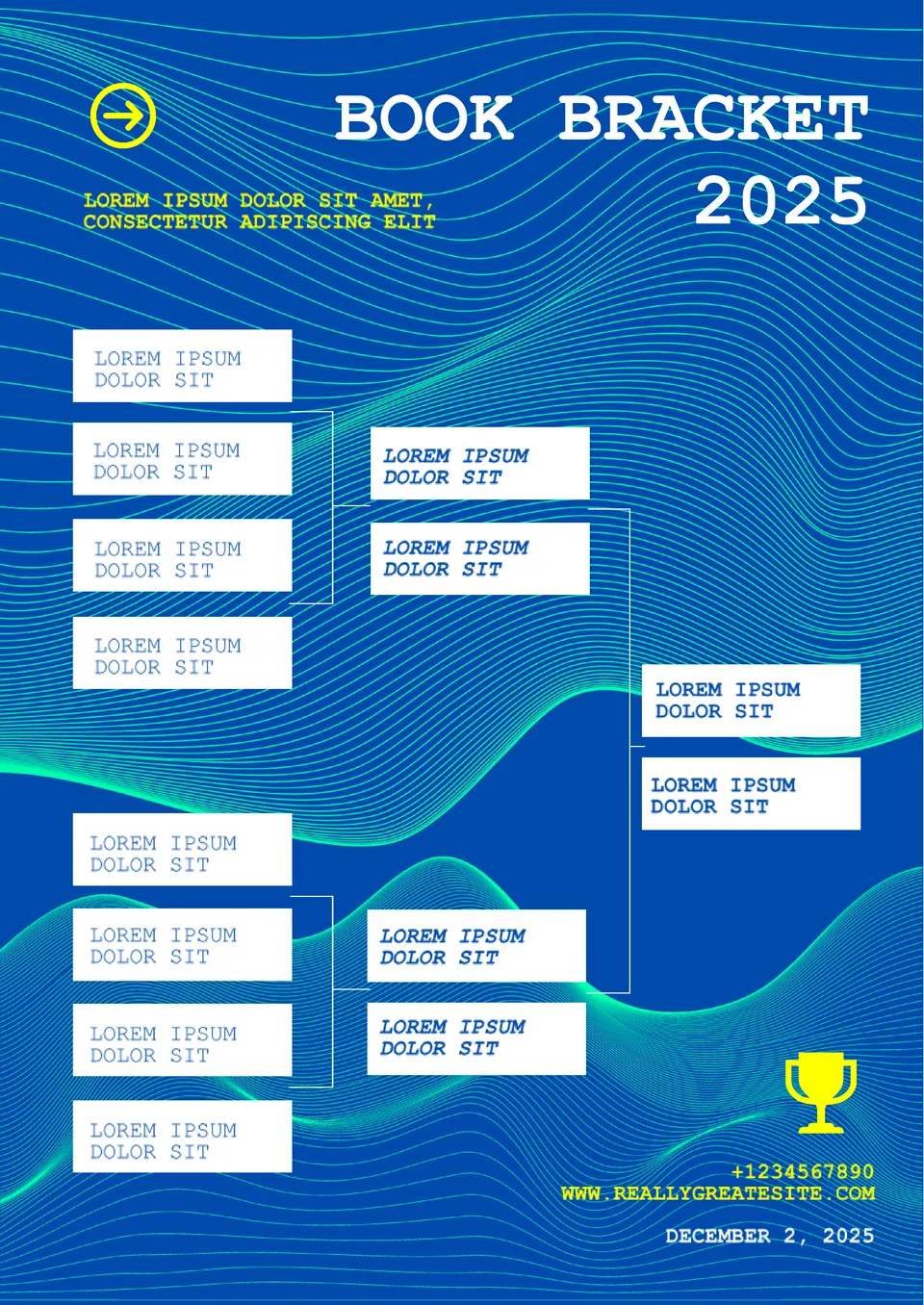
This colorful template will be useful for all fans of sports competitions in the playoff system. It consists of boxes where you should enter the names of teams or athletes competing with each other. Thanks to its universal design in blue tones, the layout will suit any sport.
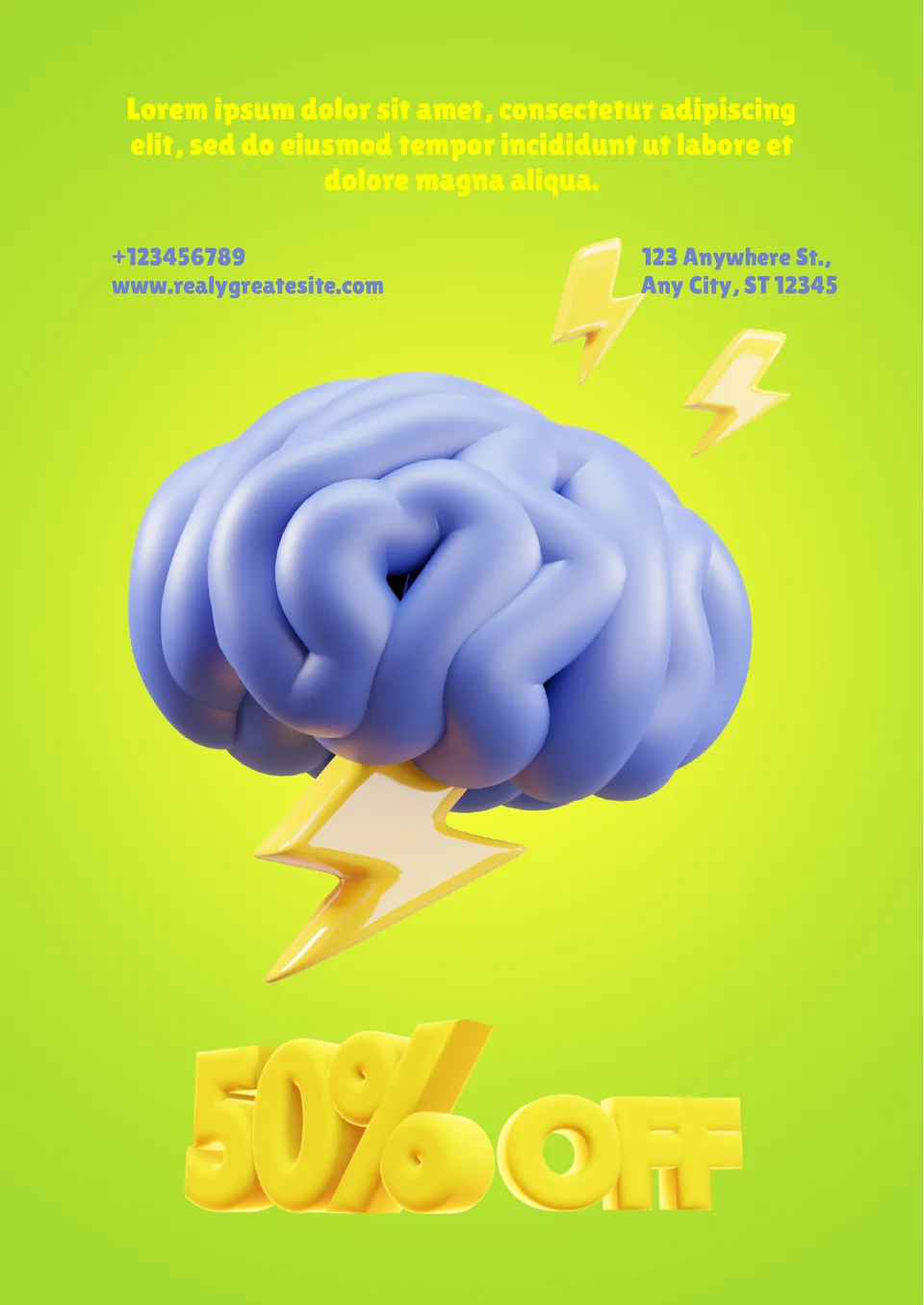
If you want to stand out from the competition, consider the Sales Flyer Template for Google Docs. The neon green color is guaranteed to attract the attention of your customers, and the original design decision to illustrate the sale with a three-dimensional image of a brain with a lightning bolt will consolidate the effect.

A colorful template with an original three-dimensional design will be useful to anyone who organizes a raffle. The main goal of this layout is to get people interested in taking part in the promotion, so try to fit the conditions into a couple of intriguing sentences.
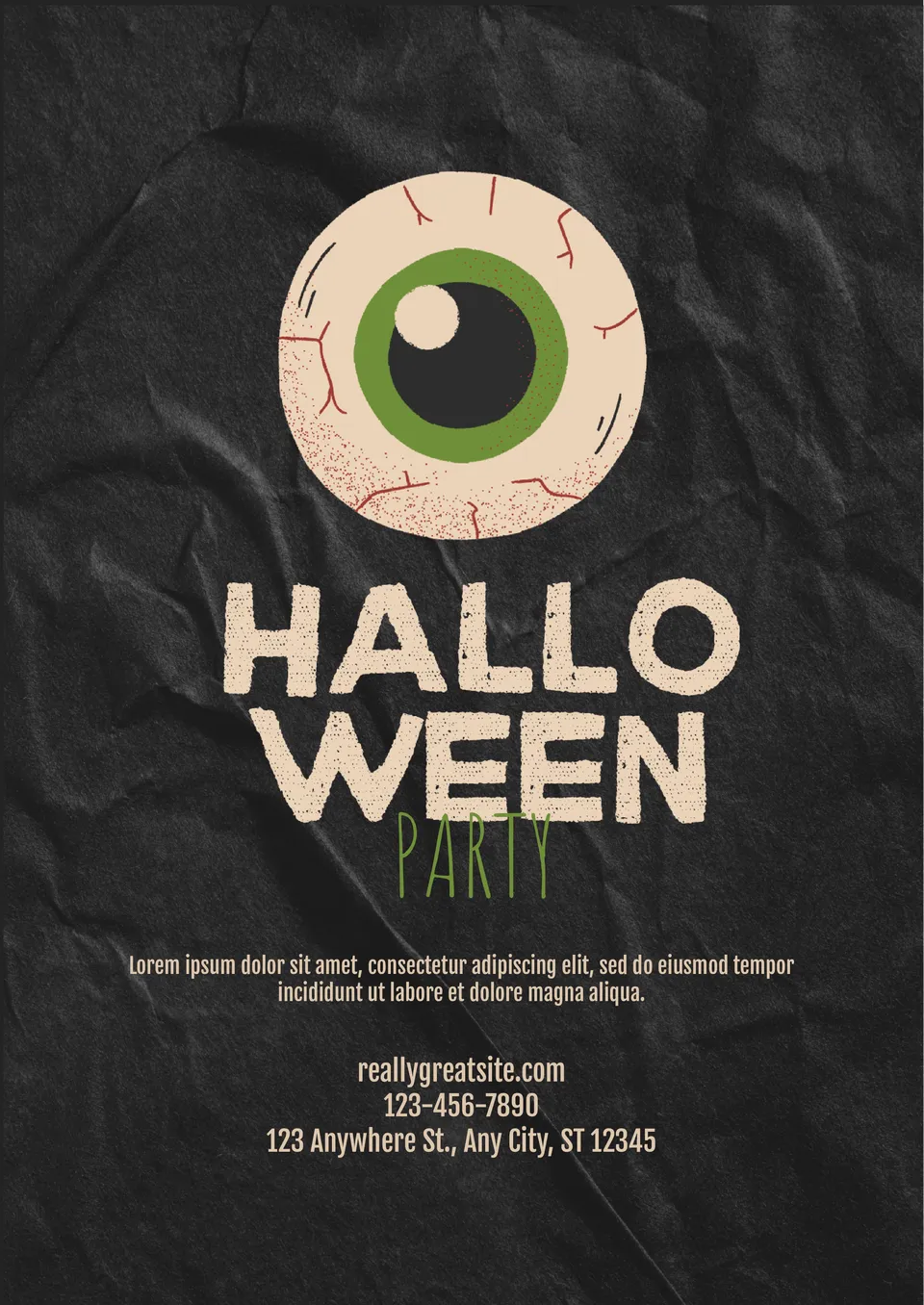
A spooky eye on a black background makes the Halloween Flyer Template for Google Docs a great choice for creating invitations to celebrate the spookiest night of the year. It will come in handy for preparing a costume party, haunted house adventures, themed quests, fairs, etc.
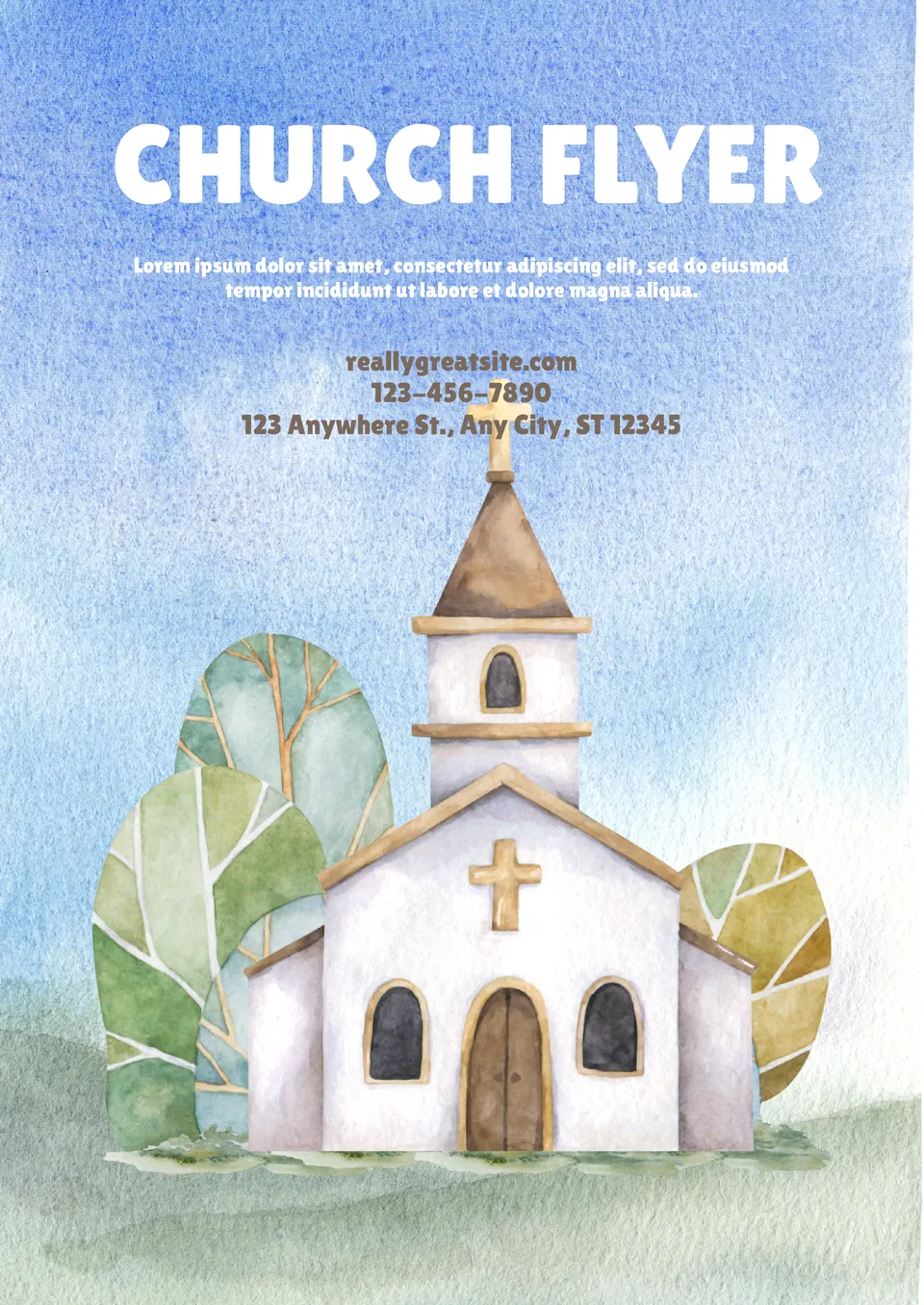
The Church Flyer Template for Google Docs will help you to unobtrusively remind your parishioners about Sunday service, announce a prayer meeting, and invite them to a festive sermon. The soothing blue background and beautifully painted church set a peaceful mood, making you want to visit the temple of God.
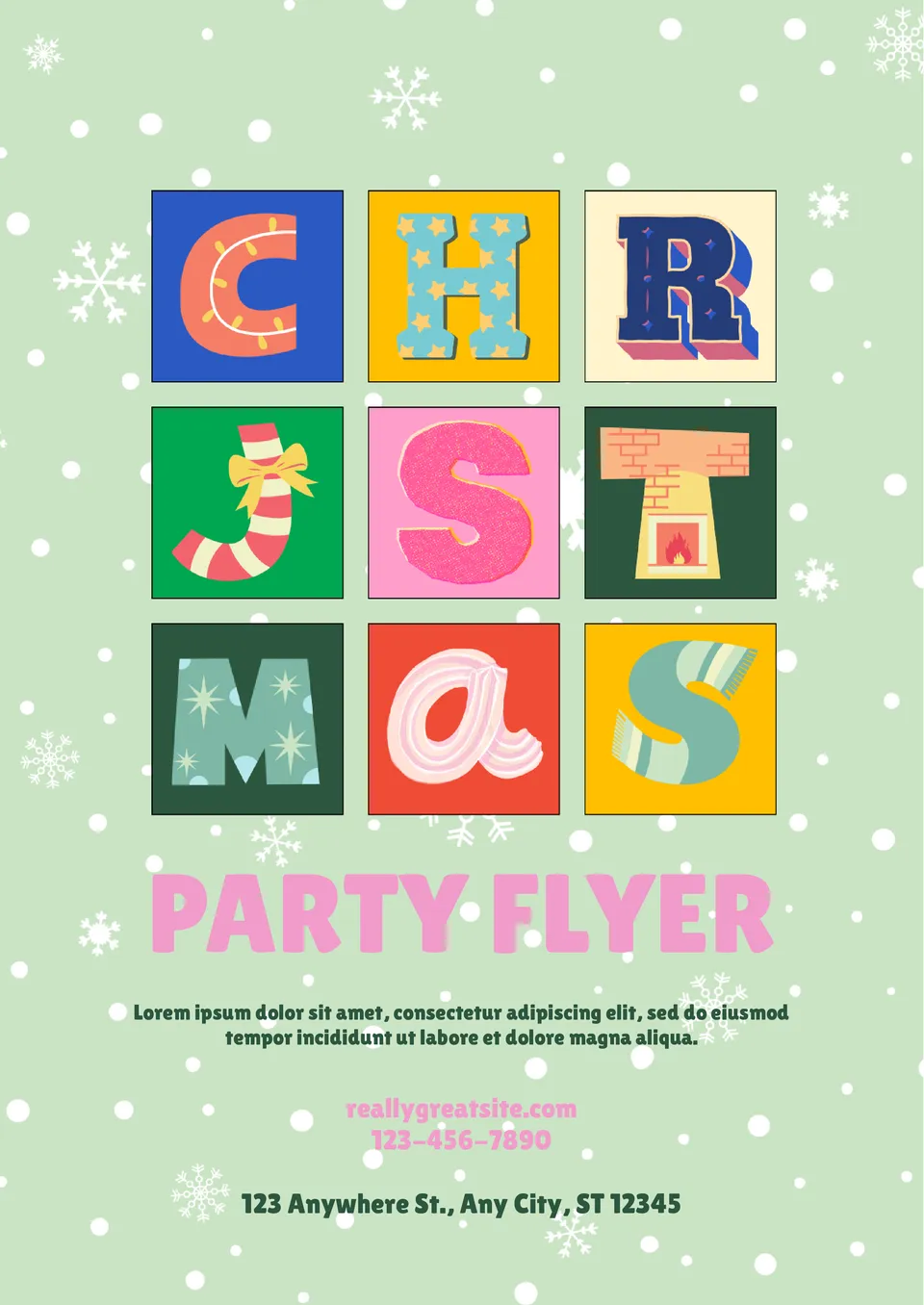
The unusual template is surprising primarily because of the choice of colors: instead of the red background used in Christmas layouts, it is pale green, decorated with small snowflakes. There are nine squares in the middle with letters that spell out the word “Christmas”.
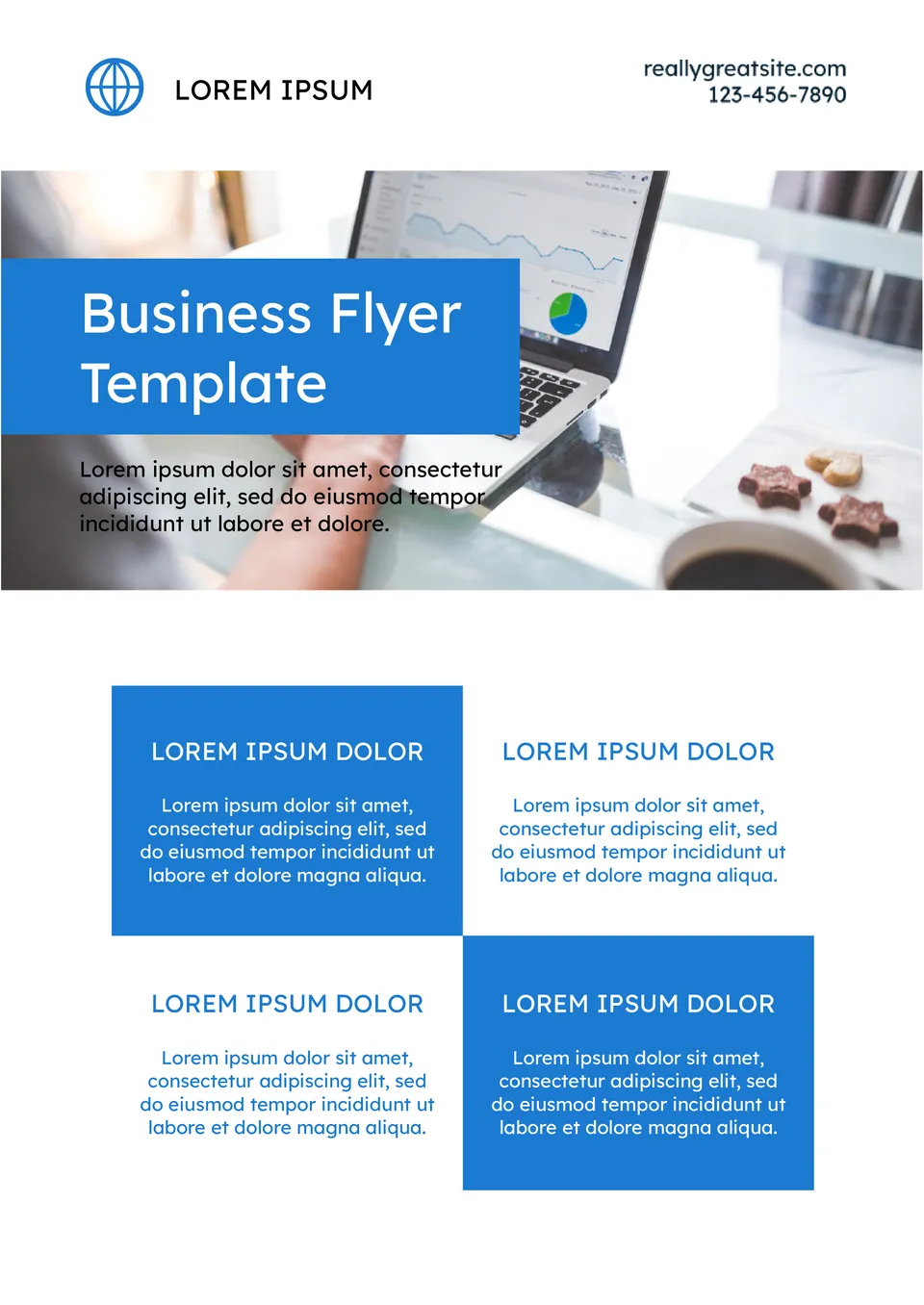
Demonstrate the seriousness of your business with the Business Flyer Template for Google Docs. The strict design in white and blue color scheme will be appropriate for a company of any field of activity.
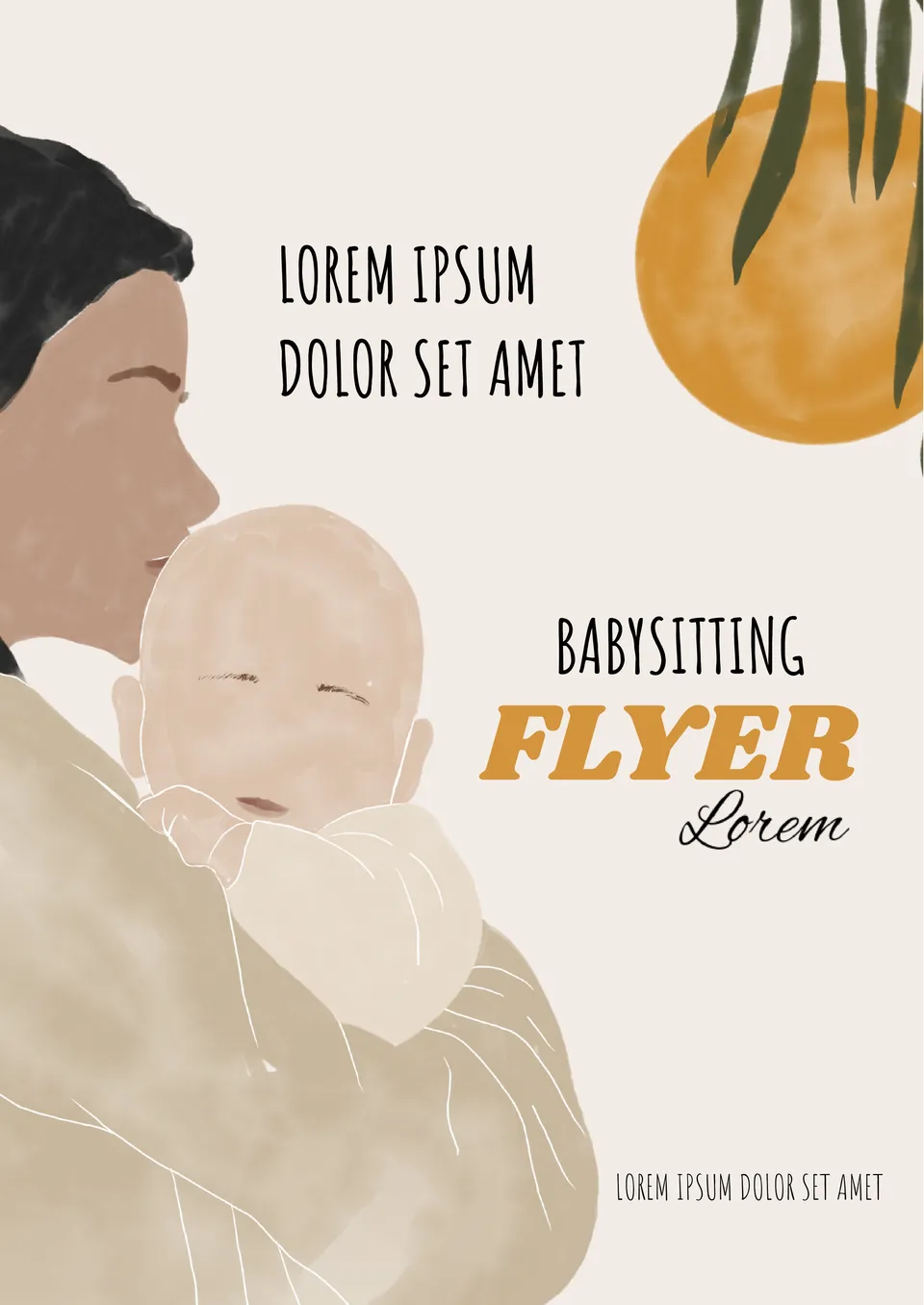
The template will help private nannies or recruitment agencies to find new clients among parents. The minimalist design in neutral beige shades will emphasize your reliability and responsibility.
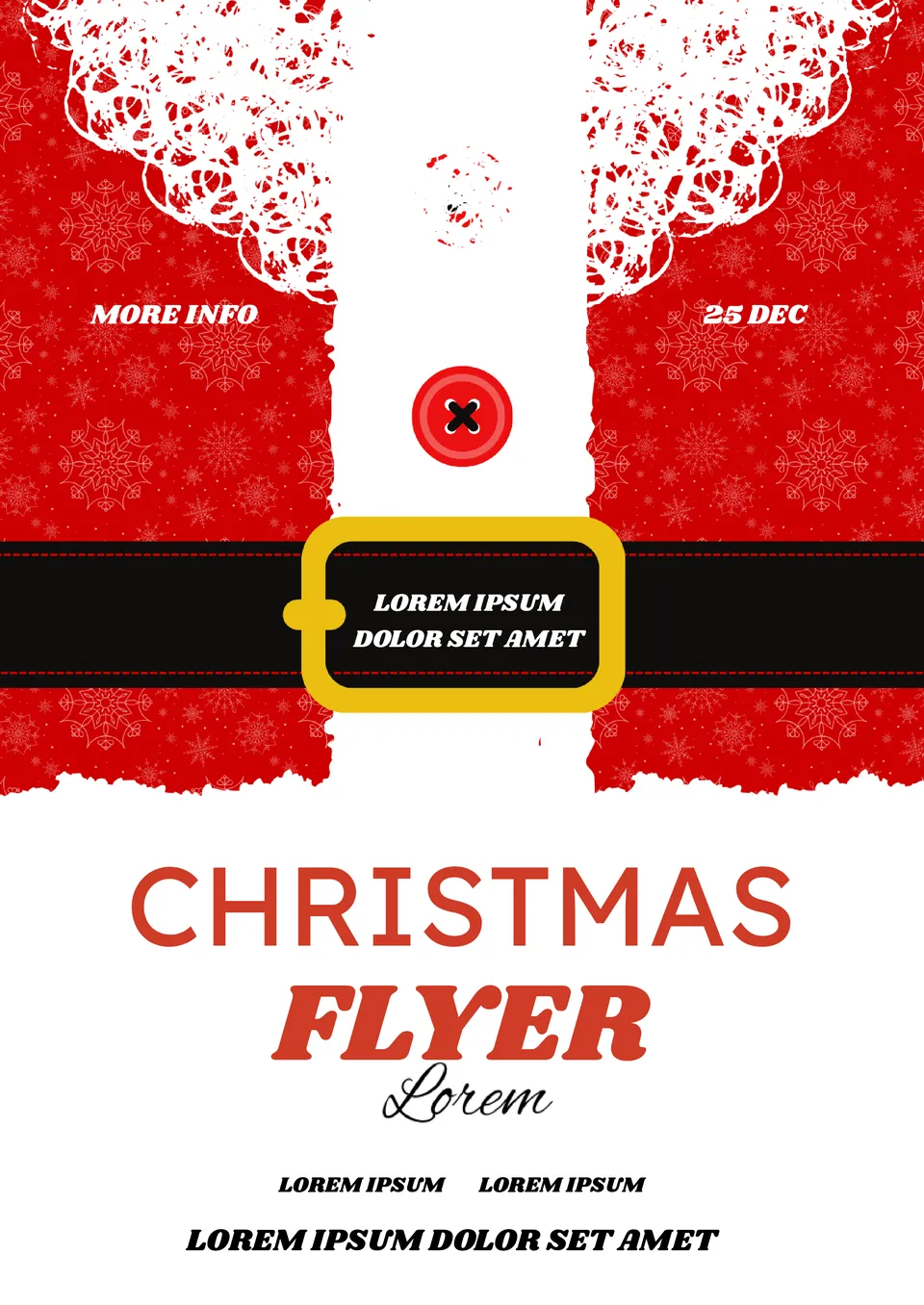
Share the Christmas mood with your customers by preparing atmospheric flyers with a silhouette of Santa Claus. This printable layout is perfect for announcing a holiday sale, announcing a seasonal event, or notifying about a promotion.
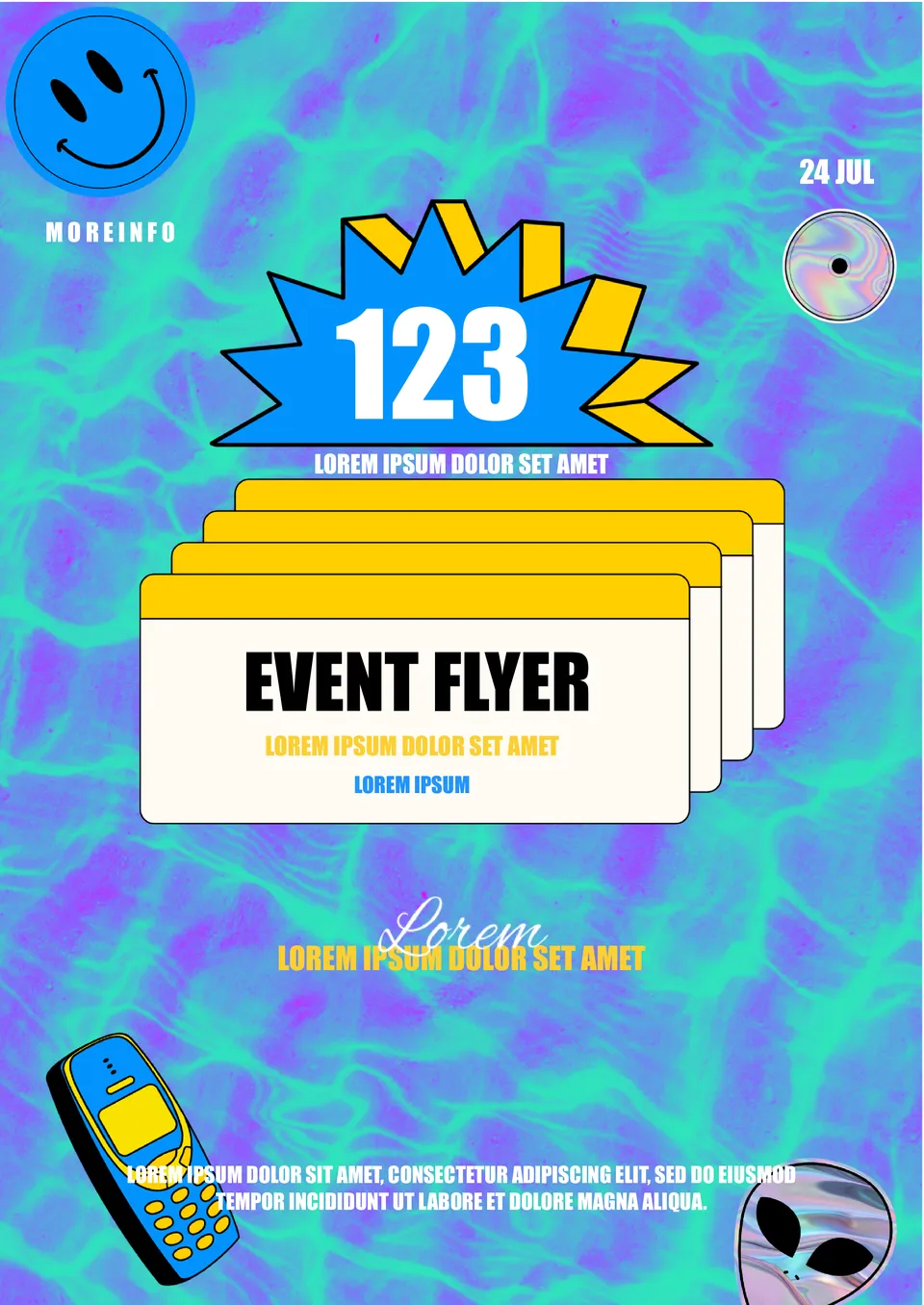
Advertise your event in a fun way using the Cartoon Event Flyer Template for Google Docs. Funny illustrations will grab the attention of your customers and cheer them up. This seemingly lighthearted approach will actually help you stand out from the competition.
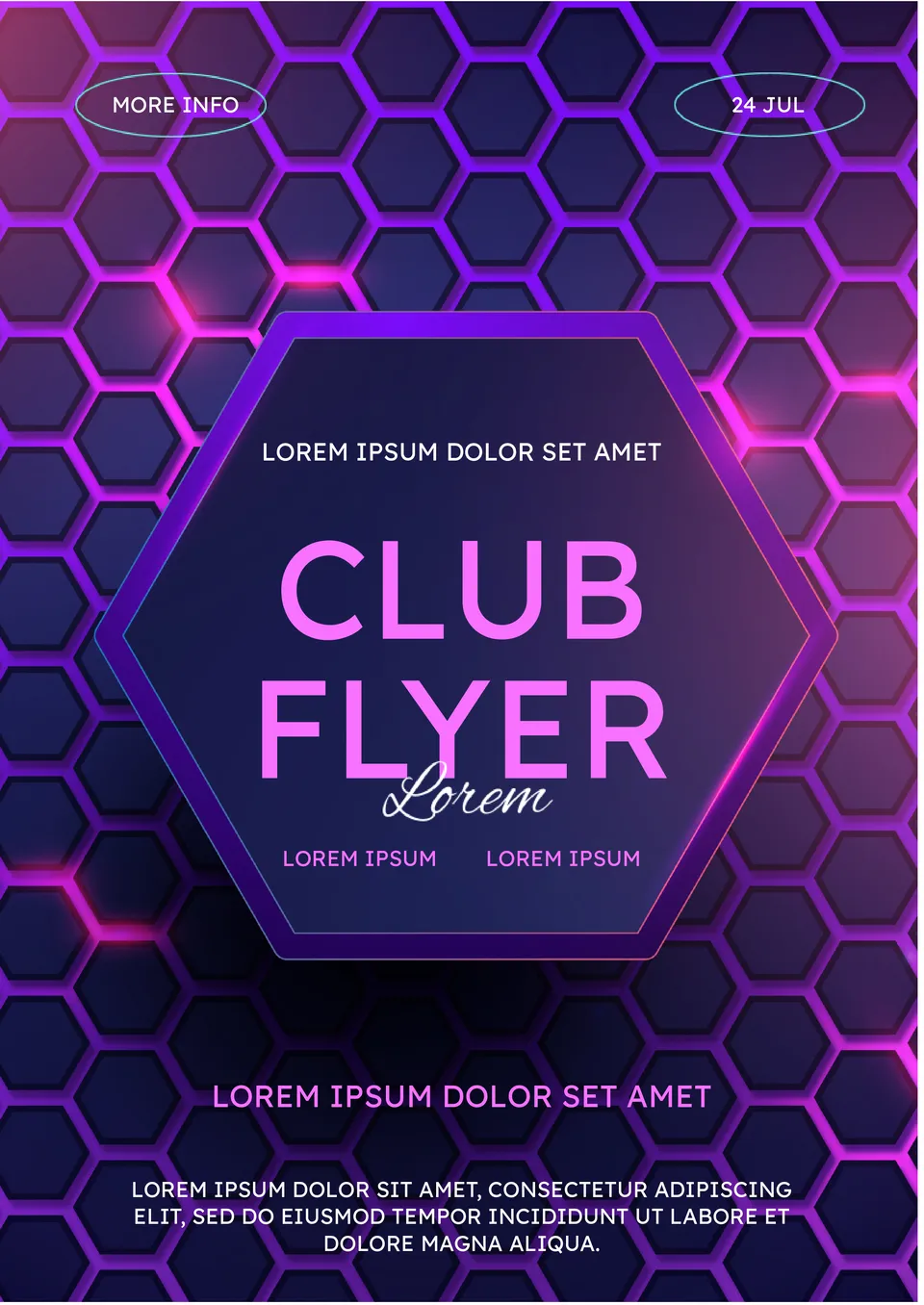
Although the template was created specifically for nightclubs, it will be useful for anyone who is going to organize a party from evening to morning. The bright neon colors and futuristic design will set the recipients of the flyer to attend your event.
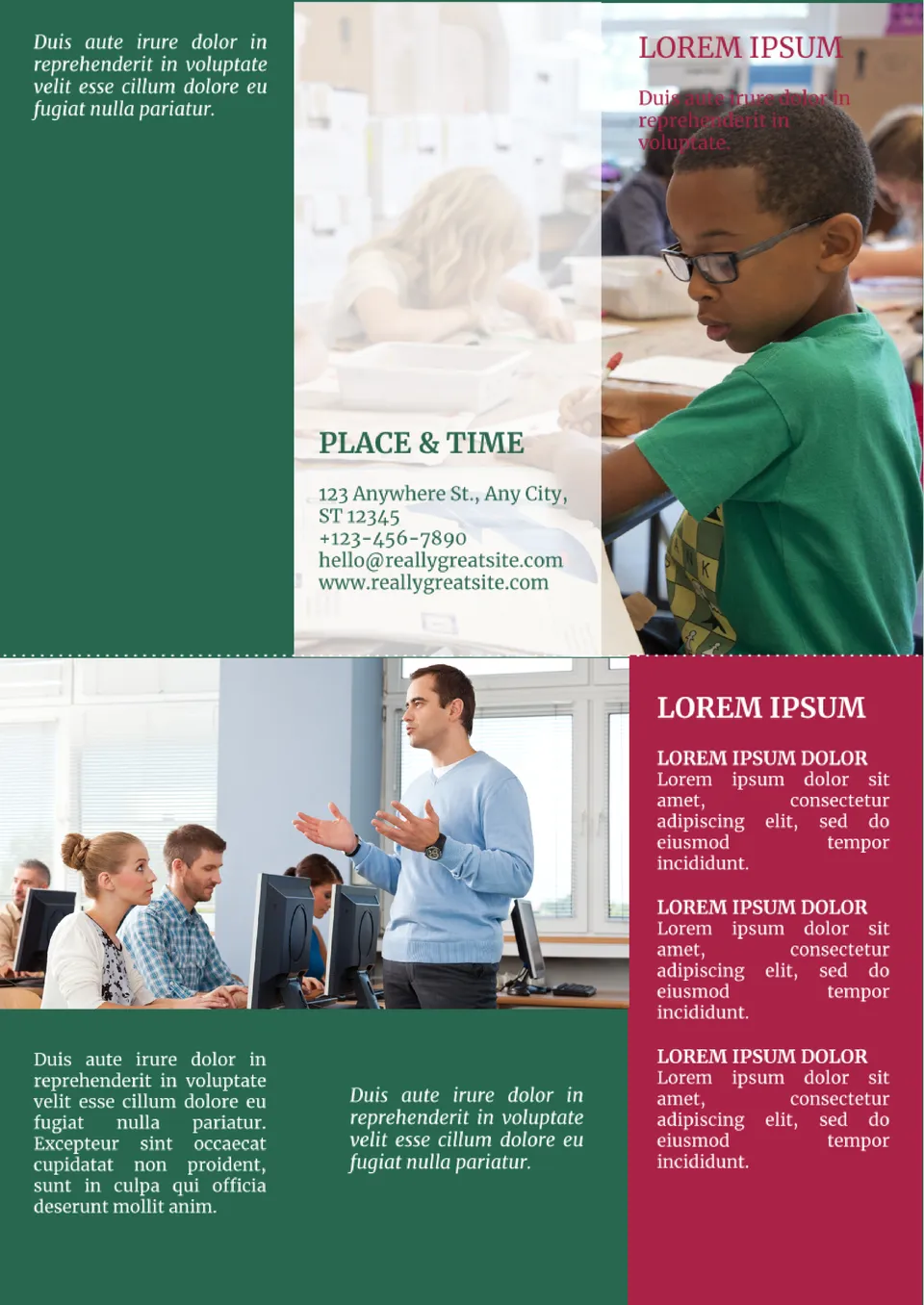
The Education Brochure Template for Google Docs will help you to effectively tell about your educational institution, program, or course. It has space for two large photos and four columns of text, which is enough to list your main advantages.
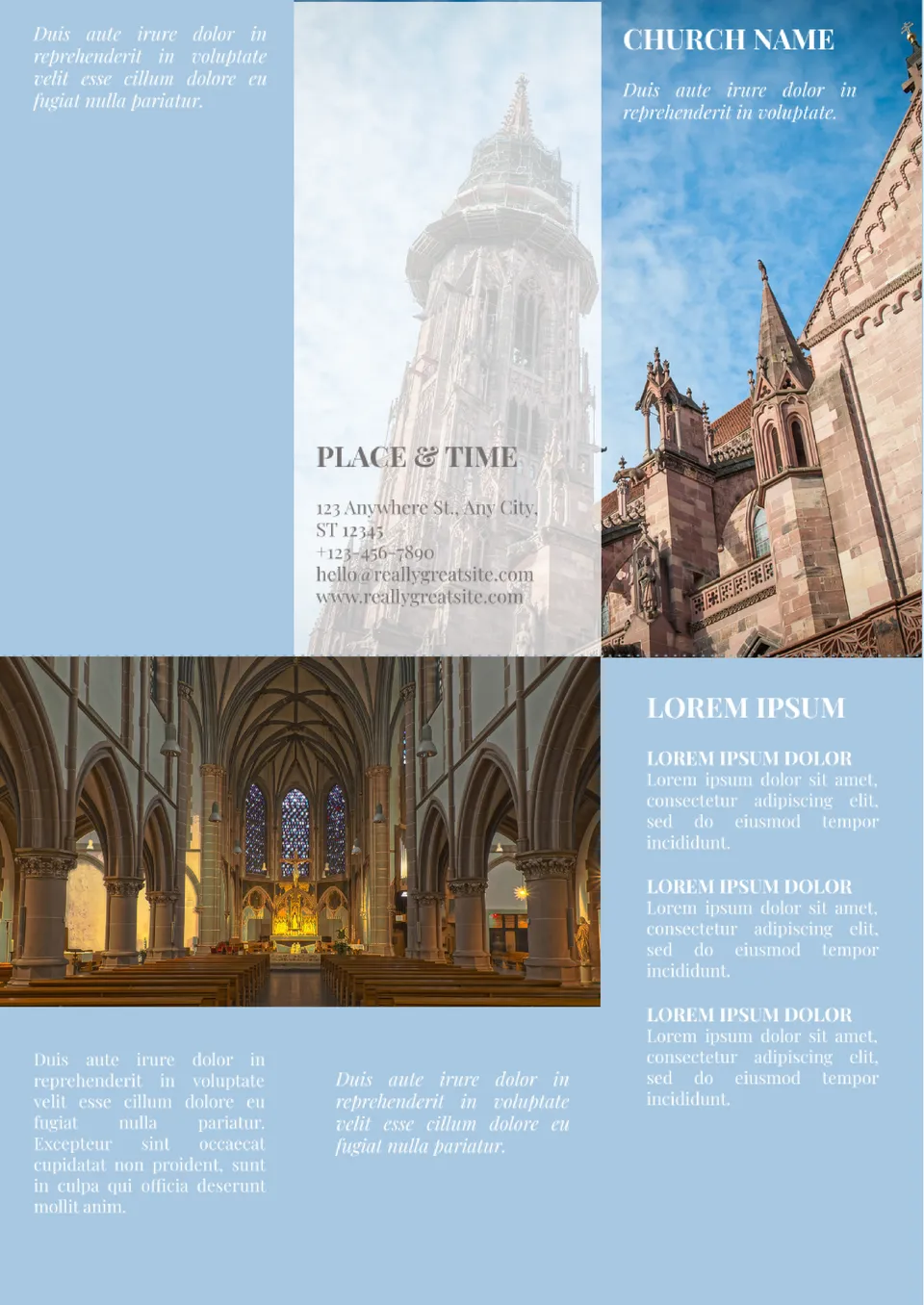
First of all, the template will be useful for churches, monasteries, and other religious institutions. It consists of six parts, in each of which you can add text that will tell about the rich history of the architectural structure.
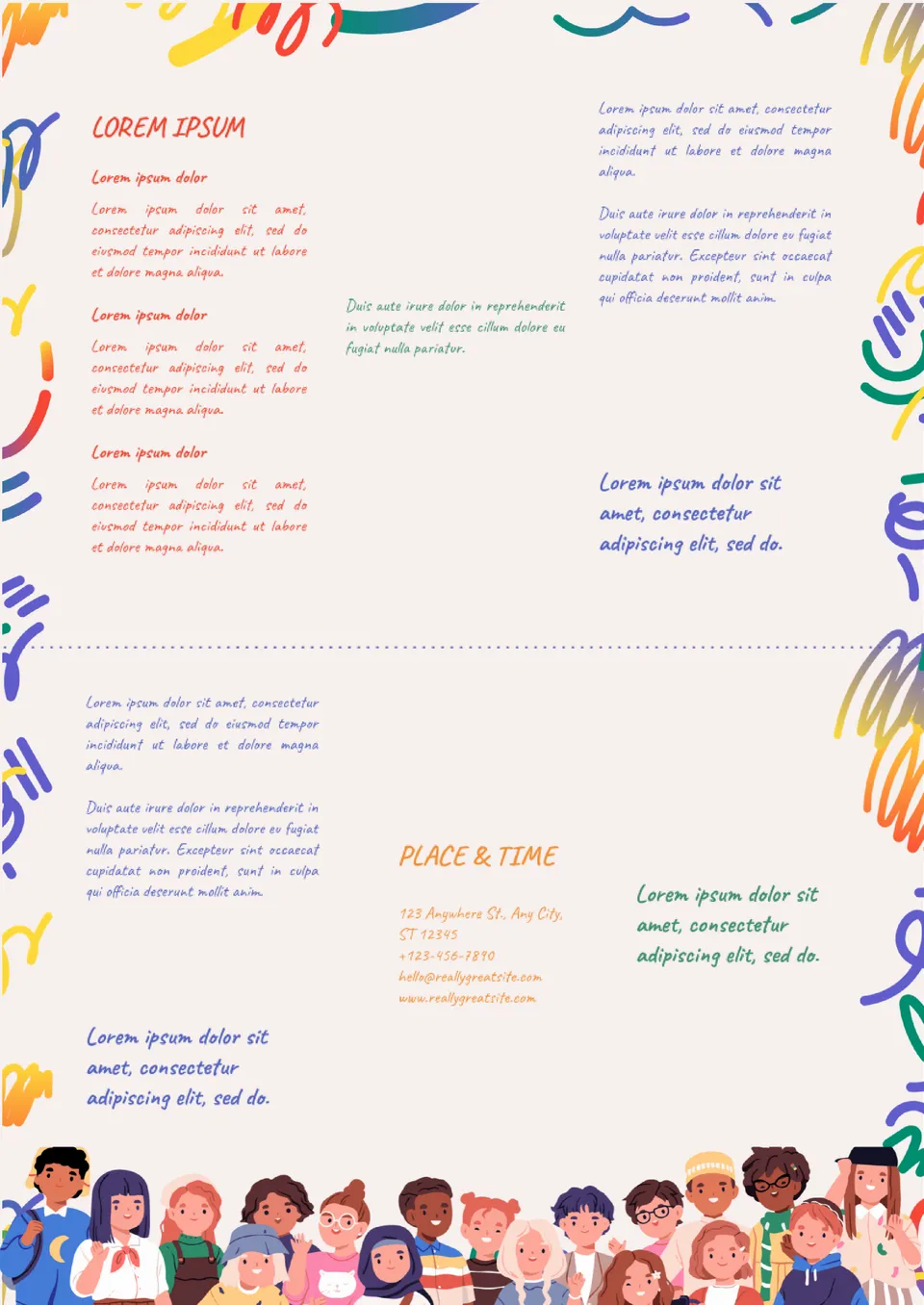
The colorful School Brochure Template for Google Docs was created specifically for educational institutions. The hand-drawn design and images of smiling children set the readers in a positive mood, helping to convey information in a more interesting way.

Choose your preferred social media platform from options like Pinterest, Facebook, Twitter, and more. Share our templates with your contacts or friends. If you’re not active on these social networks, you can simply copy the link and paste it into the one you use.